Storage Growth
Find out what is filling your SharePoint, OneDrive and Teams storage, who is adding it and where you can reclaim space.
What the page is for
Microsoft 365 storage fills up quietly until you run out or have to buy more. This page answers the questions that matter: which folders and sites grew the most in the last day, week or month; which people added the most content; what kinds of files are being added; and which drives, folders and files are the largest overall.
Growth figures come from Microsoft 365 activity (uploads, copies and restores). File counts are complete; file sizes are shown where Microsoft includes them in its records. Removals are shown in the summary.
The Largest storage section is separate: it shows total sizes from a regular inventory scan of your drives, including recycle bins that can be emptied to reclaim space. A chart shows how your pooled storage has been used over time.
What you see
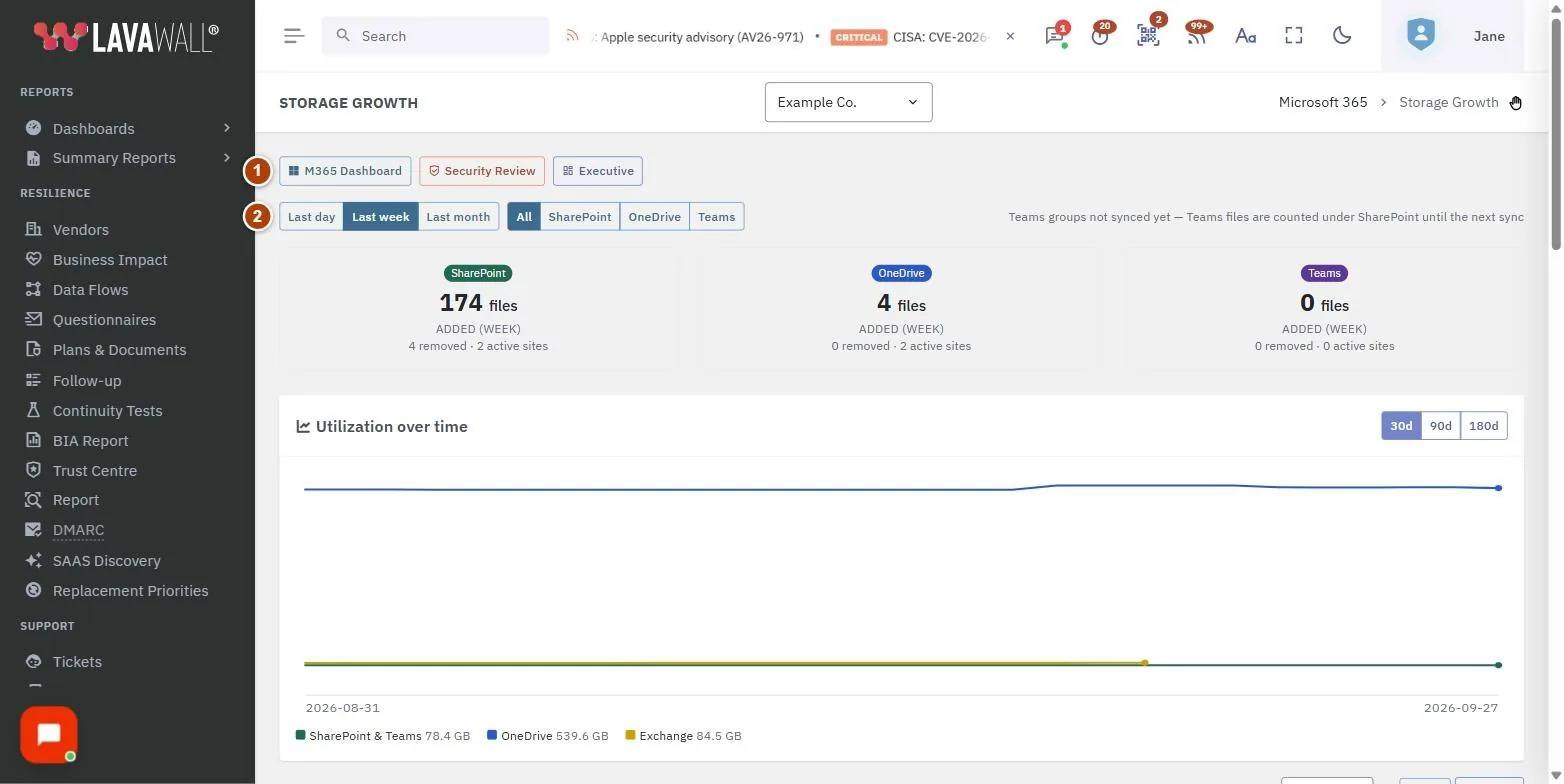
- Quick links: M365 Dashboard, Security Review and Executive.
- Period and workload: Last day, Last week, Last month; All, SharePoint, OneDrive, Teams.
- Summary: for SharePoint, OneDrive and Teams: files added, files removed, active sites and size added.
- Utilization over time: a chart of storage use for 30d, 90d or 180d.
- Largest storage (full inventory): Biggest drives, Biggest folders and Files over 100 MB, each with CSV export, plus a size threshold and Filters.
- Fastest-growing folders: Folder, Added, Files and People. Click a folder for its daily growth and contributors.
- Fastest-growing sites & drives, Top contributors and What's being added (file types).
How to find what grew recently
- Choose Last day, Last week or Last month.
- Choose a workload, or leave All.
- Check Fastest-growing folders. Click a folder to open Folder detail with growth by day and the top contributors.
- Check Top contributors and What's being added (file types) to see who and what is behind the growth.
How to find the largest files and folders
- Go to Largest storage (full inventory).
- Set Files ≥ to a size in MB (100 by default) and click Apply.
- Click Filters to narrow the file list by Users (modifier or drive owner), File size (MB) range, Modified between dates, or Contains (file name or path), then click Apply filters. Click Clear to remove them.
- Click CSV on any of the three lists to export it.
How to reclaim space from recycle bins
- In Biggest folders, look for rows with a Recycle Bin badge.
- The row shows how much space is reclaimable by emptying that recycle bin in Microsoft 365.
Tips
- Drives with a large recycle bin show the amount in amber beside the drive's size.
- The headline figure for each workload is the number of files added, because file counts are always complete.
- A note beside the workload buttons may say Teams files are counted under SharePoint until Teams groups are synced.
- All times on this page are in UTC.
Troubleshooting
- "No file-activity data for this window yet." Growth data appears once Microsoft 365 activity has been imported. Check back later or choose a longer period.
- "No inventory yet." The storage inventory scan has not run for this tenant yet.
- "No utilization history yet." The chart fills in after the next storage scan.
- "No files match the current filters." Lower the size threshold or clear the filters.
Related articles
Still need help?
Search the support centre, or contact our support team and tell us which page you were on.
Names, companies, devices and figures in the pictures are examples. Other product and company names are trademarks of their respective owners.