Privacy Impact Assessments
Assess a system, vendor, transfer or AI tool once, against every privacy law you select, and keep the record an auditor or regulator will ask for.
What the page is for
A privacy impact assessment (PIA) records what personal information a project, system, vendor or transfer handles, what could go wrong for the people it is about, and what you will do about it. Quebec Law 25 already requires one before a new information system or a transfer outside Quebec. Bill C-36, the proposed Protecting Privacy and Consumer Data Act (PPCDA), would require one before transferring personal information outside Canada (s. 57) and before relying on legitimate interest (s. 18). Under PIPEDA, the Privacy Commissioner already expects one for new programs.
Each assessment covers every privacy law you select. You answer each question once, and tags show which laws ask for it. One assessment shows compliance with PIPEDA today and readiness for the PPCDA tomorrow, without doing the work twice.
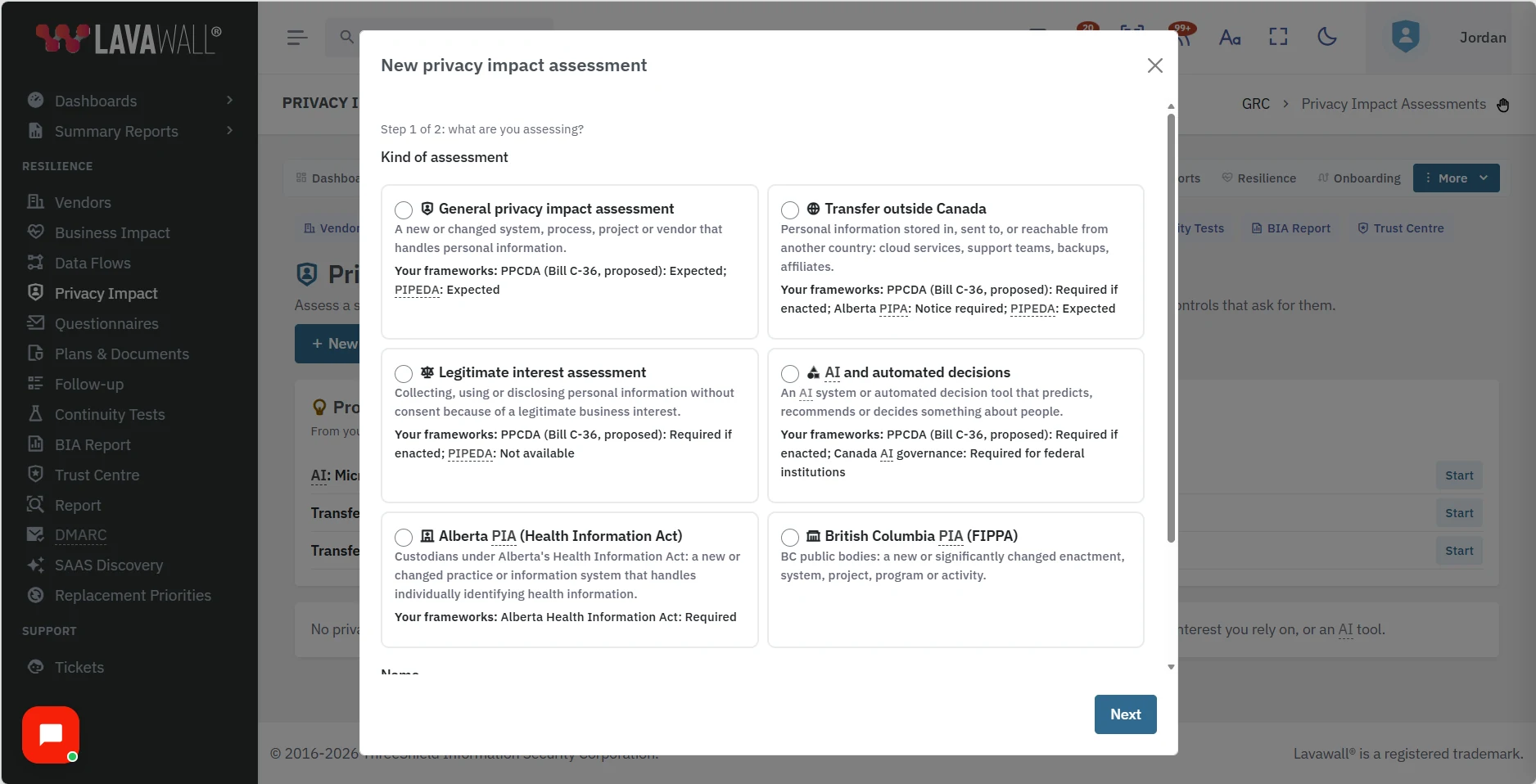
There are six kinds: General privacy impact assessment, Transfer outside Canada, Legitimate interest assessment, AI and automated decisions, Alberta PIA (Health Information Act) and British Columbia PIA (FIPPA). Each kind asks only the questions that apply to it.
An approved assessment counts as evidence for the controls that ask for one, such as PRIV-001 Privacy Impact Assessment and PPCDA-001 Cross-Border Transfer Privacy Impact Assessment, in every framework that maps those controls.
What you see
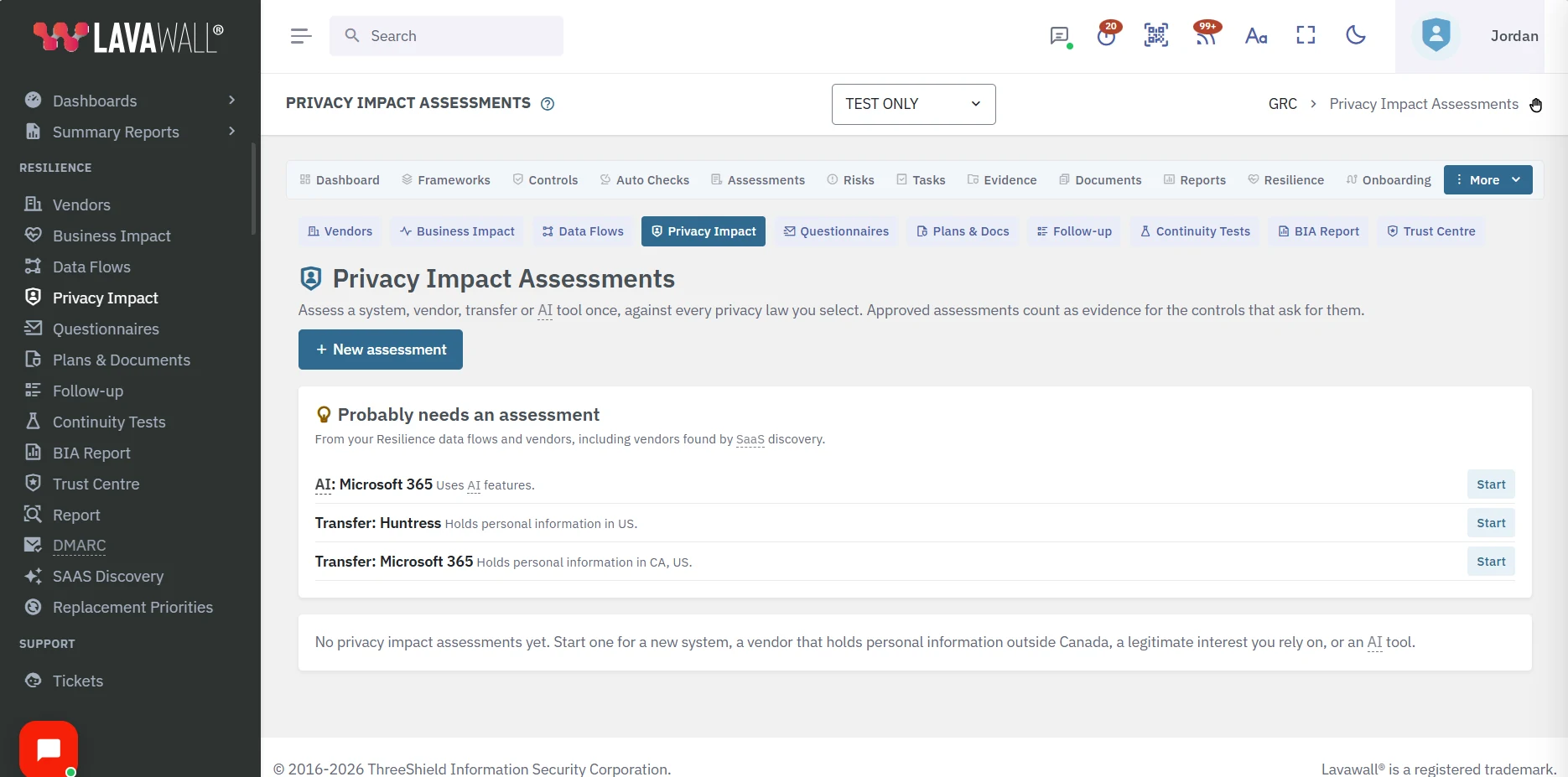
- New assessment: opens the two-step wizard.
- Probably needs an assessment: suggestions from your Resilience data. Data flows that carry personal information across a border, vendors that hold personal information outside Canada, and vendors marked as using AI features appear here until they have an assessment. SaaS discovery finds the AI apps people are using, so you can add them as vendors and assess them. Select Start to begin one already filled in.
- The assessment table: Assessment, Type, Laws covered, Status, Remaining risk, Open risks, Next review and Updated. Select a column heading to sort, and type in Filter to narrow the list.
- The assessment: the laws it covers, the questions in sections (Describe it, Necessity and proportionality, Authority and transparency, Sharing and transfers, Safeguards, Individual rights, and sections for the kind you chose), Risks and mitigations, Conclusion, and Controls this assessment evidences.
How to start an assessment
- Select New assessment, or Start beside an item under Probably needs an assessment.
- Under Kind of assessment, choose the type. Where one of your selected frameworks requires that type, the card says so under Your frameworks.
- Enter a Name and, optionally, the Business process, Data flow or Vendor it is about. Each of these lists is searchable: type part of a name to narrow it. To add one that is not there yet, choose + Add a new ... at the bottom of the list (or type the name first and choose + Add "name"). A short form opens over the one you are in; the new item is selected when you save it, and you can fill in the rest later on its own page. Select Next.
- Under Which privacy laws should this one assessment cover?, the laws you follow in Compliance are already ticked. Tick any others.
- To find laws you might have missed, open Add other privacy laws by location and audience, tick Where are the people? and Who is involved?, and select Tick the laws that apply.
- Select Create assessment. The assessment opens as a Draft.
How to complete an assessment
- Answer each question once. The tags under a question show which of the selected laws ask for it and where, for example PIPEDA Principle 4.4 or PPCDA (Bill C-36, proposed) s. 57.
- Under Risks and mitigations, select Add a risk, describe What could go wrong, and for whom?, set Likelihood and Impact on people, and record the Mitigation, Owner, Due date and Status. Select Save risk.
- Under Conclusion, choose Risk before mitigation, Remaining risk and the Decision (Proceed, Proceed with conditions or Do not proceed), and write the Reasons and conditions.
- Enter the Owner and Next review date, and select Save.
- When it is ready, select Send for review.
How to approve an assessment
- Open the assessment and check the answers, risks and conclusion.
- Select Approve. The decision and the remaining risk must be recorded first.
- If you wrote the assessment, someone else has to approve it, unless your administrator allows self-approval in Compliance Settings. Then you are asked for a reason of at least ten characters, which auditors can see.
- Once approved, the next review date is set to one year from today unless you chose one.
How to print, retire or delete an assessment
- Select Report for a printable copy. Use your browser's print dialog to save it as a PDF.
- Select Retire when the system or transfer no longer exists. A retired assessment stays on record but no longer counts as evidence. Select Reopen to bring it back as a draft.
- Select Delete to remove a draft and its risks permanently. Only drafts can be deleted.
Where else assessments appear
- Controls: a control that a PIA evidences shows a Privacy impact assessments panel listing yours, with Start an assessment. See Control Detail.
- Data Flows: a flow that carries personal information across a border has a shield button to start a transfer assessment, or to open the one it has. See Data Flows.
Tips
- Where two laws set different rules, such as COPPA's under-13 rule and the PPCDA's under-18 definition of a child, record both and design to the stricter one.
- The PPCDA is a bill, not yet law. Including it now means the same record is ready if it passes, with no second assessment.
- Link the assessment to the data flow or vendor it is about, so the suggestion disappears and the link shows up on the Data Flows page.
- Changing an approved assessment, or one of its risks, sends it back to In review. Approve it again once the change is checked.
- Plan a review at least once a year, and whenever the system, vendor or countries involved change.
Troubleshooting
- "Privacy impact assessments are not set up yet."
- Your organization's update to this feature has not finished. Ask your administrator, or contact our support team.
- "You wrote this, so someone else has to approve it."
- Ask a colleague whose compliance role includes approving. An administrator can allow self-approval with a reason in Compliance Settings.
- "Record the decision and the remaining risk, and save, before approving."
- Fill in Remaining risk and Decision under Conclusion, then select Save.
- "Only a draft can be deleted."
- Select Retire instead. The record stays for your audit trail.
- A law I need is not in the list.
- The list shows the privacy laws in the Lavawall framework catalogue. Tell our support team which law you need.
Related articles
Still need help?
Search the support centre, or contact our support team and tell us which page you were on:
- Chat now: use the chat button in the bottom-right corner of this page to reach our team right away. Where cookie consent is needed, the chat starts after you accept (cookie settings).
- Email: send our support team a message through the contact page. It goes straight to a person.
- Phone: AB: 1-403-538-5053, BC: 1-778-731-1339, ON: 1-289-724-8829, US: 1-406-988-7333, UK: +44 20 3695 9786.
Names, companies, devices and figures in the pictures are examples. Other product and company names are trademarks of their respective owners.