SaaS Discovery
Find the cloud services and apps your people actually use, including AI tools, so nothing sensitive runs outside your view.
What the page is for
SaaS Discovery builds an inventory of the online services used at a company. It finds them in two ways: by scanning email for signs of account activity with a service (sign-up, invoice and notification messages, for example), and by listing apps connected to your Microsoft 365 or Google Workspace tenant. Built-in Microsoft apps are left out.
Each app is grouped into a category and flagged by priority. Critical-priority categories include AI tools, electronic health records and CRM systems, where company data is most likely to end up. You can mark one app per category as your preferred tool, so anything else in that category stands out as a non-preferred tool.
Connected apps from Microsoft 365 and Google also feed the Vendor Inventory in the Resilience section.
What you see
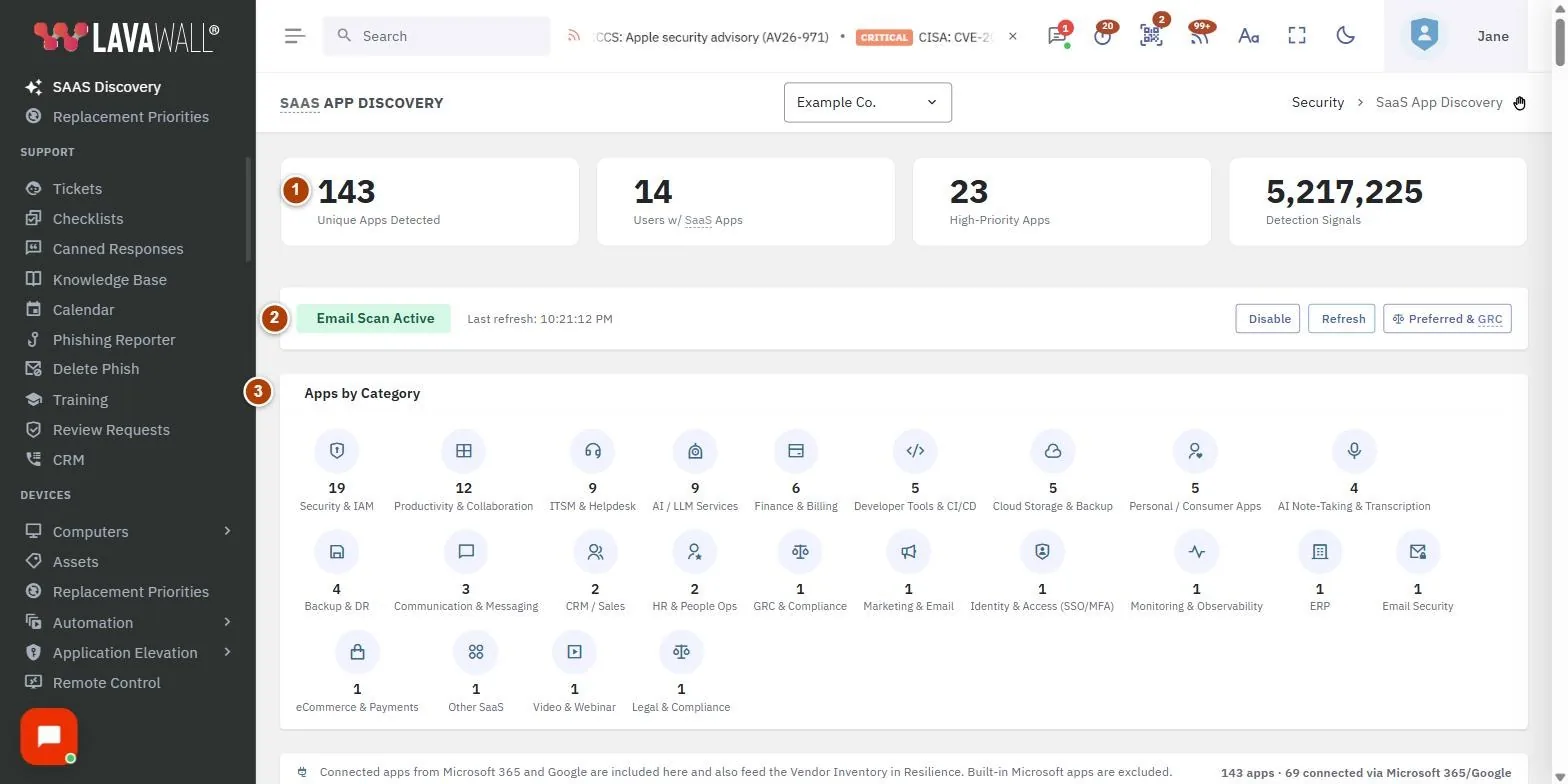
- Summary cards: Unique Apps Detected, Users w/ SaaS Apps, High-Priority Apps, Detection Signals and, once you set preferred tools, Non-Preferred Tools.
- Scan status: whether Email Scan is Active or Disabled, the last refresh time, and Enable Scanning or Disable, Refresh and Preferred & GRC.
- Apps by Category: a count of apps in each category.
- By App / By User views: with Export CSV and filters for category, source, priority, last seen, detection confidence and a search box.
- Apps table: App, Category, Users, Signals, Source, First Seen, Last Seen and Preferred, with buttons to see users and, for Microsoft 365 apps, open the app's permissions.
- Users: for one app, each user with the signal that detected it and buttons to confirm or reject it.
How to use SaaS Discovery
How to turn on email scanning
- Select the company in the company picker.
- Click Enable Scanning and confirm.
- A progress banner shows the initial scan. Apps appear as they are found; click Refresh to update the list.
- To stop, click Disable and confirm.
How to review apps
- Stay on By App.
- Filter with All Categories, All Sources (Email discovery, Microsoft 365, Google Workspace, Connected apps), All Priorities, All Time and All Detections (Confirmed Use or Possible Partner/Vendor), or type in Search apps….
- Click a column heading to sort.
- Click the users button on a row to see who uses the app and how it was detected.
How to confirm or reject a detection
- Open the users list for an app.
- For each user, click ✓ if they really use the app, or FP (false positive) if the email came from a partner or vendor using that app rather than the user's own account.
- Click reset next to a verdict to undo it.
How to set a preferred tool
- In the Preferred column, click the button to set an app as preferred for its category.
- A star marks the preferred tool. Other apps in the same category show a warning icon and are counted in Non-Preferred Tools.
- To remove it, click the clear button next to the star and confirm. Use Preferred & GRC to manage preferred tools and compliance links in one place.
How to see apps per person
- Click By User.
- Filter with Search users… or a category.
- Click the apps button on a row to see that person's apps, with first seen, last seen and signals.
- Click Export CSV to download the current view.
Tips
- Source badges show where an app was seen: Email, Microsoft 365, Google, and Admin consent when an administrator approved the app for everyone in the tenant.
- Confirmed means a specific account signal, a tenant connection or reviewer feedback backs the detection. Unconfirmed means only a broad email signal, which may be partner or vendor use.
- An AI badge marks AI apps. A Review badge carries a note explaining why the app needs a look.
- Start with the Critical (LLM/EHR/CRM) priority filter.
Troubleshooting
- "Email Scan Disabled". Scanning is off for this company. Click Enable Scanning.
- "No apps found". The scan has not found anything yet or your filters exclude everything. Clear the filters, or wait for the initial scan to finish.
- Connected apps are missing. They come from Microsoft 365 or Google Workspace, so connect the tenant first.
- An app shows for a user who never used it. Mark it FP so future results improve.
Task guides that use this page
Related articles
Still need help?
Search the support centre, or contact our support team and tell us which page you were on.
Names, companies, devices and figures in the pictures are examples. Other product and company names are trademarks of their respective owners.