Remote support & Windows administration
Windows admin tools, run remotely the way they should’ve been designed.
Lavawall® is a multi-tenant RMM and remote support platform, and its remote support gives your techs more than a remote-control button: an Admin Workspace where they work with administrator rights while the user keeps working undisturbed, 50 Windows admin tools each one click away with administrator rights, on-screen drawing, automatic cursor hand-off, file transfer, plain-language restart reasons, and near-instant full-colour PowerShell, even from a phone. All in the browser, with nothing to install on the technician’s side.
Start free, no credit card See the Admin Workspace
Admin Workspace · on-screen tools · no install · never interrupts the user · session logging
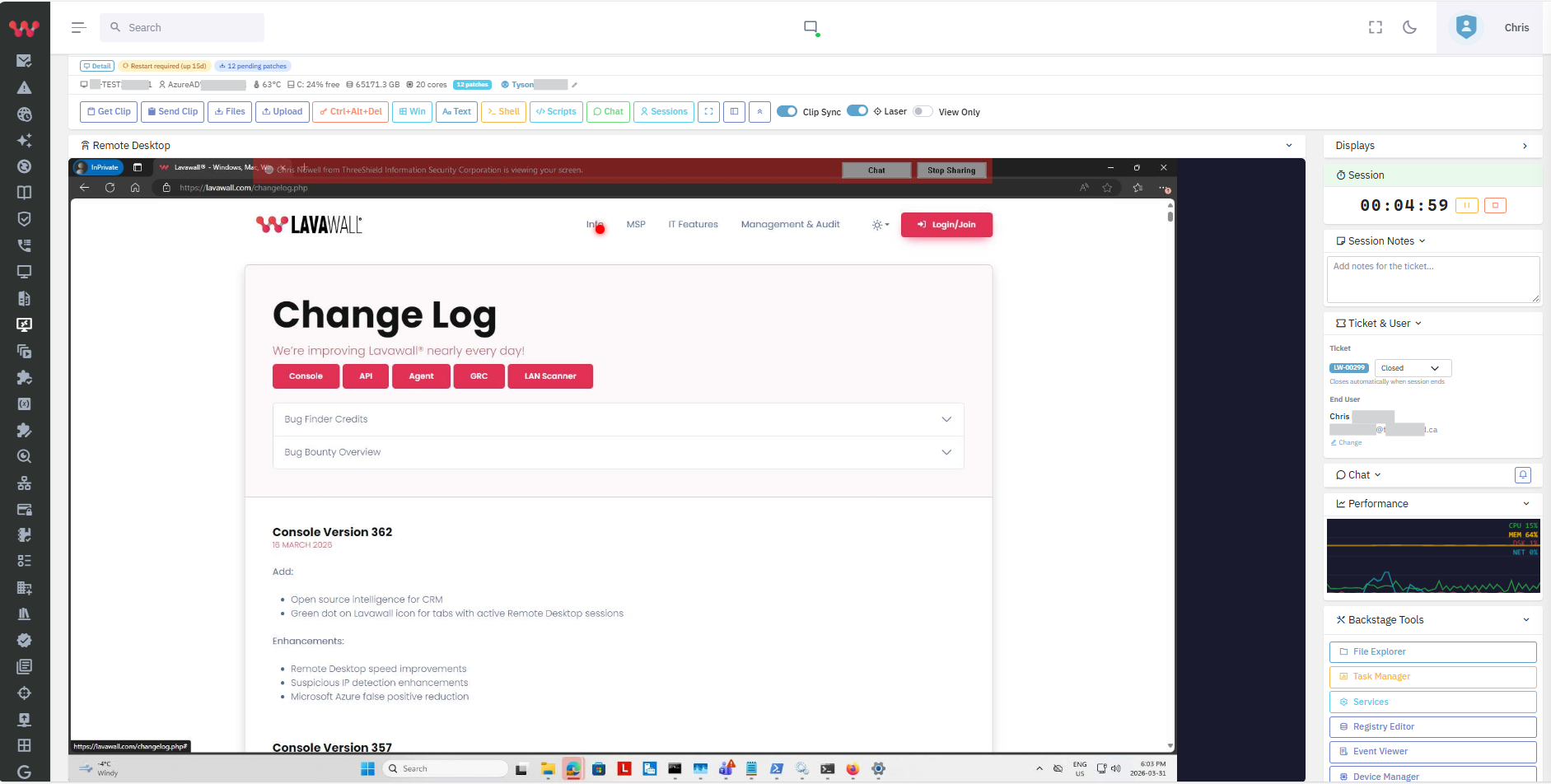
The problem: remote tools stopped growing up
Working on a machine without taking over the user’s screen is a great idea. When the tool can’t do the job, techs bail out to a full remote desktop, interrupt the user, and click around a slow screen to do things Windows already does well locally.
Lavawall® takes a different approach. Its Admin Workspace extends the real built-in Windows administrator apps and surfaces the data you always wanted, while the user keeps working undisturbed, and without installing anything.
The user always knows, and stays in control
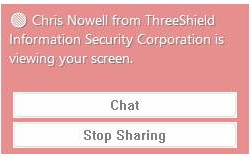
Trust is the whole game in remote support. A translucent, repositionable notification box stays on the user’s screen so they always know when someone is accessing their computer, and they can move it wherever it’s comfortable. One click lets them start a chat with the technician, or regain their privacy the instant they want to.
Interactive sessions ask for consent first, everything is logged, and the box makes the whole experience feel safe instead of spooky. That is the difference between a client who trusts your team and one who wonders what just happened.
In-session, everything a tech needs is a glance away
Fix the problem, teach the user, and close the ticket without ever leaving the session.
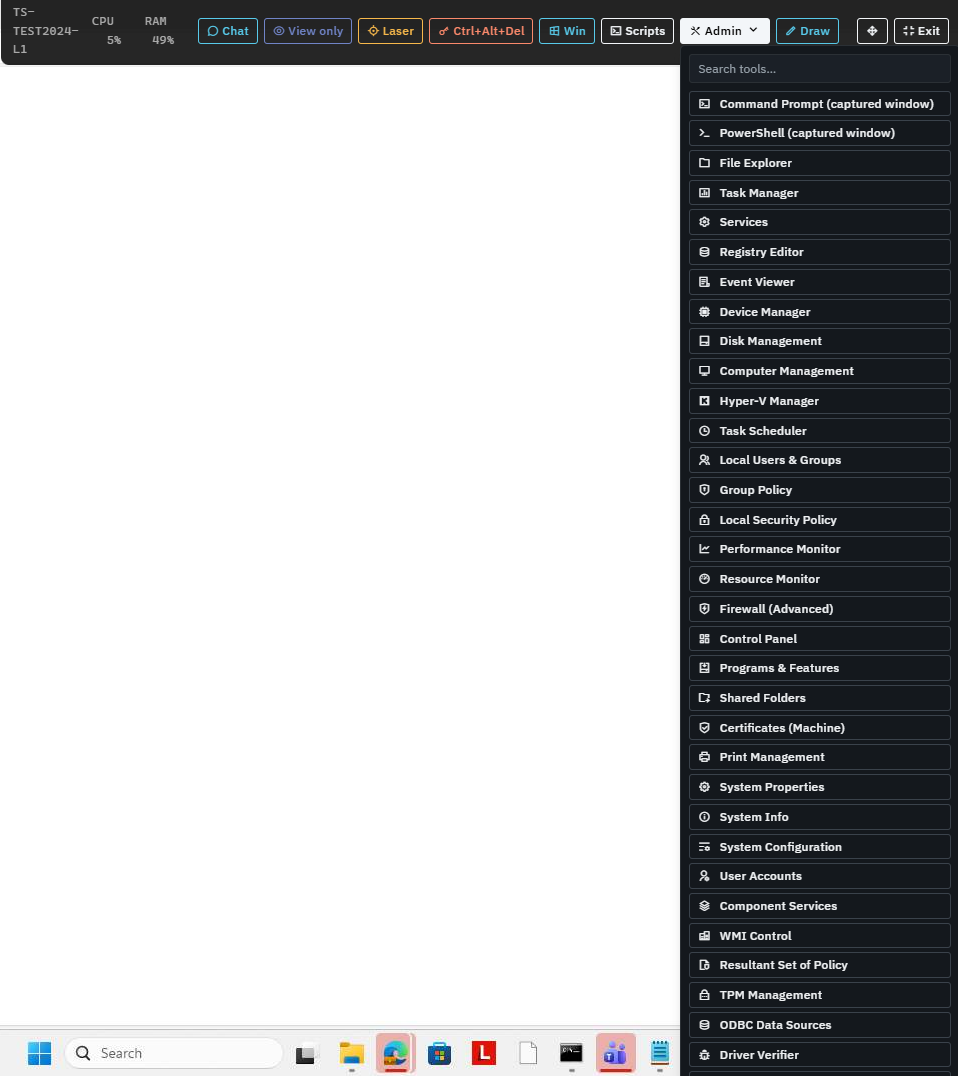
A menu that stays out of your way
In full-screen mode a simple menu auto-hides and can sit on the top or a side, always out of the way, with quick access to the most common admin tools and the ability to launch scripts on the computer without leaving full-screen.
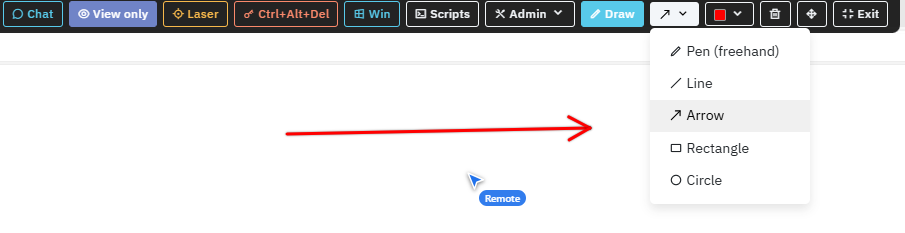
Draw on the screen to teach
Highlight concepts and point things out by drawing right on the user’s screen. The support session becomes a quick lesson, so the same question doesn’t come back as another ticket tomorrow.
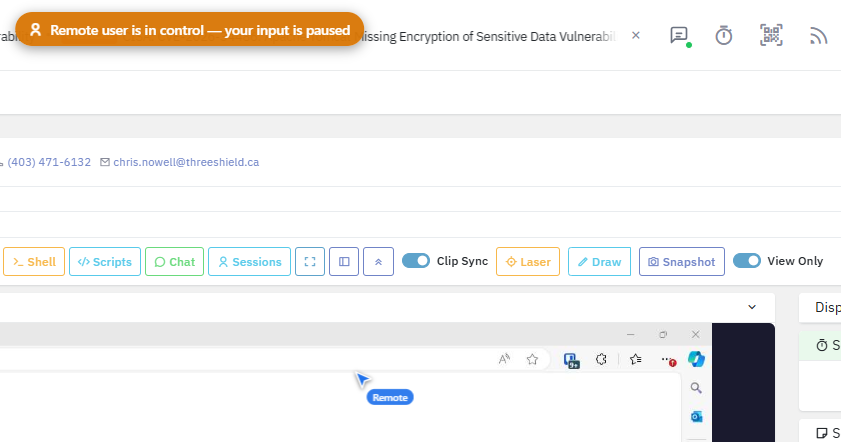
Never fight over the mouse again
See exactly where the user’s cursor is, and let control switch automatically between their mouse and yours, so you stop wrestling for the pointer mid-fix.
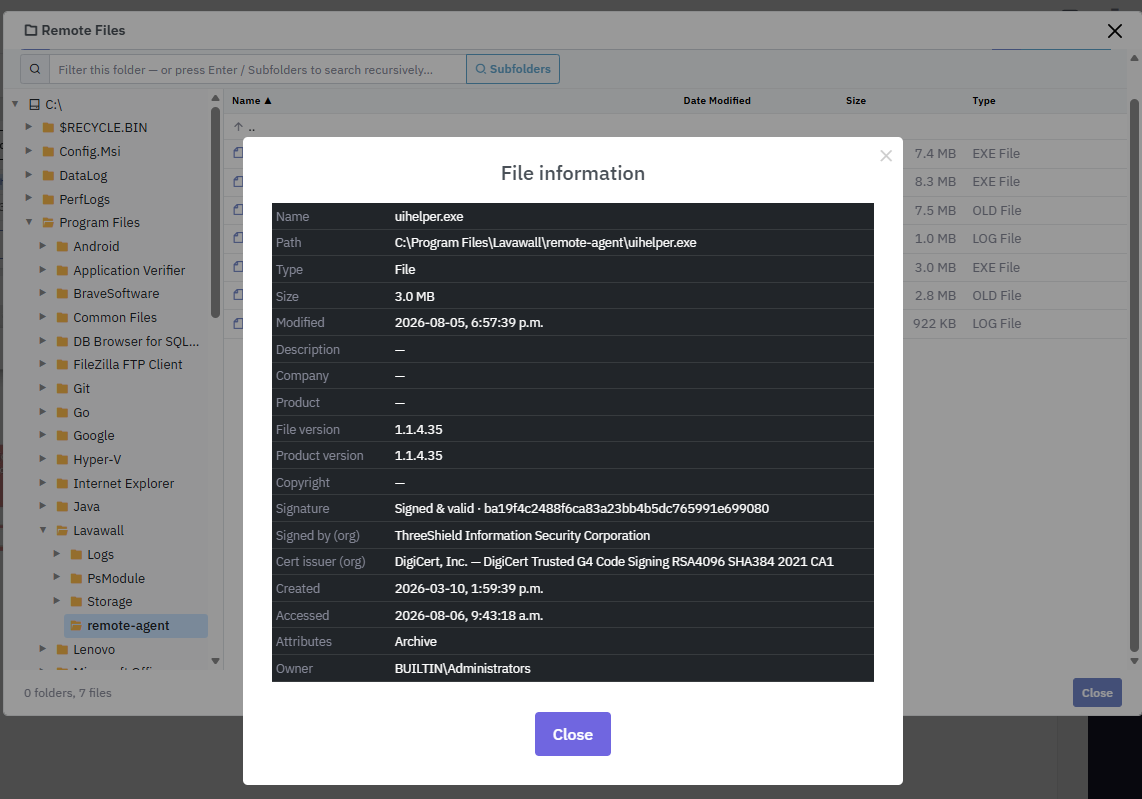
Files, with real detail
Upload and download files to the remote computer, and see detailed file attributes, without ever leaving the remote-support session.
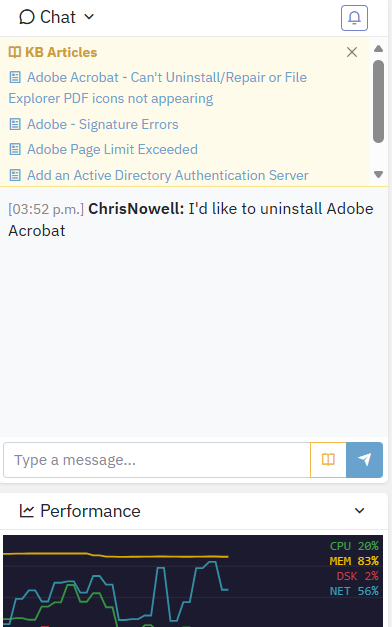
Contact, chat & tickets on screen
The user’s contact information is right there, chat surfaces relevant knowledge-base articles as you type, and you can open and edit the ticket directly on the remote-session screen.
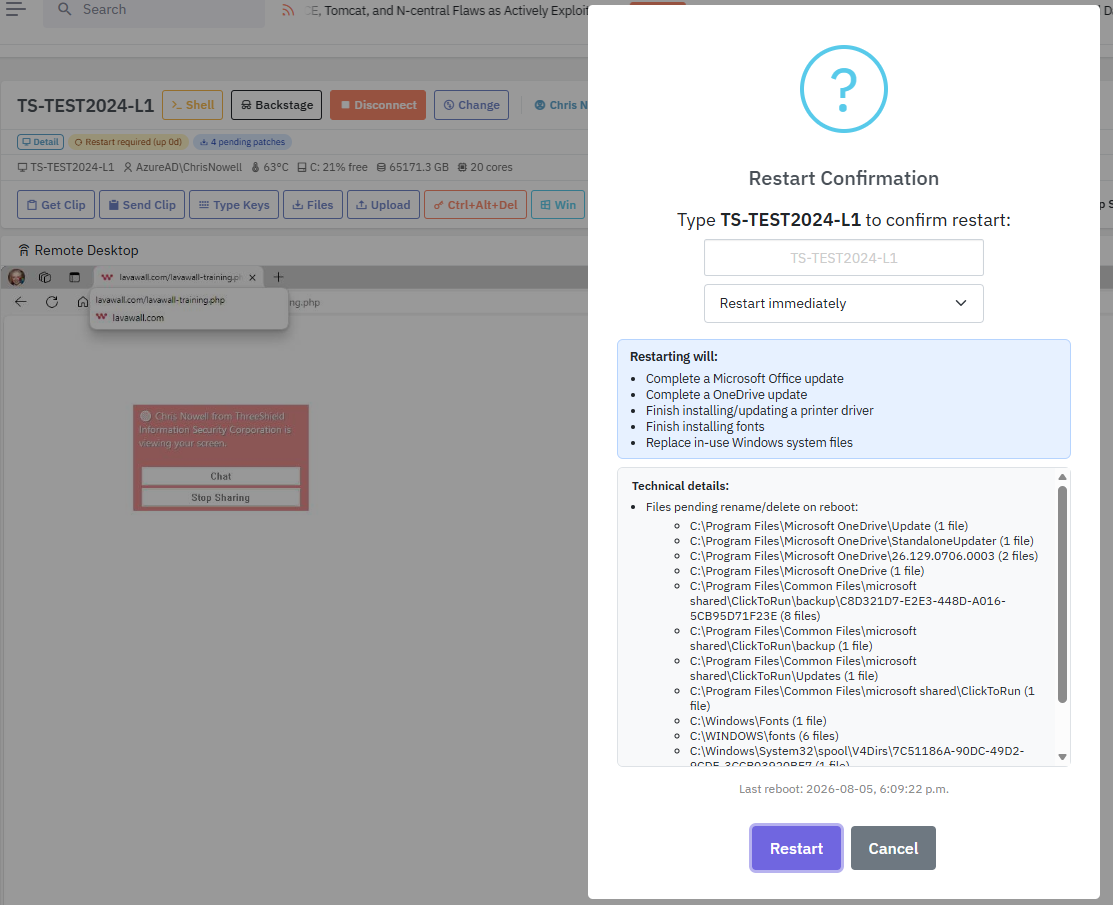
Know why a restart is needed
Instead of the generic “restart required” you may know from other RMMs, Lavawall reviews the pending restart, flags why it might be slower than usual, and explains what will actually be fixed, in plain language.
Run Windows administration the way it should work.
In the browser, with nothing to install and without bothering the user.
Start my free trial → See the Admin WorkspaceThe key differentiator
The Admin Workspace: the Windows admin data you always wanted
Work in a private workspace on a live machine, with administrator rights, while the user keeps working undisturbed. On Windows you get 19 Windows tools and three shells (PowerShell as system, PowerShell as the logged-in user, and Command Prompt as system); on Mac, a root zsh shell. Lavawall® extends the built-in Windows administrator apps and enriches them with the details you always wished Windows showed you. macOS asks the user to allow screen and audio access; our Mac setup guide shows what to click.
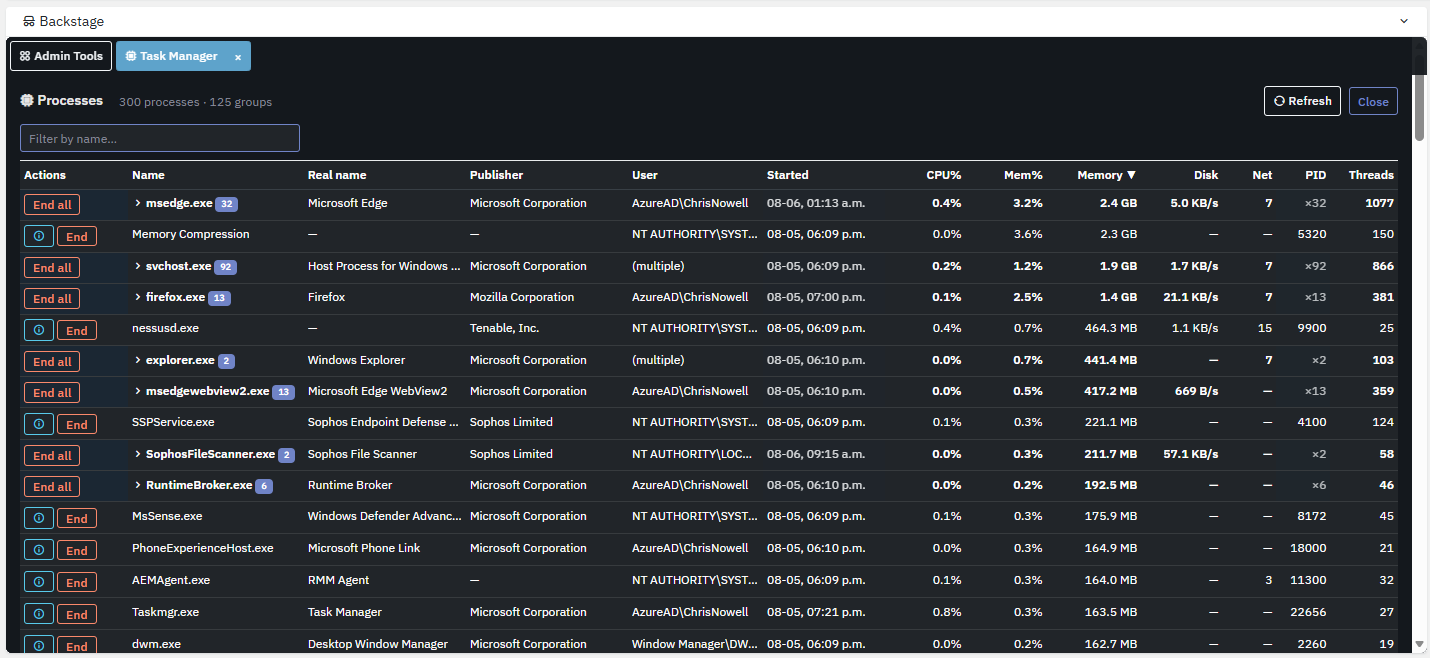
A Task Manager that actually helps
The main screen immediately groups processes and gives you instant CPU, memory, disk, network, and thread statistics: the picture you always wanted, there the moment you open it, with no digging through tabs.
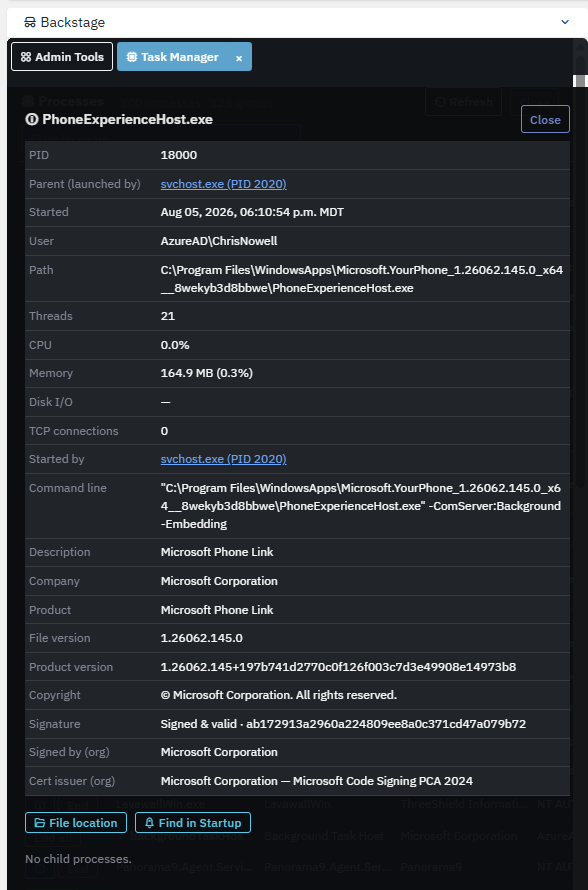
Click into any process
One click on the information icon shows the detail behind a process: what launched it, whether it has child processes, whether it’s digitally signed, and more, so you can tell a legitimate service from something that shouldn’t be there.
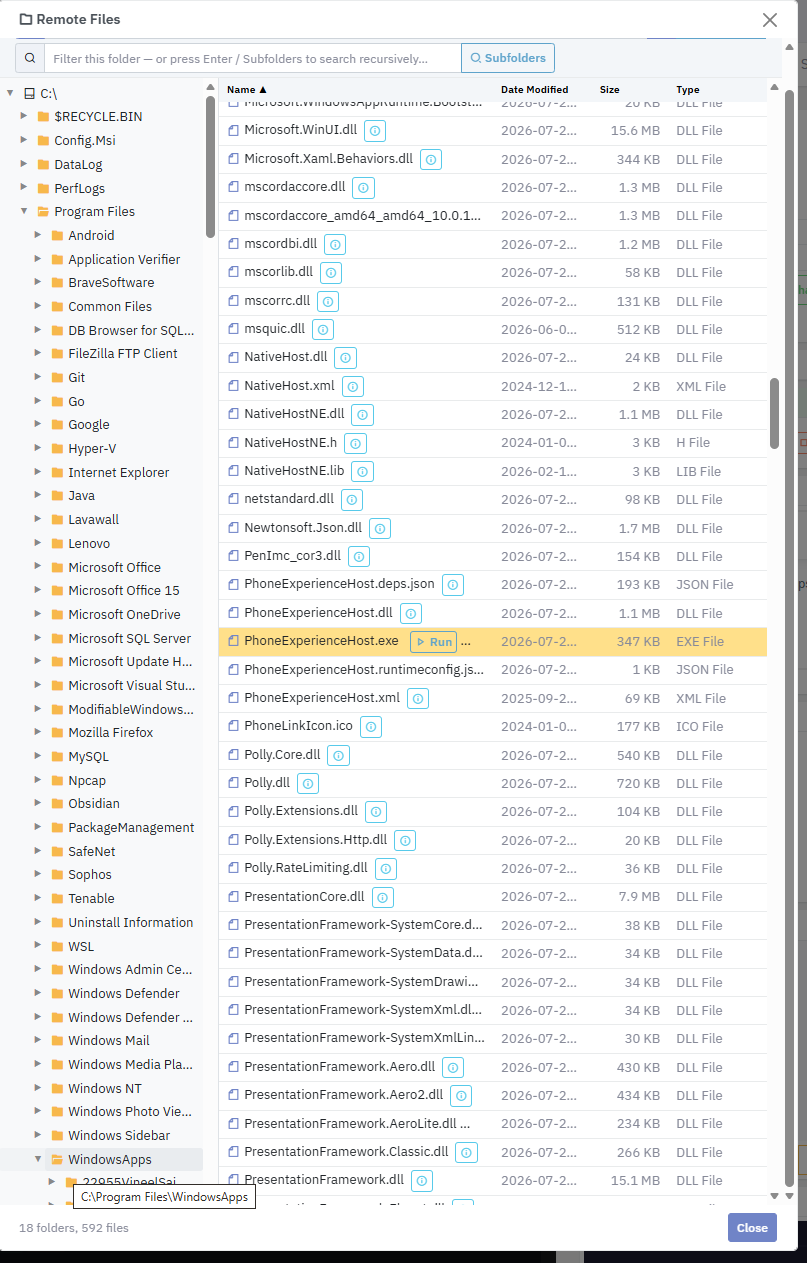
File explorer on steroids
From a process, jump straight to its location in a file explorer with far more information on every file, and even download or run programs on the remote computer, all from inside the Admin Workspace.
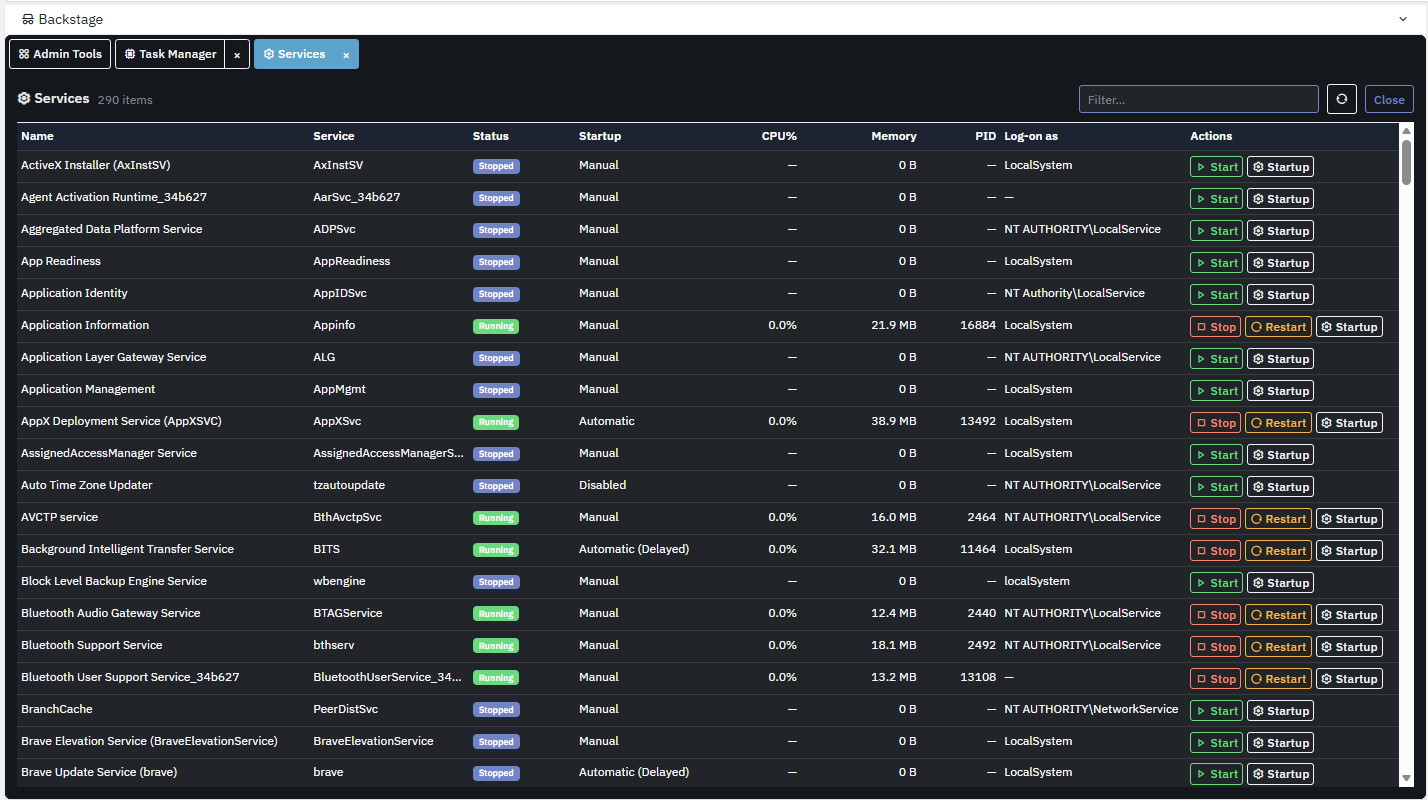
Services, enriched
The Services view is similarly enriched, so you can see and act on what’s running without leaving the Admin Workspace.
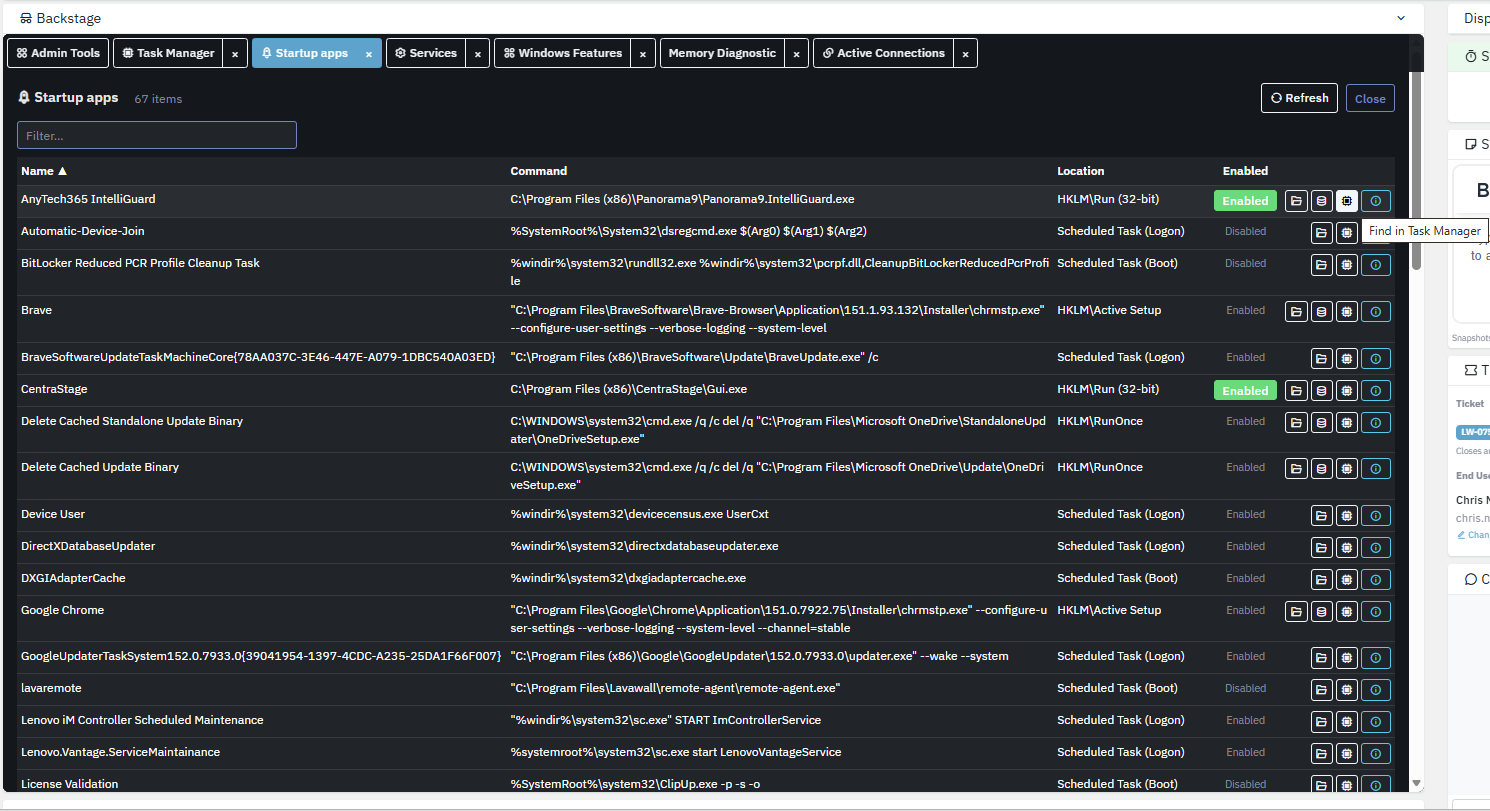
Startup, fully joined up
Startup apps are integrated with the file explorer, registry, Task Manager, and process details, so you follow a startup entry straight to its source.
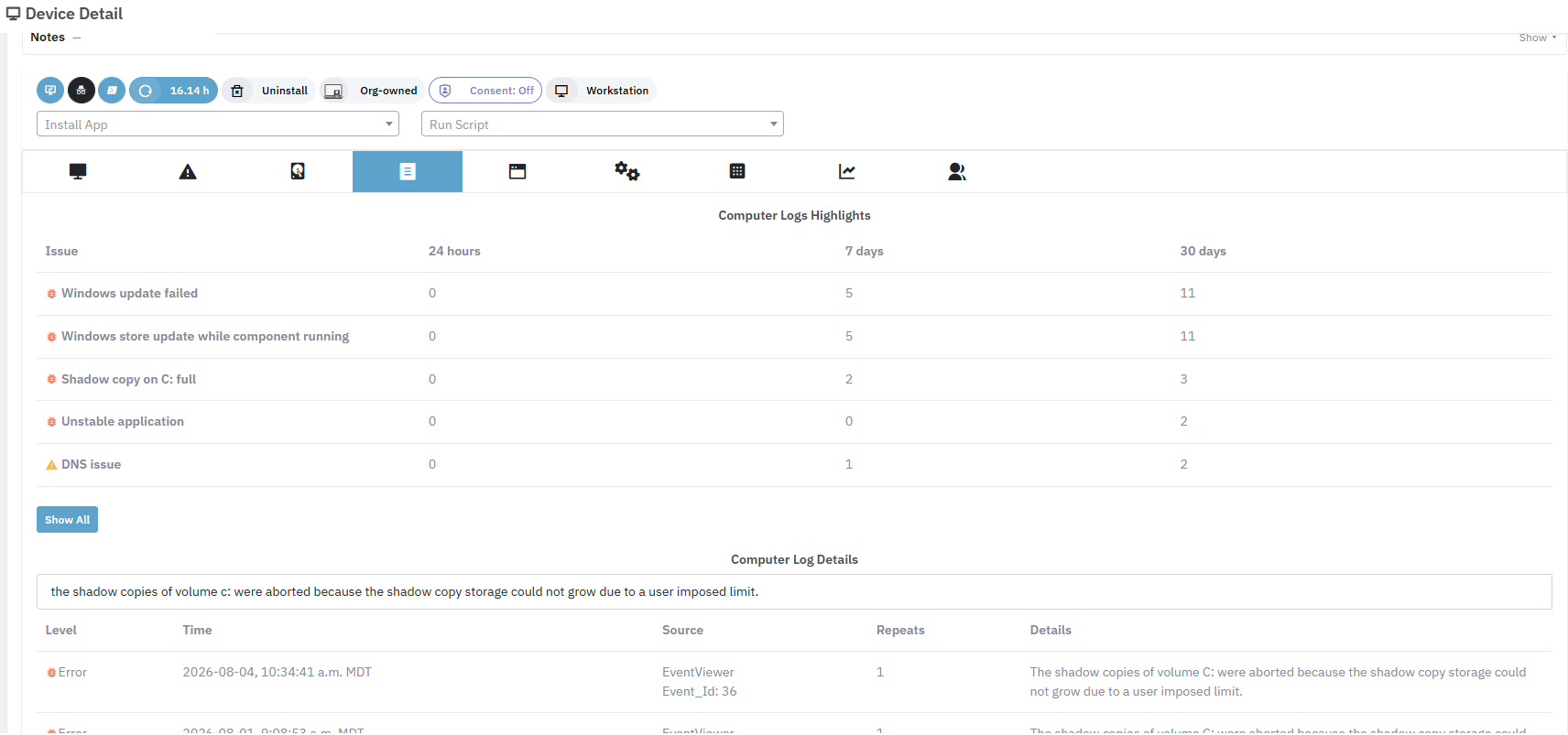
Event Log that reads itself
Beyond full event-log access, Lavawall intelligently classifies and summarizes events so they’re easy to search and review, and can optionally arrive as notification digests.
50 Windows admin tools, each one click away with administrator rights
Here’s the part that changes the job: whether you’re in the Admin Workspace or a full interactive session, from a desk or a phone, the launcher opens 50 Windows admin tools, each one click away with administrator rights, without elevating the user or pushing a UAC prompt to them, and without a separate elevation product like ThreatLocker or AutoElevate. A File Explorer and an elevated Command Prompt or PowerShell are right there too.
- Registry Editor
- Services
- Event Viewer
- Device Manager
- Disk Management
- Computer Management
- Task Scheduler
- Local Users & Groups
- Group Policy
- Local Security Policy
- Windows Firewall (Advanced)
- Performance & Resource Monitor
- System Configuration
- System Information
- Component Services
- WMI Control
- Certificates
- Print Management
- Shared Folders
- TPM Management
- Driver Verifier
- ODBC
- Memory Diagnostic
- Control Panel applets
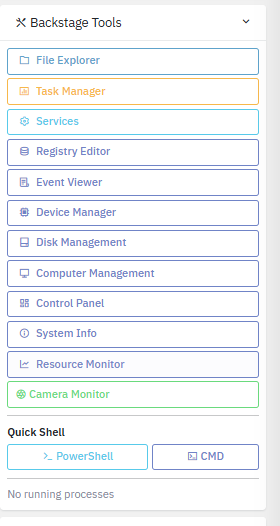
These administration tools launch as administrator during interactive remote-support sessions, without the user going through UAC, and without needing ThreatLocker, AutoElevate, or any other elevation product.
You don’t even have to connect
A lot of what techs used to connect for is already waiting in device details: no session, and no waiting to watch trends live.
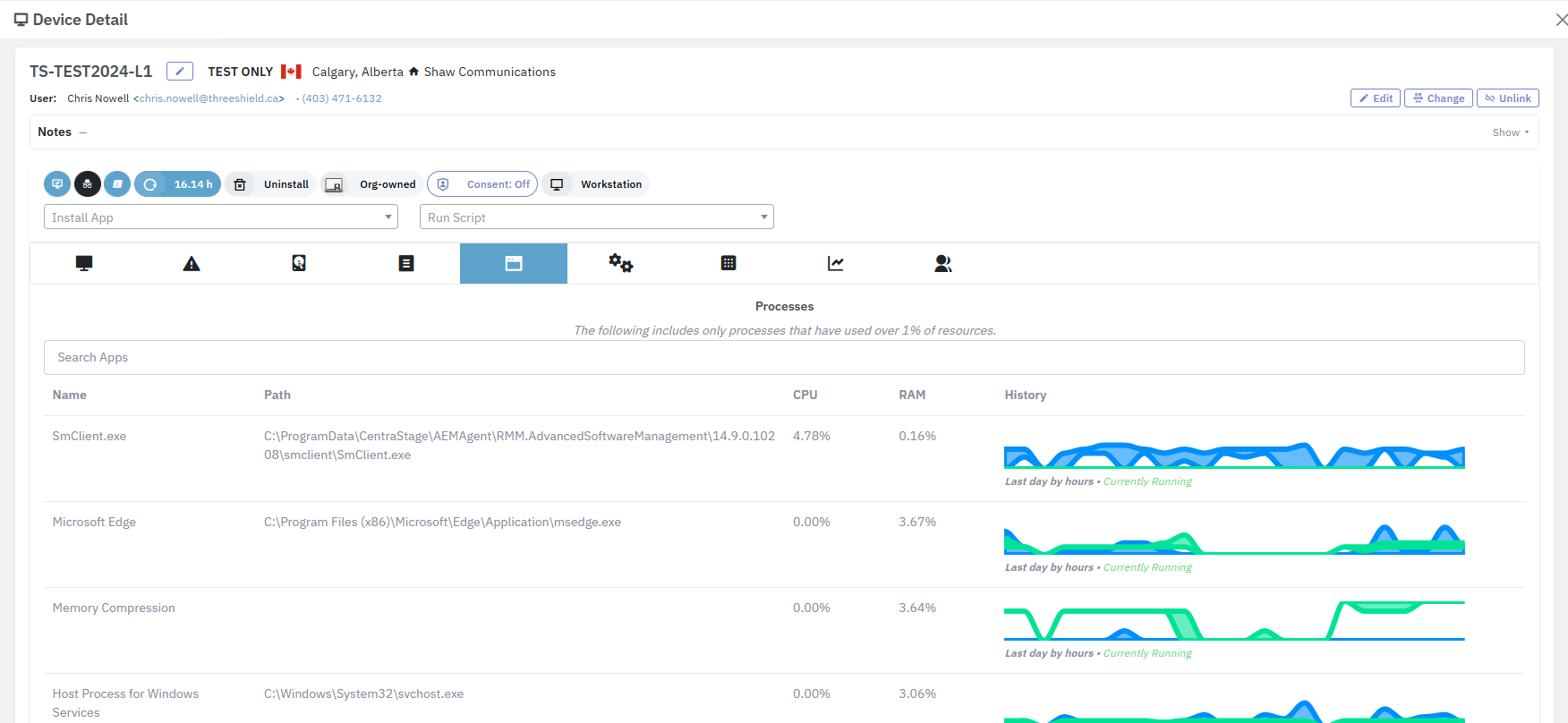
Yesterday’s process trends, already captured
See which processes have been using the most CPU or RAM without connecting at all. The process view in device details shows the last day’s trends with sparkline graphs, so you don’t have to sit and watch to catch the culprit.
Performance history, with real depth
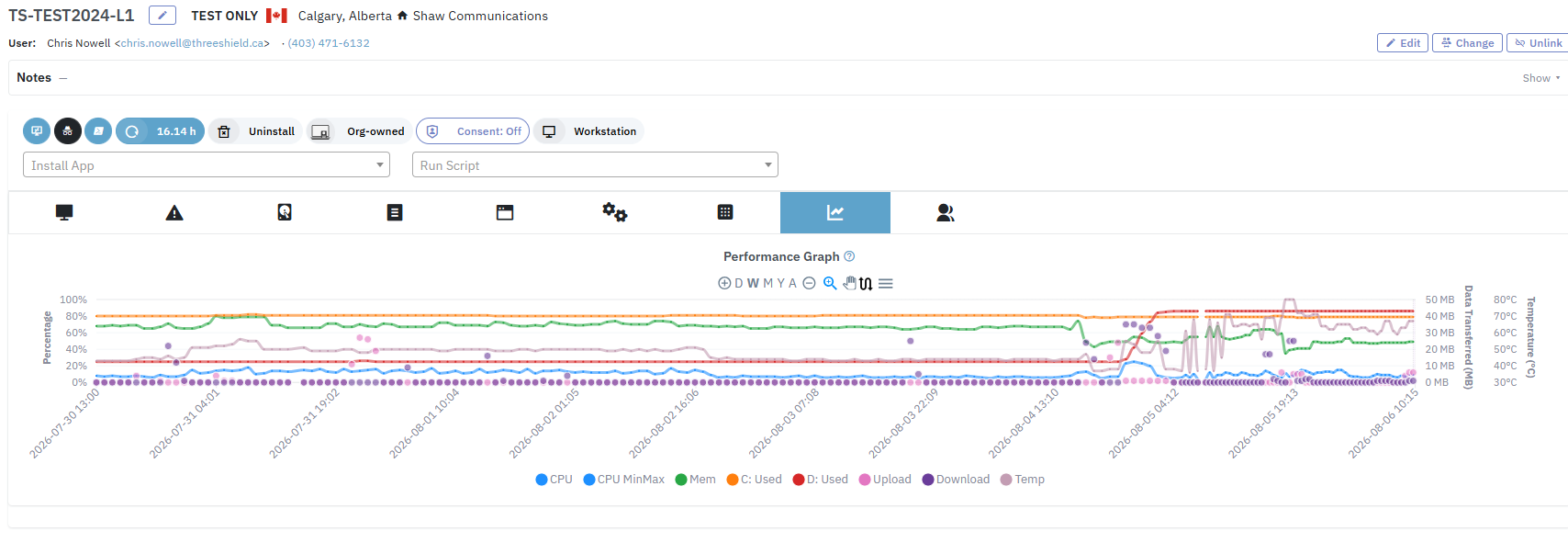
View CPU, memory, disk space, upload, download, and temperature statistics with far more history in the device-detail performance graphs, so a slowdown that started last week is obvious, not a mystery.
Control Windows and macOS from your phone
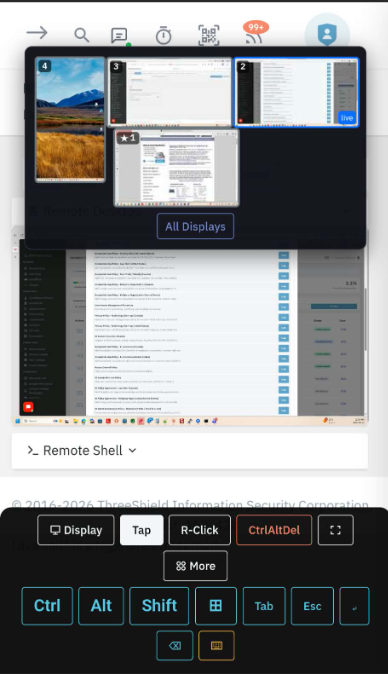
Any cell phone with a browser is a full remote console. Open a session, pick the machine, and you are on it, whether it runs Windows or macOS. Linux computers get scripts, patching, and monitoring rather than remote control. There is nothing to install on the phone, and nothing new on the endpoint beyond the Lavawall® agent that is already there.
- A display picker to switch monitors, or view All Displays at once
- Dedicated Tap and Right-Click controls, and a one-tap Ctrl+Alt+Delete
- Modifier keys (Ctrl, Alt, Shift, Tab, Esc), plus a full on-screen keyboard
- A Remote Shell control on the same screen for a fast command-line fix
- Fullscreen mode, so the remote desktop fills the phone
- Runs in the phone browser on iPhone, Android, or tablet, with nothing to install
The same country and IP restrictions, consent prompts, and session logging apply from a phone exactly as they do from a desk.
Fast, full-colour shell, and comfortable on a phone
When the fastest fix is the command line, you’re one tap away, on any device.
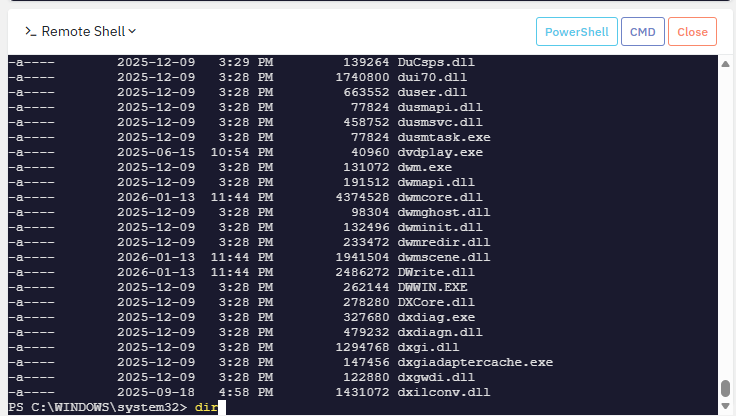
Near-instant, full-colour PowerShell, like you’re right on the machine.
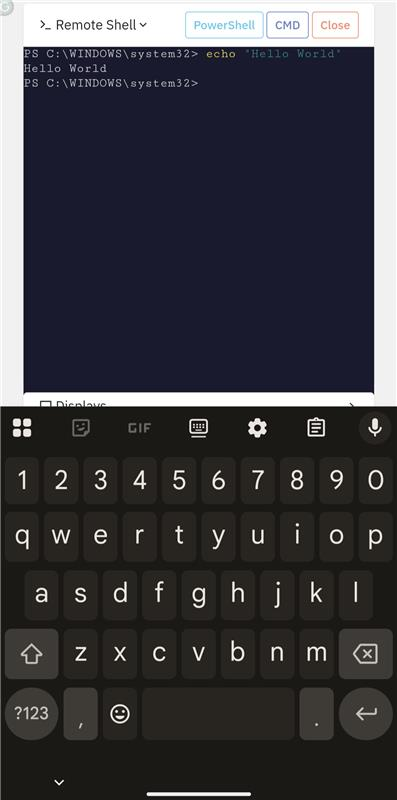
The same shell from a phone, so you can resolve an issue as if you were at the desk.
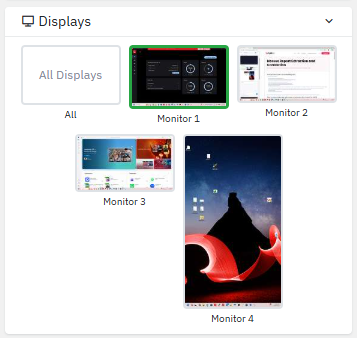
Multi-monitor thumbnails jump you to the right screen fast.

Multi-operator sessions for more than one tech, with a Take Control button.
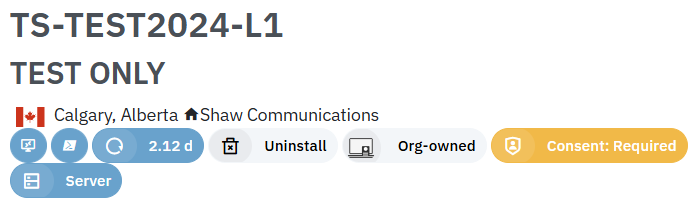
Consent requested before an interactive session starts.
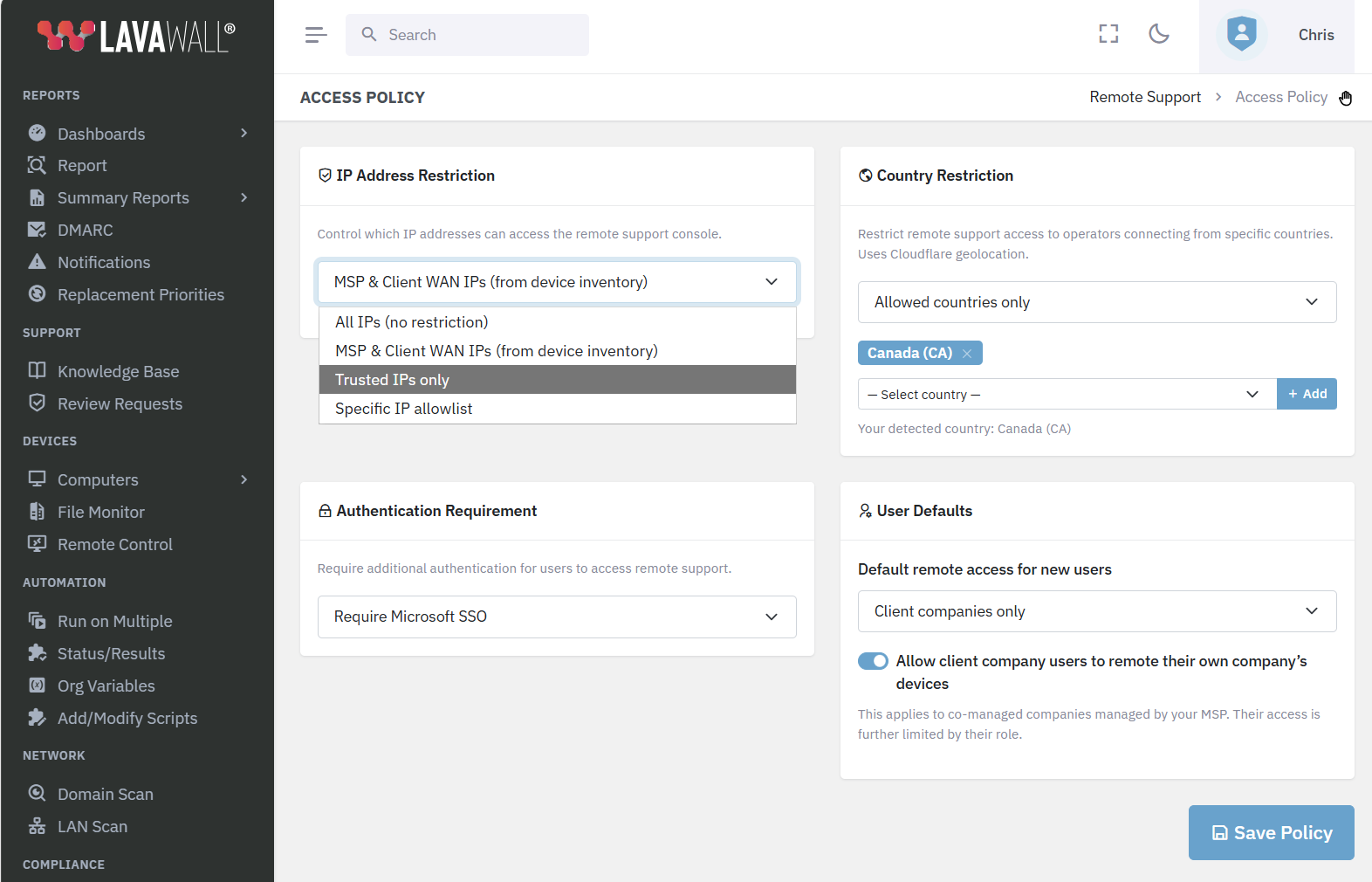
Per-tenant access policy, with country restrictions on by default.
Security-first by design
- Remote support is built in, so there is no separate remote tool such as ScreenConnect, Splashtop, or TeamViewer to patch and secure
- Endpoints are never broadcast or directly exposed to the internet
- IP-address and country-level restrictions (country limits on by default)
- Certificate verification for the server and the clients, plus authentication-strength rules
- Session traffic protected in transit by a FIPS 140-3 validated cryptographic module (NIST CMVP Certificate #5247), for CJIS and other environments that require validated, not merely strong, cryptography
- Granular user access controls and limited access between systems
- Session logging: every connection and every command sent is logged, and screen captures can be attached to the ticket when the technician wants a record
Built to delight users and save techs time
- Runs in the browser, nothing to install or download, and it never interrupts the user
- A translucent, repositionable notification box keeps the user informed and in control
- Draw on the screen to teach, and cut repeat tickets
- Automatic cursor hand-off, so operator and user never fight over the mouse
- Fast, full-colour PowerShell, even on mobile, with special keys and Control+Alt+Delete
- Tickets, time entry, and contact info right on the support screen
The server secret manager
The credentials your automations depend on (a database password, an API key, a service account) too often end up in the clear: hard-coded in a script, sitting in an environment variable, or pasted into a config file. Lavawall®’s server secret manager lets a Linux or Windows server pull exactly the secret it needs from the vault, with no one at the keyboard and nothing left lying around.
The server is enrolled as a member of the vault and holds its own key, so the secret is unwrapped on the server that needs it, never on our platform, which only stores and moves ciphertext. Rotate a credential once in the console and every server that uses it picks up the change, and each retrieval is written to the audit trail. The Linux client is built on the Go Cryptographic Module, FIPS 140-3, NIST CMVP certificate #5247. See security and privacy for the detail, and WireGuard deployment for the same approach applied to VPN keys.
Replacing an RMM, or tired of a risky remote tool?
ThreeShield, the CISSP/CISA team that builds Lavawall®, will show you the Admin Workspace on your own environment and help you move off your current remote tool without downtime. Month-to-month, no high-water-mark billing.
Common questions
- How is this different from the remote control in my RMM?
- Lavawall is itself an RMM, and its remote support goes well past a screen-share. Techs get the Admin Workspace, a private workspace with 19 Windows tools and three shells (PowerShell as system, PowerShell as the logged-in user, and Command Prompt as system) and a root zsh shell on Mac, where they work with administrator rights while the user keeps working undisturbed. It extends the built-in Windows admin apps (a grouped Task Manager with live CPU, memory, disk, network and thread stats, per-process details, a file explorer with rich attributes and run/download, Services, Startup, and a classified Event Log). Add 50 Windows admin tools, each one click away with administrator rights, plus on-screen drawing, automatic cursor hand-off, file transfer, plain-language restart reasons, and tickets right on the session screen. It runs in the browser with nothing to install on the technician’s side.
- How does the Lavawall Admin Workspace compare with ScreenConnect Backstage?
- Both let a technician work on a computer without taking over the user's screen. Lavawall's Admin Workspace extends the real built-in Windows administrator apps and adds 19 Windows tools and three shells (PowerShell as system, PowerShell as the logged-in user, and Command Prompt as system), with a root zsh shell on Mac. It surfaces a grouped Task Manager with instant CPU/memory/disk/network/thread stats, per-process detail (parent process, child processes, signature), and a file explorer you can run or download from, while the user keeps working undisturbed. For what ScreenConnect's Backstage includes today, check ConnectWise's documentation.
- Does the user know when someone is connected?
- Yes, and they stay in control. A translucent, repositionable notification box sits on their screen so they always know when someone is accessing their computer, with one click to chat with the technician or to regain their privacy. Interactive sessions request consent first, and everything is logged.
- Do we have to install anything?
- No, not on the technician’s side. Everything runs through the web interface, with nothing to install or download, and without interrupting the user, so a tech can jump on, get the data they need, and fix the problem from any browser, even a phone.
- Do my users get UAC prompts, or do I need ThreatLocker or AutoElevate?
- Neither. During interactive remote-support sessions, Lavawall launches the built-in Windows administration tools as administrator without pushing a UAC prompt to the user, and without a separate privilege-elevation product like ThreatLocker or AutoElevate. Elevation happens inside the permissioned, fully-logged session.
- Is remote support encrypted to a FIPS 140-3 standard?
- Yes. A remote desktop session’s traffic is protected in transit by a FIPS 140-3 validated cryptographic module, NIST CMVP Certificate #5247. For CJIS control SC-13 and other rules that require validated modules rather than merely strong algorithms for information in transit, this is the remote-access path covered. See FIPS 140-3 support for the detail.