Vendor Inventory
Keep one list of every service and supplier your business depends on, how much it hurts when they break, and what they know about you.
What the page is for
Most organizations rely on dozens of cloud services and suppliers, and many were never formally reviewed. This page builds your vendor list for you: Sync from Lavawall pulls in services Lavawall has already detected, such as SaaS applications found by discovery, detected software, and apps connected to Microsoft 365 or Google Workspace. You then assess each vendor with a plain-language four-step wizard.
Each vendor records how critical it is, how many people rely on it, how hard it would be to replace, what you would do if it was down, how its data is backed up, what information it holds and where it stores it, whether you have a data processing agreement (DPA), whether it uses AI, when the contract renews and whether its security has been checked. You can attach evidence such as a DPA, SOC 2 report, ISO 27001 certificate or penetration test.
For third-party risk management, every vendor gets an inherent risk score and tier, worked out from its criticality, the data it holds, how hard it is to replace and whether it has admin or app access to your systems. The tier sets when the vendor should be reassessed. You can send security questionnaires to the vendor, record findings, and review a vendor's SOC 2 report with a guided checklist. Vendors you mark as subprocessors can appear on your public Trust Centre, and their storage countries feed your foreign processing disclosure.
What you see
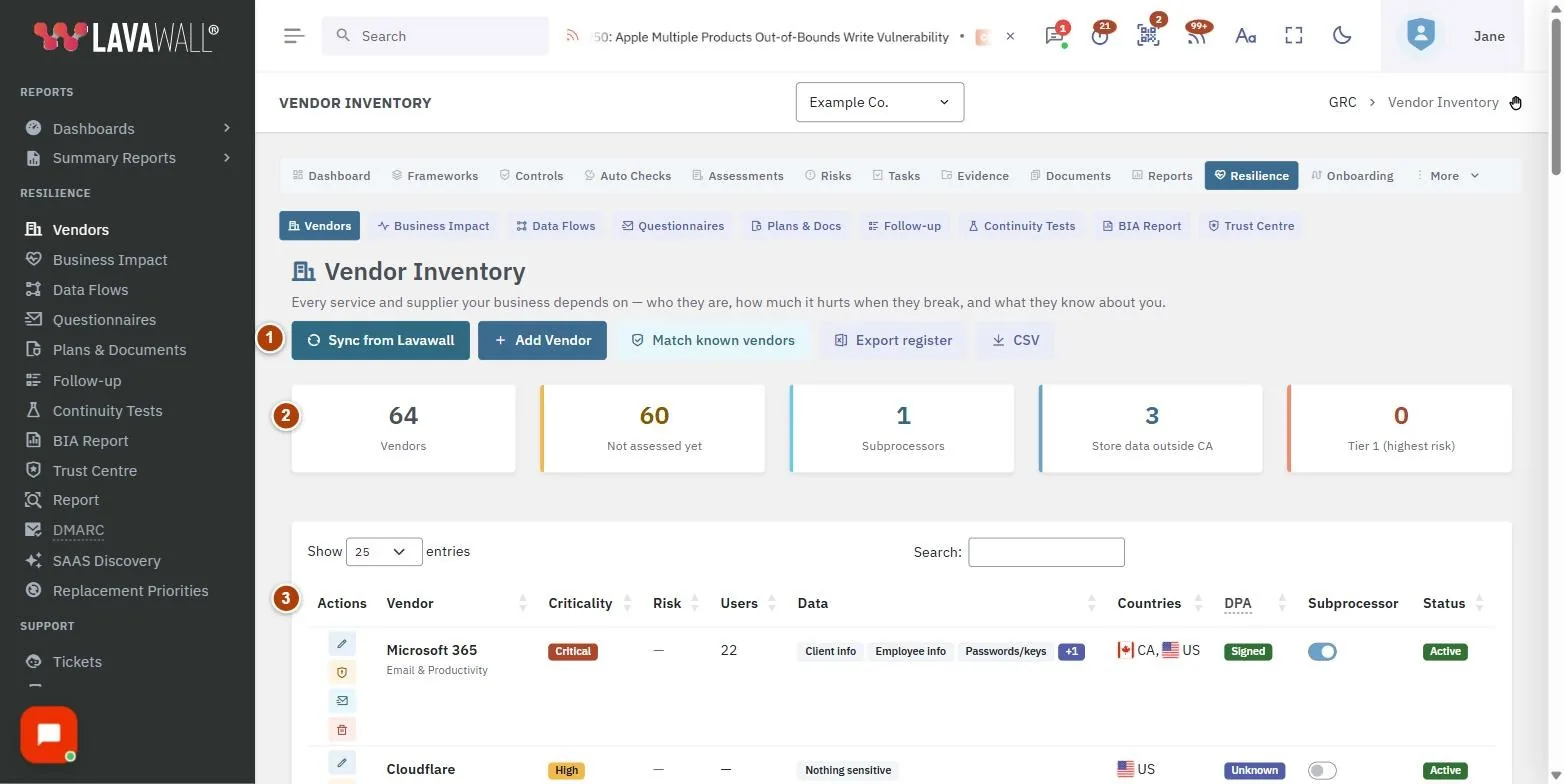
- Toolbar: Sync from Lavawall, Add Vendor, Match known vendors, Export register (Excel workbook) and CSV.
- Summary tiles: Vendors, Not assessed yet, Subprocessors, how many store data outside your country, and Tier 1 (highest risk).
- Vendor table: Vendor, Criticality, Risk (tier and score, with open findings and overdue reviews flagged), Users, Data, Countries, DPA, Subprocessor (a switch) and Status.
- Row actions: Assess (or View), Risk, questionnaires and findings, Ask a colleague and Delete.
- Add a vendor: the four-step wizard: What is it?, How much do we depend on it?, What do they know about us?, Housekeeping.
How to build your vendor list
- Select Sync from Lavawall. Vendors Lavawall has already detected are added, and the page tells you how many it found.
- Select Match known vendors to fill in trust-centre links and published certifications for recognised vendors.
- To add a vendor that was not detected, select Add Vendor.
How to assess a vendor
- Select Assess on the vendor's row (or Add Vendor for a new one).
- On 1. What is it?, enter the name, choose What kind of thing is it?, describe what you use it for, and name who looks after the relationship and the vendor's security contact. Set Where are we with this vendor?.
- On 2. How much do we depend on it?, answer how bad an outage would be, how many people rely on it, how hard it would be to replace, what you would do instead, how long you could keep working, how much data you could lose, and how it is backed up and tested.
- On 3. What do they know about us?, tick the kinds of information it holds, pick where they store it, and answer Do we have a DPA with them?. Add a link to their DPA if they publish one.
- On 4. Housekeeping, note AI features, the renewal date, whether you have checked their security and when, and whether they handle your clients' data (a subprocessor) and may be listed on your Trust Centre.
- Select Save vendor. Once saved, you can reopen it and use Add evidence to attach a link or file.
How to manage a vendor's third-party risk
- Select Risk, questionnaires and findings on the vendor's row.
- Review the tier and score under Inherent risk and reassessment, and choose how often to reassess (follow the tier, a fixed number of months, or no scheduled reassessment). Select Save schedule and contact.
- Under Security questionnaires, choose a questionnaire and select Send questionnaire to email it to the vendor's security contact. You can send a new link or cancel an open questionnaire.
- When the vendor replies, open the questionnaire, review the answers and any files they attached, and select Record review with an outcome.
- Under Findings, select Add a finding to record what is wrong, its severity and due date. Update the status as it is fixed, or mark the risk as accepted.
- Under SOC 2 report review, record the report type, period, scope, auditor's opinion, exceptions, bridge letter, user entity controls and subservice organizations, choose a Conclusion and select Save review.
How to ask a colleague about a vendor
- Select Ask a colleague on the row.
- Enter Their email, optionally Their name and a personal note, and select Send questions. They get a short plain-language questionnaire and do not need a login.
How to export the vendor list
- Select Export register for an Excel workbook with tiers, scores, questionnaires and findings, or CSV for the vendors in the list.
Tips
- Start with Sync from Lavawall. Lavawall has probably already spotted most of the services your team uses.
- The Subprocessor switch in the table is the quickest way to control who appears on your Trust Centre.
- A vendor flagged Not seen is no longer reported by Microsoft 365 or Google Workspace. If you stopped using it, confirm access is revoked, ask for your data to be returned or deleted, then set it to Retired.
- If a SOC 2 report period ended more than three months ago, ask the vendor for a bridge letter.
- Someone other than the person who sent a vendor questionnaire must review it.
- New vendor types you add are shared with every company your MSP manages.
Troubleshooting
- "No vendors yet." Select Sync from Lavawall, or Add one by hand.
- "Already in the inventory." A vendor with that name already exists. Open the existing one instead.
- "Save this vendor first, then you can attach evidence." Save the wizard, then reopen the vendor to add evidence.
- "This vendor already has an open questionnaire." Wait for the reply, send a new link, or cancel it first.
- "Your GRC role does not include access to the vendor inventory." Ask an administrator to change your compliance role.
Task guides that use this page
Related articles
Still need help?
Search the support centre, or contact our support team and tell us which page you were on.
Names, companies, devices and figures in the pictures are examples. Other product and company names are trademarks of their respective owners.