Trust Centre
Publish a public security and privacy page that answers customer due-diligence questions and shares your security documents safely.
What the page is for
Customers, prospects and their procurement teams regularly ask how you protect their data. A Trust Centre is a public web page you can link to or embed on your own website that answers those questions up front: which frameworks you hold, which policies you have, which subprocessors you use, where data is processed, your responsible AI statement, and how to contact you.
You choose exactly which sections appear. You can also offer security documents, such as a SOC 2 report, an ISO certificate or a penetration test letter. Each document can be public, available after the visitor verifies their email address and accepts your confidentiality terms (NDA), or available only after you approve the request. Every download is logged.
An optional measured security summary shows percentages Lavawall measures across your environment: multi-factor sign-in, disk encryption, healthy endpoint protection, and a range for outstanding updates. It never shows names, and nothing is shown for fewer than five accounts or devices.
What you see
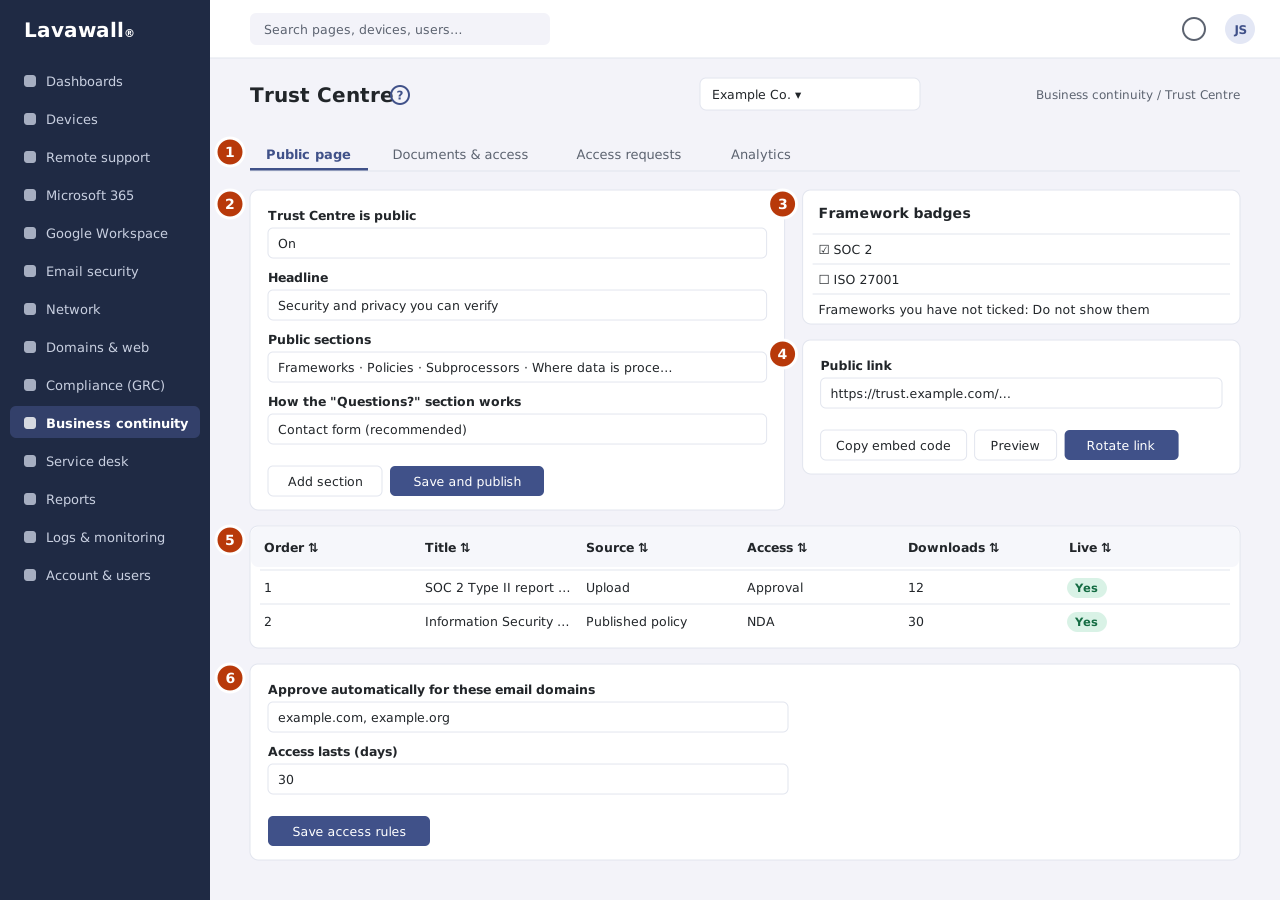
- Tabs: Public page, Documents & access, Access requests and Analytics.
- Public page settings: Trust Centre is public switch, Headline, Introduction, Public sections, the "Questions?" contact options, Custom sections and Policies listed by title, with Save and publish.
- Framework badges: which of your compliance frameworks are shown as held, with Save badges.
- Share and embed: the Public link, Copy embed code, Preview and Rotate link, plus Measured security summary (Preview figures) and Subprocessors on the public page.
- Documents offered: each document's title, source, access level, downloads and whether it is live, with Add document, Download log, Edit and Remove.
- Access rules: confidentiality terms, terms version, automatically approved email domains and Access lasts (days).
How to set up your Trust Centre
- Open Trust Centre and select Create the Trust Centre.
- On the Public page tab, enter a Headline and Introduction.
- Under Public sections, switch on the sections you want: security and compliance frameworks, our policies, subprocessors and key service providers, where data is processed, responsible AI statement, Questions? (contact section), security documents and measured security summary.
- Choose how the "Questions?" section works: Contact form (recommended), Show an email address or No contact section. Enter where enquiries and access requests are delivered; this address is never shown publicly.
- Tick the published policies to list by title. Only titles and short descriptions are shown, never the content.
- Switch on Trust Centre is public and select Save and publish.
How to show framework badges
- Under Framework badges, tick the frameworks the company holds.
- Choose what happens to frameworks you have not ticked: Do not show them (recommended) or Show them, clearly labelled "In progress".
- Select Save badges. In Confirm the attestations, tick the box confirming the company holds a current attestation for each one, and select Publish badges.
How to offer a security document
- Open the Documents & access tab and select Add document.
- Under Where it comes from, choose Upload a file (PDF, image or Office document) or A published policy (rendered to PDF when downloaded).
- Enter the Title shown to visitors and a Short description.
- Choose Who may download it: Public, NDA or Approval. Set the Order and tick Offered on the Trust Centre.
- Select Save.
How to set access rules
- On Documents & access, under Access rules, enter the Confidentiality terms visitors accept.
- Change the Terms version whenever the wording changes. Visitors who accepted an older version are asked again before their next download.
- Under Approve automatically for these email domains, enter trusted domains, separated by commas.
- Set Access lasts (days) (between 1 and 365) and select Save access rules.
How to approve or deny an access request
- Open the Access requests tab. Waiting for a decision lists pending requests with who asked, their reason and the terms they accepted.
- Select Approve or Deny and confirm. A denied requester is told the request was not approved.
- To end access early, find it under Recent decisions and select Revoke. Their sessions end at once.
How to share or embed the page
- In Share and embed, select Copy next to the Public link, or Copy embed code to put it on your website.
- Select Preview to see the page as visitors do.
- Only if a link has leaked, select Rotate link. This creates a new address and breaks every existing embed and shared link.
Tips
- Subprocessors come from your Vendor Inventory. Only active vendors marked as subprocessors appear, and changes publish at once. Select Manage vendors to change them.
- Use NDA or Approval for SOC 2 reports and penetration test letters. Keep Public for things like a certificate you are happy for anyone to see.
- Only show frameworks the company can back up with a current certificate, attestation report or formal assessment.
- The Analytics tab shows visitors, verified access requests and approvals by week, and the organizations that request access most.
- Webmail addresses are flagged when you approve, so check who they are first.
Troubleshooting
- "You can look but not change anything here." Saving publishes the settings, so it needs a compliance role that can approve.
- "Security documents" is switched off on the Public page tab, so none of these are offered yet. Switch on the Security documents section and save.
- "No published documents yet." Publish policies in the Document Library first; they then appear under Policies listed by title.
- "No frameworks are switched on for this company." Choose frameworks on the Compliance Frameworks page.
- "No vendors are marked as subprocessors yet." Flag them in Vendor Inventory.
Task guides that use this page
Related articles
Still need help?
Search the support centre, or contact our support team and tell us which page you were on.
Names, companies, devices and figures in the pictures are examples. Other product and company names are trademarks of their respective owners.