Document Library
Write, approve, publish and review your policies and procedures, with a full version history and templates to start from.
What the page is for
The Document Library holds your company's compliance documents: policies, procedures, plans and other files. You can write a document in the editor, start from a template, or upload an existing file. Documents can be linked to the controls they support.
Every document follows the same workflow: Draft, Review (waiting for approval), Approved and Published. Whoever wrote a version cannot also approve it, unless your company allows self-approval, in which case a written reason is required and shown to auditors. Every material save creates a new version with its own SHA-256 fingerprint, so you can view, compare and restore earlier versions.
Each document can have an owner and a review cycle. You can email owners whose reviews are due, send a document to named reviewers by secure link, export any version as PDF or Word, and offer published documents in your trust centre.
What you see
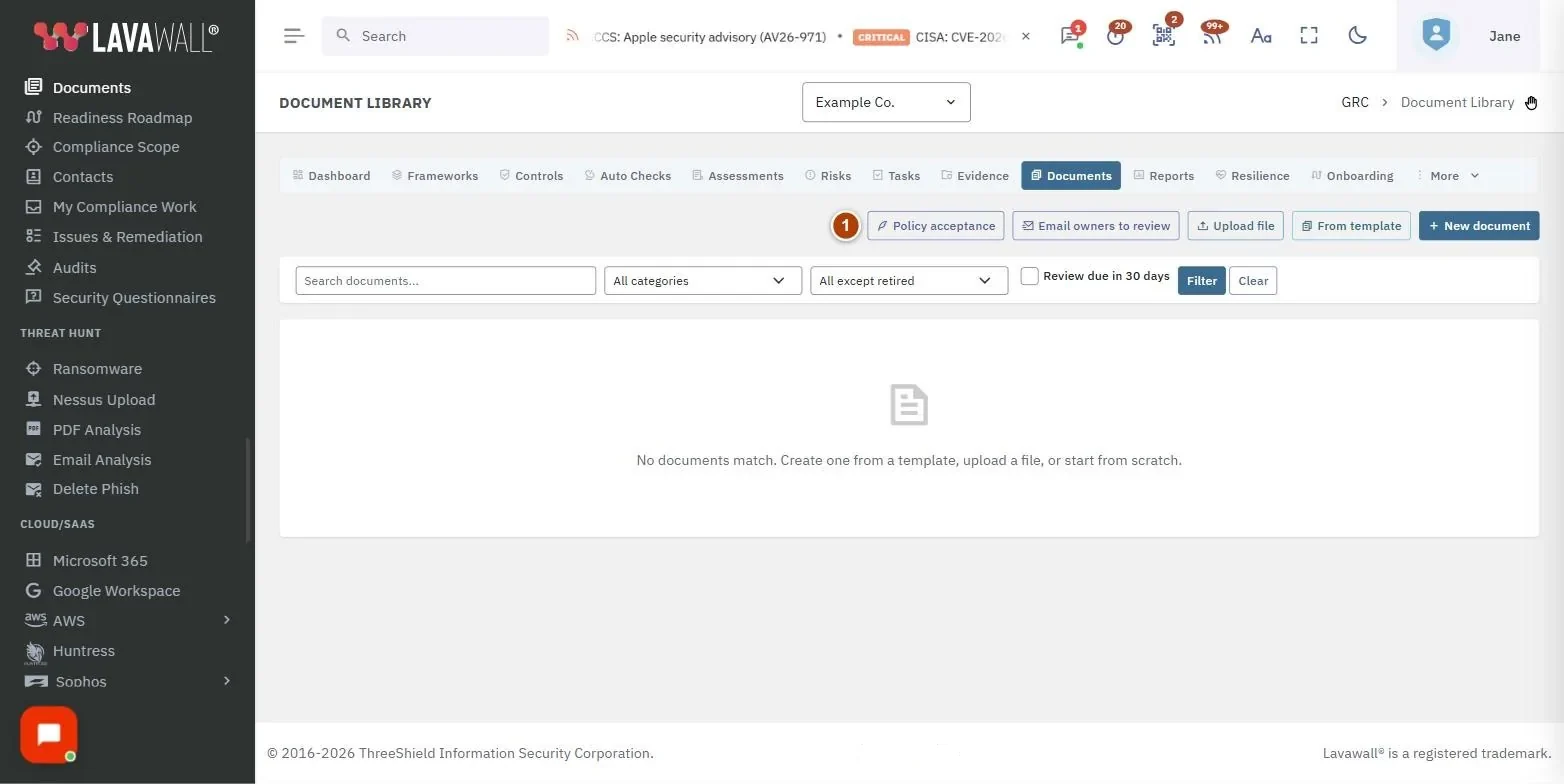
- Actions: Policy acceptance, Email owners to review, Upload file, From template and New document.
- Waiting for approval: documents with a version waiting for a decision: Document, Version, Requested by, Approver and Requested.
- Filters: Search documents..., category, status (All except retired by default), Review due in 30 days, Filter and Clear.
- Document table: Actions, Document, Type, Category, Ver, Status, Owner and Review date, with open, edit and retire buttons.
- Document viewer: tabs for Content, Versions, Approvals, Reviews and Details.
How to create a document
- Select New document, or From template and choose Use on a template.
- Enter the Title, and choose the Category, Type and Owner.
- Set Next review and Review every (days).
- Optionally Attach a file and tick the Linked controls it supports.
- Write or edit the Content. For templates, fill in the Template variables and select Apply variables.
- Select Save. The document is saved as a Draft.
How to get a document approved and published
- Open the document and select Submit for approval.
- The approver opens it from Waiting for approval, selects Decide, and chooses Approve or Reject. A note is required to reject, so the author knows what to change.
- Once approved, select Publish and confirm. People can then be asked to accept it, and it can be offered in the trust centre.
- To pull back a pending request, select Withdraw.
How to review documents on schedule
- Tick Review due in 30 days to see documents due for review.
- Select Email owners to review, choose Which documents (review due soon or overdue, overdue only, or every live document with an owner), set Due within (days) and add a message.
- To ask specific people, open a document and use Send for review: find a person or Add someone else, set Link open for (days) and Visits allowed, and select Send.
- When the document has been read and is still accurate, select Mark reviewed. The next review date moves forward by its review cycle (365 days if none is set).
How to work with versions and exports
- Open the document and go to Versions.
- Tick two versions and select Compare to see what changed.
- Select Restore on an older version. Its text becomes a new version, and the document goes back to Draft and needs approval again.
- Use Export this version as PDF (or Word) to download a copy.
How to offer a document in the trust centre
- Publish the document.
- Open it and go to Details.
- Under Trust centre, choose how to offer it: Not offered, Public download, After accepting an NDA or On request, after approval.
Tips
- Retiring a document removes it from the library and the trust centre, cancels pending approvals and closes open acceptance campaigns. It can be reinstated later.
- If you wrote a version, someone else has to approve it. You can still reject it.
- Use Policy acceptance to ask staff to read and accept published policies.
- Images in the editor must be PNG, JPEG, GIF or WebP and under 5 MB; tables can have up to 50 rows and 20 columns.
Troubleshooting
- "Only a published document can be offered in the trust centre." Publish the document first.
- "Give the document a title." A title is required to save.
- "A note is required to reject." Add a note explaining what to change.
- Upload is missing. Uploading needs evidence storage to be ready for your company, and a GRC role that can edit.
Task guides that use this page
Related articles
Still need help?
Search the support centre, or contact our support team and tell us which page you were on.
Names, companies, devices and figures in the pictures are examples. Other product and company names are trademarks of their respective owners.