Compliance Dashboard
See your compliance position at a glance: how ready you are for each framework, what is overdue, and what to do next.
What the page is for
The Compliance Dashboard is the starting page for the compliance module. It shows how many of your applicable controls are implemented, how each framework you have chosen is progressing, your open risks and automated check results, and the tasks and assessments that need attention. Controls marked Not Applicable are left out of the readiness figures, so the numbers here match the ones in your reports.
Every tile is clickable and opens the page behind the number. A small trend chart shows how your overall readiness has changed over the last 90 days, based on nightly snapshots.
The Operating Profile records your industry and the countries and regions you operate in. Setting your industry lets the dashboard recommend document templates that suit your type of business.
What you see
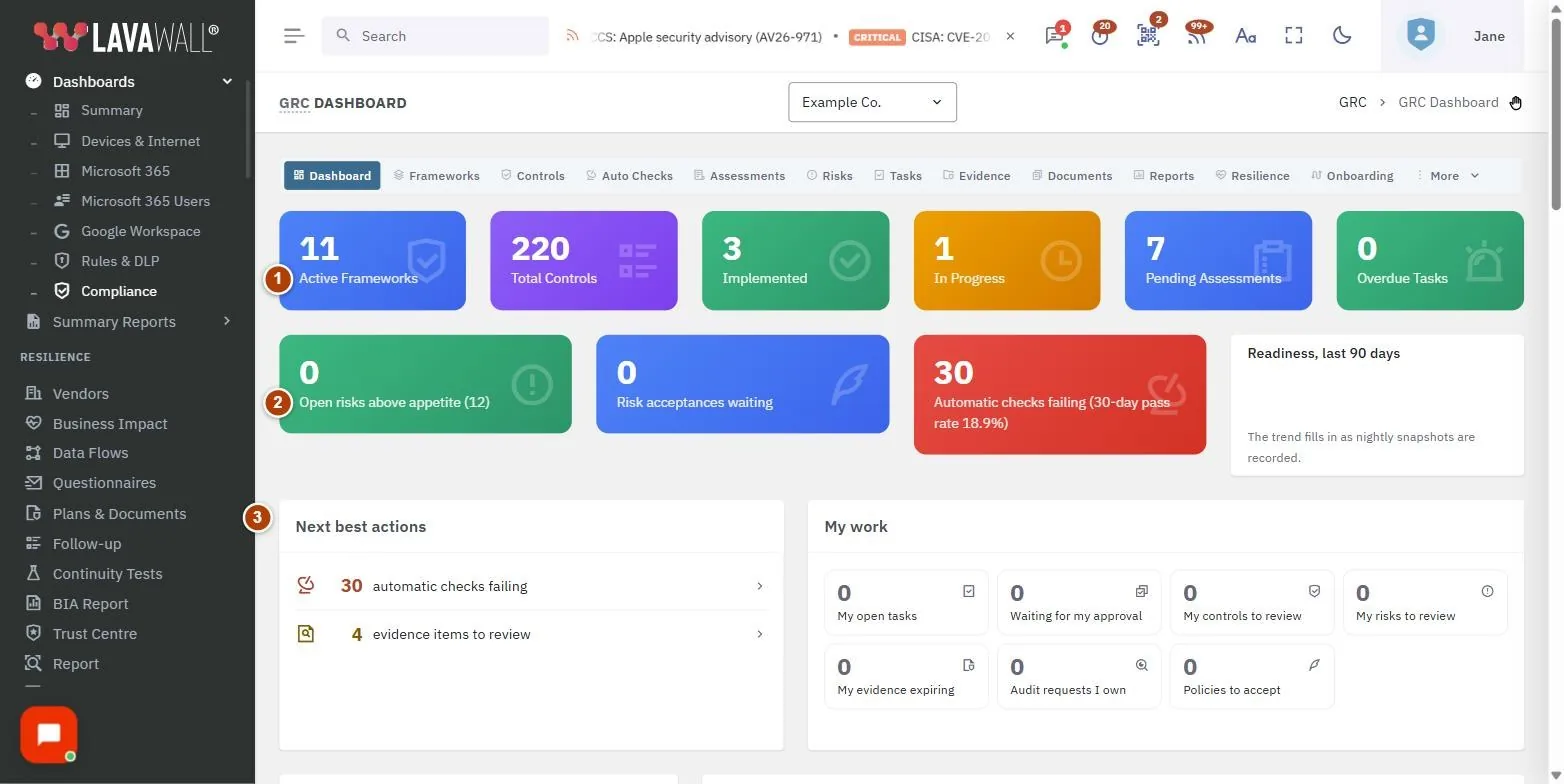
- Summary tiles: Active Frameworks, Total Controls, Implemented, In Progress, Pending Assessments and Overdue Tasks.
- Risk and check tiles: Open risks above appetite, Risk acceptances waiting, Automatic checks failing (with the 30-day pass rate) and Readiness, last 90 days.
- Next best actions and My work: the most useful things to do next, and items assigned to you.
- Operating Profile: your industry and operating locations, with an Edit button.
- Recommended Document Templates: templates suggested for your industry, with All Templates.
- Overall Readiness: a ring chart of implemented, in-progress and not-started controls, with the percentage of applicable controls implemented.
- Framework Readiness: a card per framework showing its progress, with Reports and Manage buttons.
- Active Assessments, Tasks, Quick Actions and Recent Activity: in-progress assessments, upcoming tasks, shortcuts to Assessment, Controls, Documents and Reports, and the latest changes.
How to see what is behind a number
- Click any tile, for example Implemented or Overdue Tasks.
- The matching page opens already filtered, such as the Controls page showing only implemented controls.
- In Overall Readiness, click the implemented, in-progress or not-started count to open the controls with that status.
- In Framework Readiness, click a framework to see only its controls.
How to set your operating profile
- In Operating Profile, select Edit.
- Choose your Industry.
- Under Operating Locations, pick a country and region and select Add. Repeat for each location. Choose Other to type a two-letter country code.
- If locations were detected from your computers, click one under Detected from computers to add it.
- Select Save.
How to start new work from the dashboard
- Under Quick Actions, choose Assessment, Controls, Documents or Reports.
- Or, in Active Assessments, select New Assessment.
- In Tasks, select View All to open the full task list.
Tips
- A red Overdue Tasks or Open risks above appetite tile needs attention first; green means nothing is outstanding.
- The risk appetite shown in brackets is set on the Compliance Settings page.
- The 90-day trend fills in as nightly snapshots are recorded, so a new account shows little history at first.
- Set your industry early. It drives the template recommendations.
Troubleshooting
- "No frameworks selected." Choose a framework on the Frameworks page (the button under the message takes you there), or use the Compliance Wizard.
- "The trend fills in as nightly snapshots are recorded." The readiness trend needs at least two nightly snapshots. Check back in a few days.
- "No matching templates found." Set your industry in the Operating Profile, or browse all templates in the Document Library.
- "Your GRC role does not include access to this company's compliance data." Ask a GRC administrator for a role that can view compliance data.
- Automatic checks failing shows "-". Automatic checks are not available for this company.
Related articles
Still need help?
Search the support centre, or contact our support team and tell us which page you were on.
Names, companies, devices and figures in the pictures are examples. Other product and company names are trademarks of their respective owners.