Automatic Compliance Checks
Test your controls against live data Lavawall already collects, see exactly which accounts or devices fail, and keep a dated history an auditor can rely on.
What the page is for
A control answered on a questionnaire is a claim. A control tested against live data, with the failing items listed, is evidence. Each automatic check asks one question, such as whether every account has a second factor, and answers it from data the console already gathers: Microsoft 365 and Entra, Google Workspace, Intune, the Lavawall agent on each computer, connected security tools such as Sophos and Huntress, vulnerability scans and the domain scanner. Nothing new is collected.
Each check shows its status, the controls it provides evidence for, its health over the last 30 and 90 days, and when it last ran. When a check fails you can see the failing items (a user name, a device name, a domain) and, where the failure is acceptable, ask for a time-limited exception. Exceptions only take effect once a second person approves them.
Checks also run on a schedule and record a daily history, so you can show that a control passed consistently, not just today.
What you see
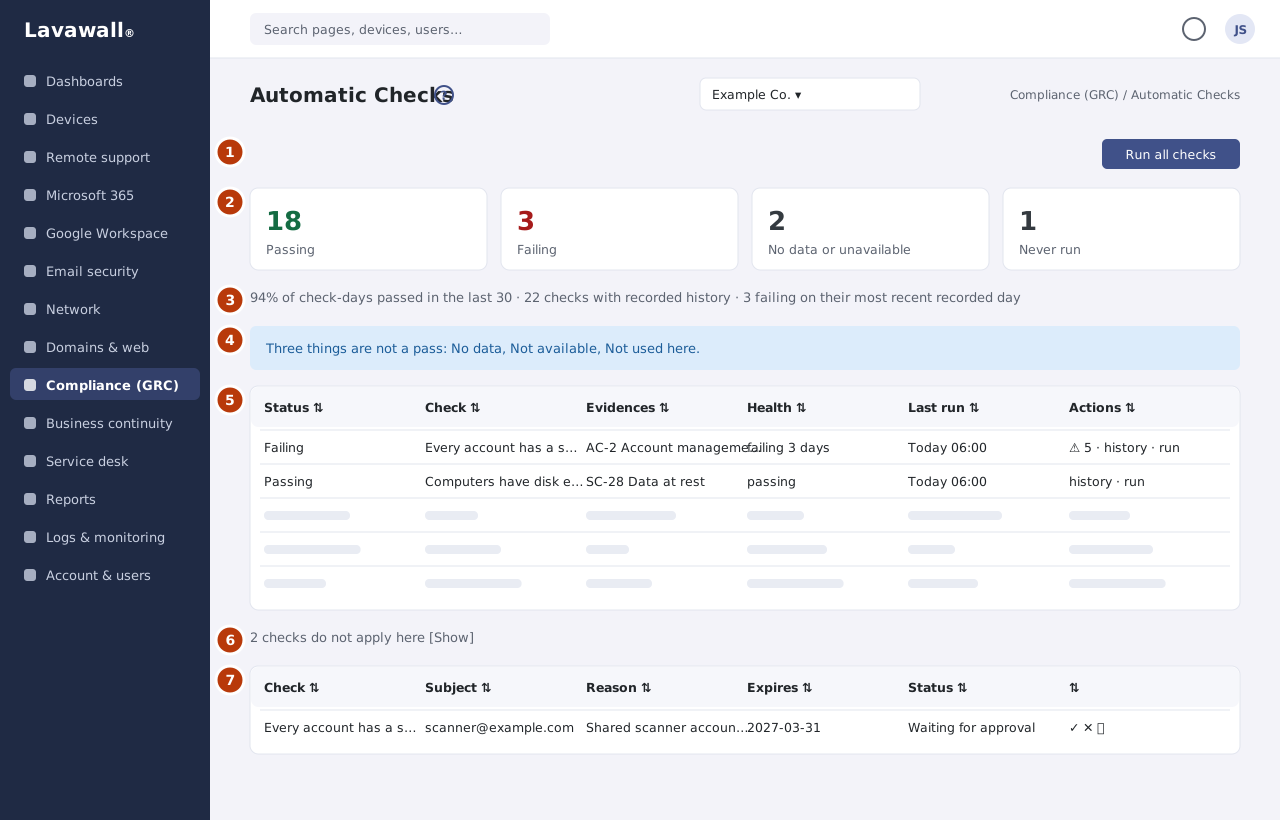
- Run all checks: runs every check now.
- Summary tiles: Passing, Failing, No data or unavailable, and Never run (with how many are not used here).
- Check health: the share of check-days passed in the last 30 days, how many checks have history, and how many are failing on their latest day.
- "Three things are not a pass" notice: explains No data, Not available and Not used here.
- Checks table: Status, Check (title, question and latest summary), Evidences (the controls it maps to), Health, Last run and Actions (failing items, history, run).
- Checks that do not apply here: a collapsible list of checks for products the company does not use.
- Exceptions: Check, Subject, Reason, Expires and Status, with Approve, Reject and Remove.
How to use Automatic Compliance Checks
How to run the checks
- Select Run all checks, or the play button on one check's row.
- Wait for the message to finish; the table and tiles update.
How to see what failed
- On a failing check, select the red button showing the number of failing items.
- The list shows each failing account, device or domain. Devices link to their device page.
How to see a check's history
- Select the history button on the row.
- A strip of coloured blocks shows each run, oldest on the left, with a line such as "58 of the last 60 runs passed".
How to ask for an exception
- Open the failing items and select Ask to accept next to the item.
- Enter why it is accepted and an end date (at most two years).
- Select Send for approval. It does not change the result until an approver accepts it.
How to approve or reject an exception
- In Exceptions, select Approve (tick) or Reject (cross) on a request marked Waiting for approval.
- Add a note (required when rejecting) and confirm.
Tips
- Status badges: green Passing, red Failing, amber Partial, grey No data, outlined Not available, and dark Error.
- No data is a finding: the source is connected but came back empty, so the sync may be broken.
- The pass rate only counts days a check reached a verdict; days it could not run are not counted as passes.
- A self-approved badge means the person who asked also approved it; this is only allowed if your company permits it and is shown to auditors.
- Only approved, unexpired exceptions change a check result.
Troubleshooting
- "Control mapping not configured yet" in Evidences: The check is not yet linked to a control, so it does not credit one.
- "In the catalogue but not yet implemented: it will never run.": That check is planned but not available.
- "No runs recorded yet.": Run the check, or wait for the scheduled run.
- "Say why this is accepted. An auditor will ask." / "Give the exception a real end date.": Exceptions need a reason and a future end date within two years.
- "Somebody else decided it first. Reload the page.": Another approver acted on the exception at the same time.
Task guides that use this page
Related articles
Still need help?
Search the support centre, or contact our support team and tell us which page you were on.
Names, companies, devices and figures in the pictures are examples. Other product and company names are trademarks of their respective owners.