Issues & Remediation
Keep one list of everything that needs fixing, who is responsible for it, who is doing it, when it is due and where it stands.
What the page is for
Issues & Remediation is the register of findings and fixes for your company. Issues can be raised by hand or generated from findings elsewhere in the platform: failing automated checks, "No" answers in your latest assessments, resilience follow-up findings, and people-security red flags such as a leaver whose account is still enabled.
Each issue records who is responsible (your service provider, the client, or both), who is assigned, the due date and status, and keeps a full history. When the service provider takes responsibility ("Us"), a matching task is created on the task board and kept in step with the issue.
Service providers can mark an issue as internal. People who sign in as the client company never see an internal issue, its history or its comments. Client users see a note that they are seeing the items their service provider shares with them.
What you see
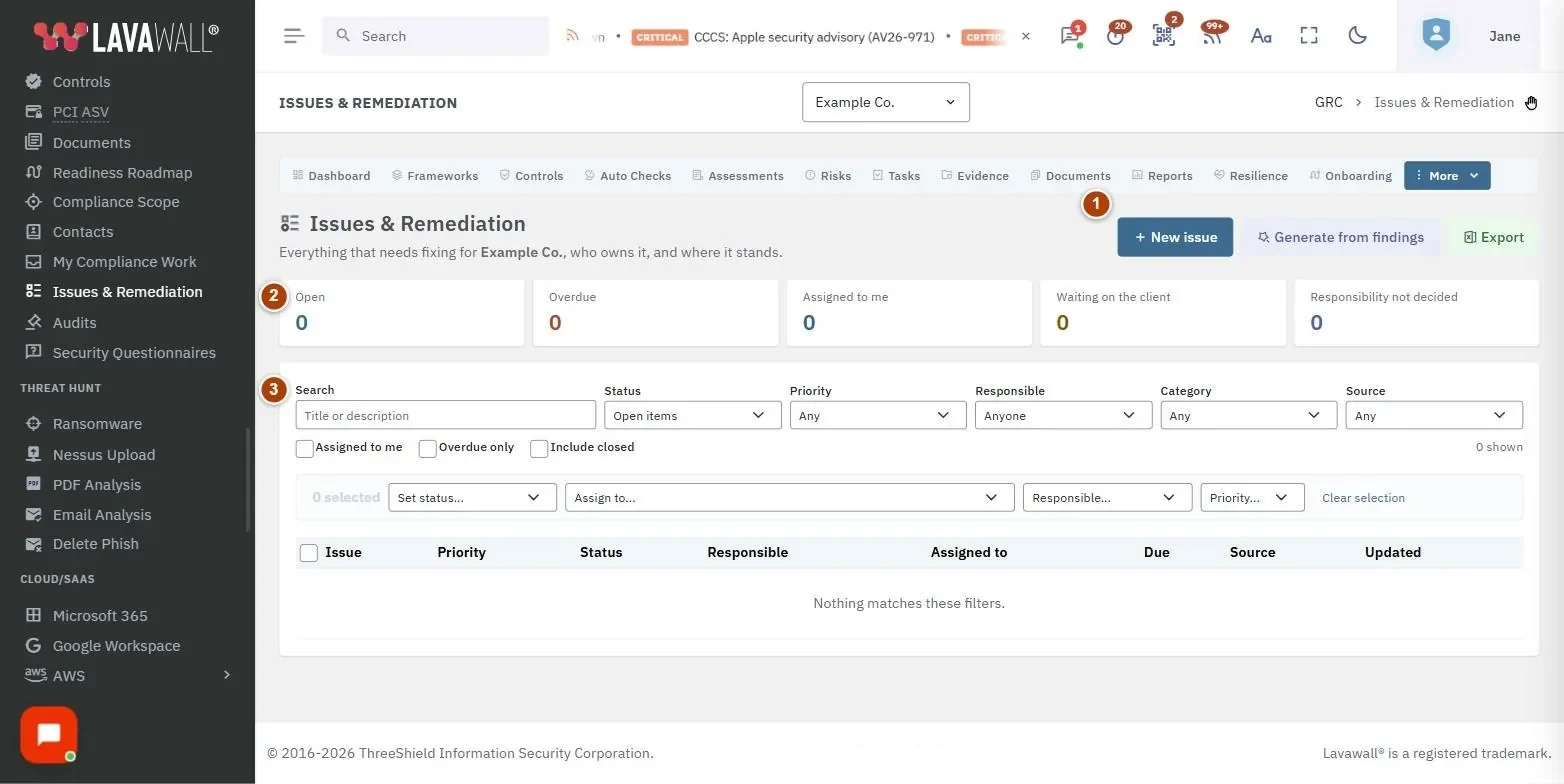
- Header actions: New issue, Generate from findings and Export.
- Summary cards: Open, Overdue, Assigned to me, Waiting on the client and Responsibility not decided. Click a card to filter.
- Filters: Search, Status, Priority, Responsible, Category, Source, and Assigned to me, Overdue only and Include closed.
- Bulk actions: after selecting rows: Set status..., Assign to..., Responsible..., Priority... and Clear selection.
- Issues table: Issue, Priority, Status, Responsible, Assigned to, Due, Source and Updated.
- Issue dialog: tabs for Details, History, Comments, Links & ticket and Ask for an update.
How to raise an issue
- Select New issue.
- Enter a Title and What needs doing, and why it matters.
- Choose Priority, Category, Due date and Status.
- Under Who is responsible?, choose who owns the fix. Choosing "Us" also creates a task on the task board.
- Pick a console user in Assigned to (console user), or type the name and email of a person without a login.
- Service providers: turn off Visible to the client for internal notes.
- Select Save.
How to generate issues from findings
- Select Generate from findings.
- Tick the sources to use: Failing automated checks, "No" answers in the latest assessments and, where available, Resilience follow-up findings.
- Select Generate. The summary shows how many issues were created, reopened, updated and closed. Issues whose finding has gone away are closed; your own responsibility, assignee, due date and status choices are kept.
How to update an issue's status
- Open the issue from the table.
- On Details, choose Change status to, add a Note (goes into the history), and select Update.
- To change many issues at once, tick them in the table and use the bulk Set status..., Assign to..., Responsible... or Priority... lists.
How to link an issue or raise a help desk ticket
- Open the issue and go to Links & ticket.
- Under Control, Risk or Task, type in Search to link... and pick a result. Use Remove link to undo.
- To involve the help desk, select Raise a ticket for this issue. Tickets are only raised when you press this; automated findings never open tickets by themselves.
How to ask someone for an update
- Open the issue and go to Ask for an update.
- Enter their Email and Name, and how many days the link lasts in Link lasts (days).
- Add an optional covering note and select Send request.
- They receive a one-time link, pick a status and can add a note without logging in. The table shows when each request was Sent, Opened, Answered and when it Expires.
Tips
- Start with Responsibility not decided so every issue has an owner, then Overdue.
- Use Comments for discussion; everything is also recorded in History.
- A new update request to the same person replaces their old link.
- Export downloads the register as a spreadsheet.
Troubleshooting
- I can't see an issue my provider mentioned. It may be marked internal, which hides it from people signed in as the client company.
- "Choose at least one source." Tick at least one finding source before selecting Generate.
- A finding source says "(not available on this console yet)". That source is not set up for your company, so it can't be used.
- The buttons are missing. Creating and generating issues need a GRC role that can edit; Export needs a role that can export.
Task guides that use this page
Related articles
Still need help?
Search the support centre, or contact our support team and tell us which page you were on.
Names, companies, devices and figures in the pictures are examples. Other product and company names are trademarks of their respective owners.