Controls (Control Design)
Work through every control in your chosen frameworks: see its status, owner, design, supporting documents and evidence at a glance, and open any control to write or review its design.
What the page is for
The Controls page is the working list of the controls that apply to your company. Each row shows the control code and name, implementation status, function and type, how many documents and pieces of evidence support it, whether automatic checks cover it, who owns it and when its next review is due. A coloured dot shows whether its design is approved, in draft or not written yet.
At the top, the engagement bar records what you are working towards, for example a SOC 2 Type I "as at" date or a Type II period. Type I and Type II want different evidence for the same control, so setting the engagement tells each control's detail page which evidence to lead with. Once a report has been issued, the engagement can be locked so its dates and type can no longer change.
A progress bar shows how many controls are implemented, in progress, not applicable or not started, and how many designs are approved, in draft or unwritten. Clicking a control opens its Control Detail page.
What you see
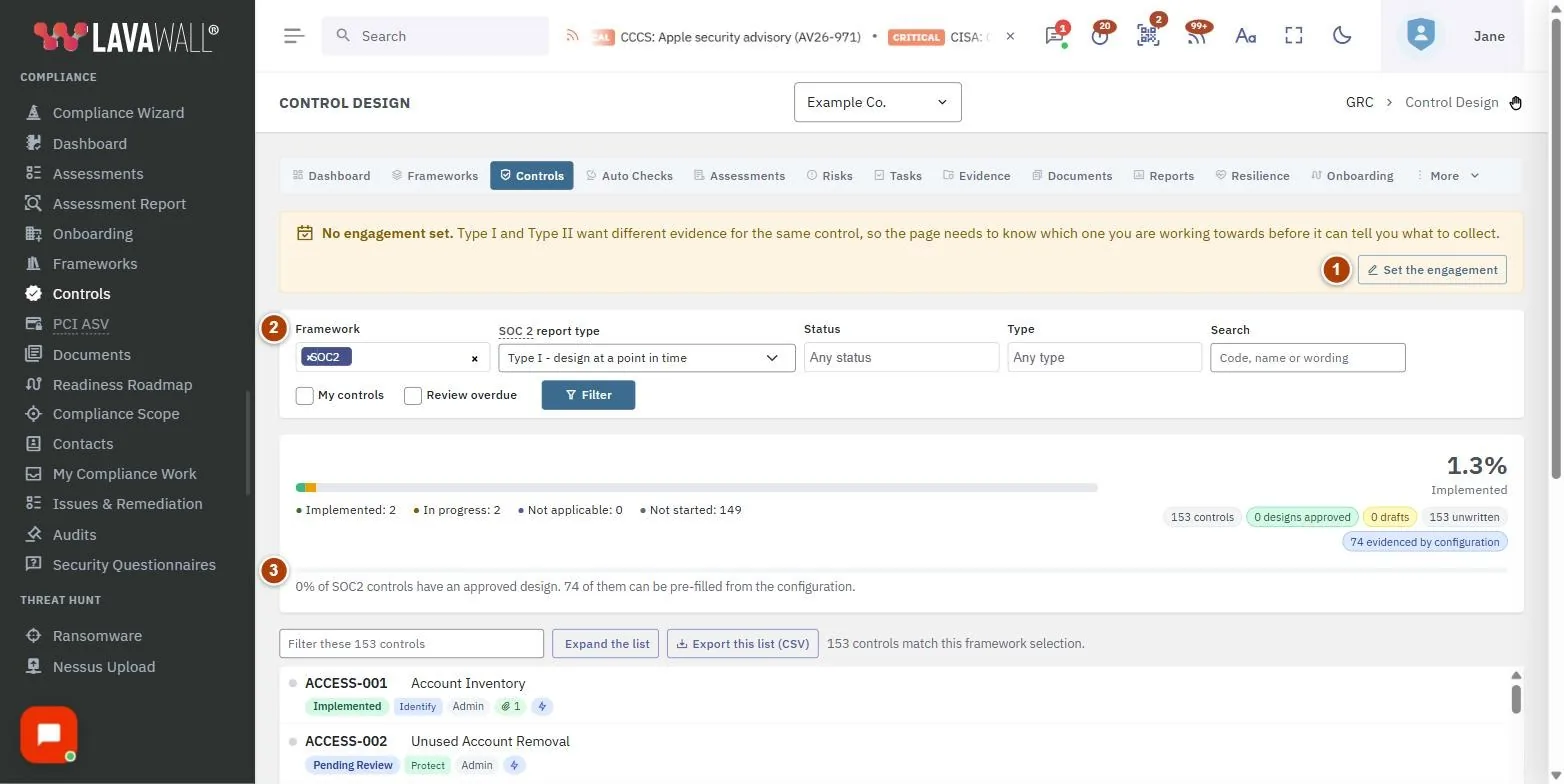
- Engagement bar: the current engagement (name, framework, Type I or II and dates, or "No engagement set"), with Set the engagement or Change, and Lock.
- Filters: Framework, the report type, Status, Type, Search, My controls and Review overdue.
- Progress summary: the implementation bar and percentage, and design counts: designs approved, drafts, unwritten and "evidenced by configuration".
- List tools: a quick filter box, Expand the list and Export this list (CSV).
- Bulk bar: with rows selected: Owner, Status and Review schedule, then Apply to selected.
- Control list: each control with its design dot, code, name, status, function, type, document, evidence and automatic-check counts, owner and review date.
How to set the engagement
- Select Set the engagement (or Change).
- In The engagement, choose the Framework and enter a Name.
- Choose the Report type (Type I or Type II) and enter the Period start and Period end (Type I uses a single "as at" date).
- Select Save. There is one engagement per framework; changing the framework starts a new one.
- After the report is issued, select Lock so the engagement's dates and type can no longer change.
How to find the controls you need
- Choose a Framework, and optionally a Status and Type.
- Tick My controls to see only yours, or Review overdue to see controls past their review date.
- Type in the quick filter box to narrow the list further.
- Click a control to open its detail page.
How to update many controls at once
- Select Expand the list to show the full table with tick boxes (Control, Name, Type, Function, Frameworks, Status, Design, Owner, Review, Docs).
- Tick the controls to change.
- Choose an Owner, a Status and a Review schedule (every 30, 90 or 180 days, every year, or no schedule). Leave any list on "leave as is" to keep current values.
- Select Apply to selected. Select Back to the working list when done.
How to export the list
- Set the filters you want.
- Select Export this list (CSV). It exports exactly the controls the filters produced, not the whole library.
Tips
- Filters live in the page address, so a filtered list can be bookmarked or shared.
- Green, amber and grey dots show approved, draft and unwritten designs.
- "Evidenced by configuration" counts controls with at least one automatic check mapped to them.
- Design progress is not the same as implementation: a control can be implemented before its design is written up.
Troubleshooting
- "Nothing matches these filters." Select Clear them.
- "No controls are mapped to …" Choose another framework, or clear the framework filter.
- "No engagement set." Select Set the engagement so the detail pages know which evidence to lead with.
- Change is greyed out. The engagement is locked, or your GRC role cannot change it.
Task guides that use this page
Related articles
Still need help?
Search the support centre, or contact our support team and tell us which page you were on.
Names, companies, devices and figures in the pictures are examples. Other product and company names are trademarks of their respective owners.