Framework Mapping
See which control answers each requirement of a framework, build and import your own custom frameworks, and add company controls for anything the shared library does not cover.
What the page is for
Framework Mapping shows a framework's requirements side by side with the control each one is mapped to, by code and name, so a wrong mapping is easy to spot. Rows where the requirement and the control share no meaningful word are marked check, because a mapping can look fine in the counts while crediting the wrong requirement.
System and shared frameworks are read only here. Custom frameworks your organization owns can be edited: you can add, change and remove requirements, or import them from a spreadsheet. The import suggests a library control for each row based on the wording of the requirement, and nothing is written until you have accepted, changed or skipped every row.
If a requirement is genuinely not covered by the shared control library, you can create a company control for it. Every mapping change is recorded in the audit trail with the before and after values.
What you see
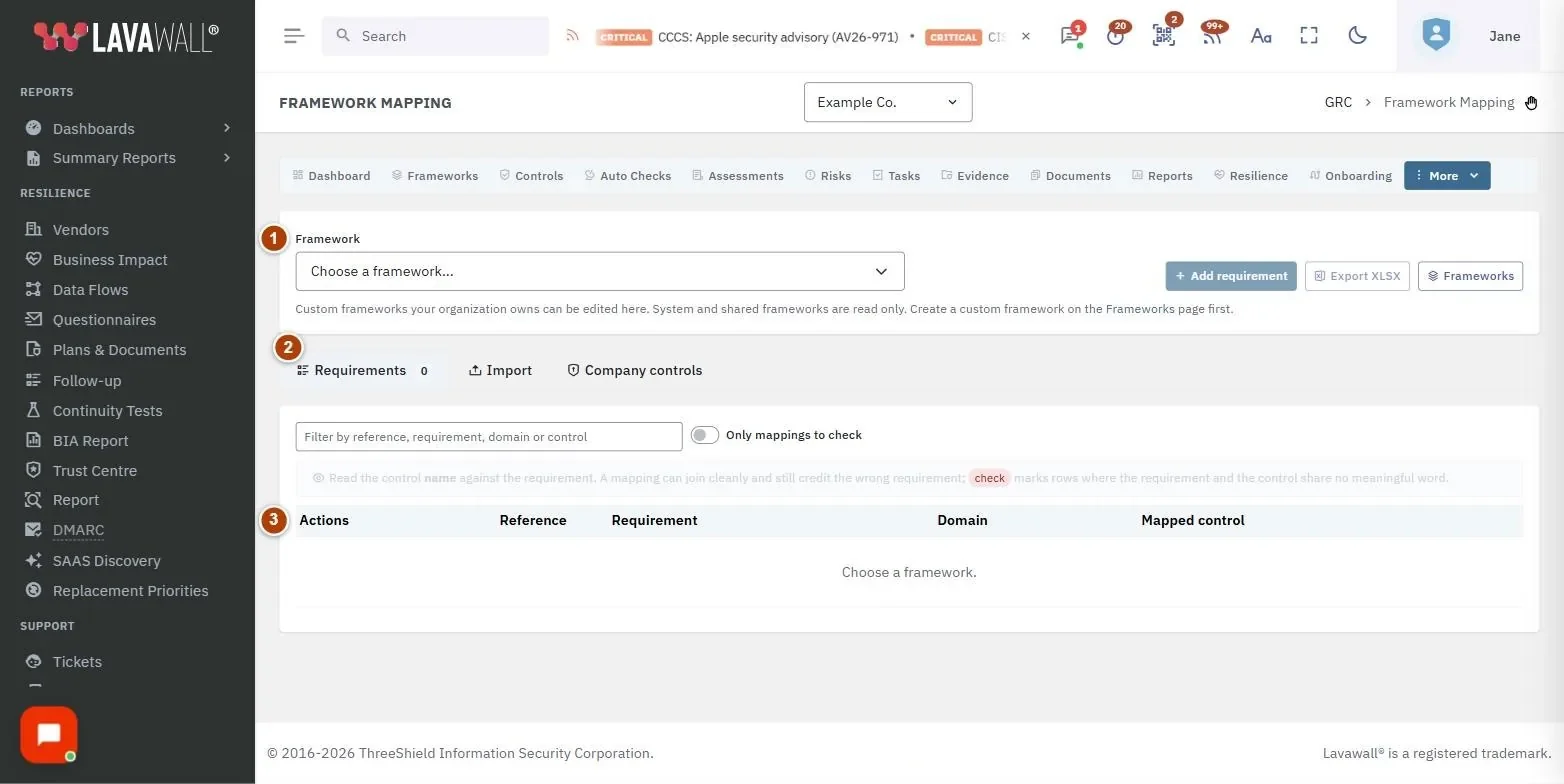
- Framework picker and actions: Framework, Add requirement, Export XLSX and a link to Frameworks.
- Tabs: Requirements (with a count), Import and Company controls.
- Requirements table: Actions, Reference, Requirement, Domain and Mapped control, with a filter box and Only mappings to check.
- Import: three steps: 1. Upload the requirements, 2. Choose the columns, 3. Review each row.
- Company controls: New company control form and Your company controls list (Code, Name, Type, Function).
How to review a framework's mappings
- Choose a Framework.
- Read each Requirement against its Mapped control name.
- Turn on Only mappings to check to see only the rows marked check.
- Use the filter box to search by reference, requirement, domain or control.
How to add a requirement to a custom framework
- Create the custom framework on the Frameworks page first, then choose it here.
- Select Add requirement.
- Enter the Reference and Requirement text, choose a Domain (or type a new domain name).
- Under Control, search the library by name or code and pick the control that answers it.
- Select Save.
How to import requirements from a spreadsheet
- Choose a custom framework your organization owns and open Import.
- Under 1. Upload the requirements, choose a .csv or .xlsx file with one requirement per row and select Read file.
- Under 2. Choose the columns, pick the Sheet, tick First row is a header, and match Reference, Requirement text, Domain and Control code (optional). Select Suggest controls.
- Under 3. Review each row, check the suggested Control and Match for each row, and choose Accept or Skip. Use Accept all strong, Accept strong and possible or Skip all to speed up.
- Select Write accepted rows.
How to create a company control
- Search the library first. A duplicate splits the evidence for one requirement across two records.
- Open Company controls.
- Enter a Name, Description, Type, Function and optionally a Code (left blank, codes run CUST-001, CUST-002 and so on).
- Select Create control.
Tips
- Weak import suggestions are shown as weak and default to Skip, so nothing wrong is credited by accident.
- Read the control name, not just the code. A clean join can still point at the wrong control.
- Export XLSX downloads the selected framework's mapping for review offline.
Troubleshooting
- "Choose a custom framework your organization owns to import requirements into it." Import works only for your own custom frameworks. Create one on the Frameworks page.
- Add requirement is greyed out. No framework is chosen yet, or the selected framework is a system or shared framework, which is read only here.
- "Your GRC role can read company controls but not create them." Ask a GRC administrator for a role that can edit.
- "Your GRC role does not include access to framework mappings." Ask a GRC administrator for a suitable role.
Related articles
Still need help?
Search the support centre, or contact our support team and tell us which page you were on.
Names, companies, devices and figures in the pictures are examples. Other product and company names are trademarks of their respective owners.