Business Impact Assessment
Work out which parts of the business matter most, how long each could stop, and what an outage would cost, in plain language and without jargon.
What the page is for
A business impact assessment (BIA) lists the processes your organization depends on, such as payroll, invoicing or serving customers, and records how urgently each must come back after an outage. This page is the heart of the business continuity section: everything else (vendor risk, continuity plans, tests and the BIA report) builds on the processes you record here.
Instead of asking for recovery objectives in technical terms, the page walks you through a six-step interview: the basics, how urgent it is, the numbers, the cost, what it relies on, and plan B. Answers are chosen from plain choices ("Same day", "Next day", "A week") and turned into recovery time, data-loss tolerance and maximum tolerable downtime figures.
If you are not sure where to start, the page suggests common processes that every business has, plus processes typical for your industry when your company profile includes it. Each suggestion opens the interview already filled in with a description you can adjust.
You can also email a short questionnaire to the person who knows a process best. Their answers come back to the Stakeholder Questionnaires page for you to review and merge.
What you see
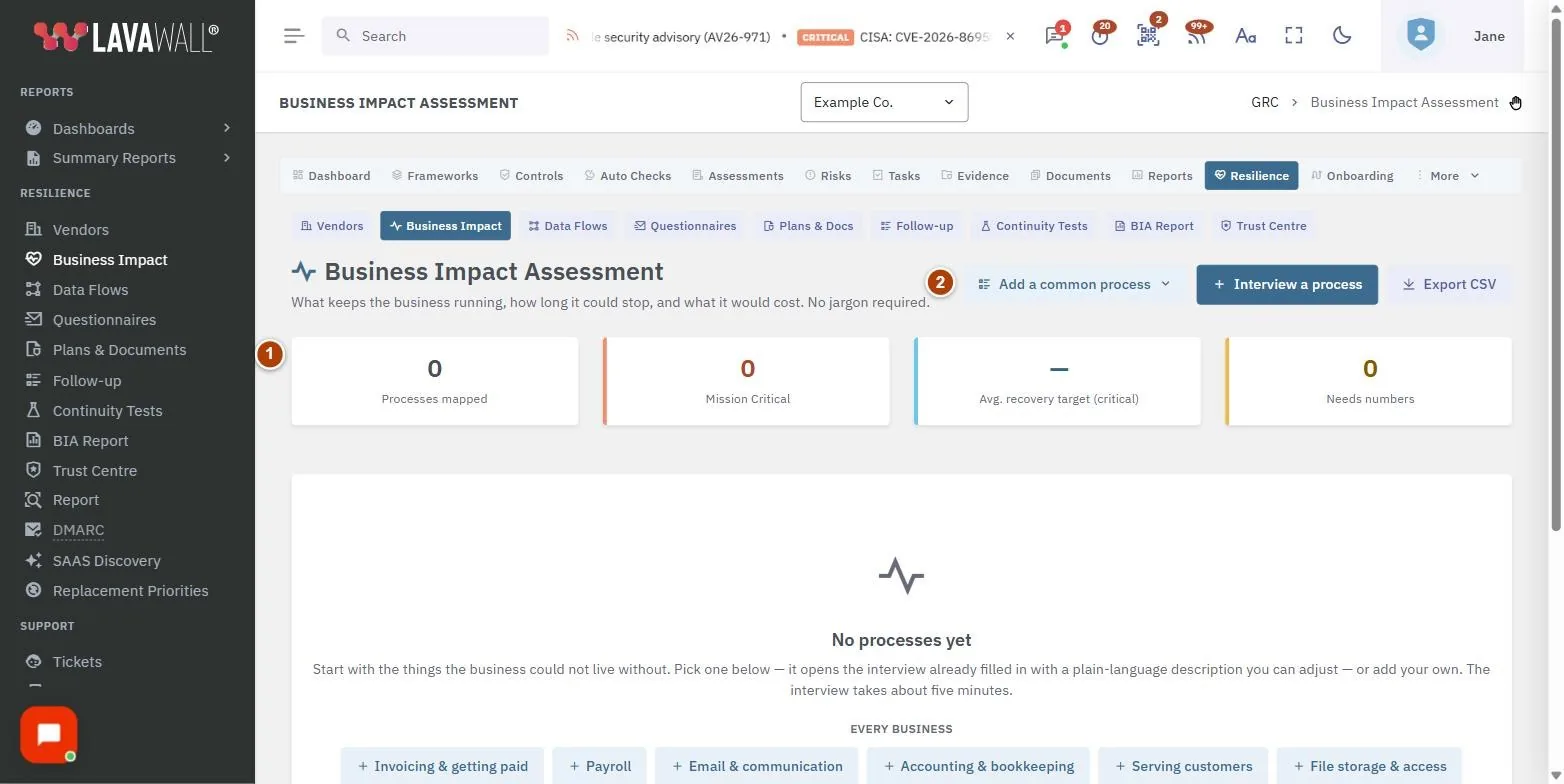
- Summary tiles: how many processes are mapped, how many are Mission Critical, the average recovery target for critical processes, and how many still need numbers.
- Toolbar: Add a common process (a menu of suggested processes), Interview a process and Export CSV.
- Process table: each process with its criticality, how soon it must be back (Back within), how much data loss is acceptable (Data loss OK), the impact of a one-day outage, the owner and its status (Draft, Review or Approved). The process name also shows its department and how many dependencies it has.
- Row actions: buttons to interview or edit the process, manage its dependencies, ask the owner, and delete it.
- Interview a process: the six-step wizard used to add or update a process.
How to add a process
- Select Add a common process and pick a suggestion under Every business or Common for your industry, or choose Something else…. You can also select Interview a process to start from a blank form.
- On 1. The basics, fill in What should we call this?, a short description, the Department, and Who knows this process best? with Their email. If a staff directory is connected, you can search it to fill in the owner.
- On 2. How urgent?, choose how bad an outage would get and how fast, and optionally note when an outage would hurt most and who feels it.
- On 3. The numbers, choose how long until it must be running again, how much recent data you could afford to re-do, and the absolute limit before serious harm.
- On 4. The cost, rate how much it would hurt if it was down for an hour, a day and a week, tick the kinds of harm (for example money coming in, legal or compliance trouble, reputation, safety), and optionally estimate the cost of downtime.
- On 5. What it relies on, tick the vendors and tools it needs, and add anything else (a system, device, person, office or data set).
- On 6. Plan B, describe any manual workaround, how long you could keep it up, and how you would bring the process back. Set the Status and select Save process.
How to record what a process depends on
- In the process table, select the Dependencies button on the row.
- Under Add a dependency, choose what it depends on (Vendor, System or app, Device or server, Person, Office or facility, Another process or Data set) and pick or name Which one?.
- Choose How badly is it needed? (Required, Important or Optional).
- Tick Only one person/system can do this: no backup if there is no alternative, which marks it as a single point of failure.
- Select Add, then Done when finished.
How to ask a process owner to fill in the details
- Select the Ask the owner button on the process row.
- Enter Their name, Their email and, if you like, a personal note.
- Select Send the questions. The owner receives a short plain-language questionnaire (about seven questions). Their answers appear on the Stakeholder Questionnaires page.
How to edit, delete or export processes
- To edit, select the Interview / edit button on the row, move through the steps with Back and Next, and select Save process.
- To delete, select the Delete button and confirm. The process's dependencies are removed too, as are links from other processes to it. This cannot be undone.
- To export, select Export CSV in the toolbar.
Tips
- Start with the processes the business could not live without, then work down. Criticality runs from Mission Critical through Important and Standard to Deferrable.
- The Needs numbers tile and label flag processes that do not yet have recovery figures. Finish those before sharing the BIA report.
- Link vendors on step 5. That is what lets the BIA, disaster recovery and continuity plans show "if this vendor is down, these processes stop".
- If the absolute limit you choose is sooner than the recovery target, the interview warns you. It is worth a second look.
- Add your industry to the company profile to get tailored process suggestions.
Troubleshooting
- The page says "Your GRC role does not include viewing this page." Your compliance role does not allow access. Ask an administrator to change your compliance role.
- "Pick a vendor (or add one on the Vendors tab first)." You chose Vendor as the dependency type but have not selected one. Add the vendor on the Vendor Inventory page first if it is not listed.
- I only see "No processes yet". Nothing has been recorded for this company. Choose a suggested process or Something else to begin.
- Export says "There is nothing to export yet." Add at least one process first.
- The owner search box is missing. It only appears when a staff directory is connected for the company; type the owner's name and email instead.
Task guides that use this page
Related articles
Still need help?
Search the support centre, or contact our support team and tell us which page you were on.
Names, companies, devices and figures in the pictures are examples. Other product and company names are trademarks of their respective owners.