Continuity Tests
Keep a record of every tabletop exercise and recovery test, and prove your recovery plans actually work.
What the page is for
A recovery plan nobody has tested is a guess, and proof of testing is one of the first things an auditor or insurer asks for. This page is your register of tabletop exercises, disaster recovery tests, business continuity walkthroughs, failover tests and backup restore tests.
Each record says what was tested, who took part, how long recovery actually took compared with the target from your business impact assessment, what went wrong, and when the next test is due. You can attach evidence such as a restore log, a tabletop sign-in sheet or a screen recording. Files are encrypted when they arrive and are filed as compliance evidence against the control the test supports.
The page flags any test where recovery took longer than the target (RTO missed) and any process whose latest test is past its next due date (Overdue). It also lists mission-critical processes that have never been tested.
What you see
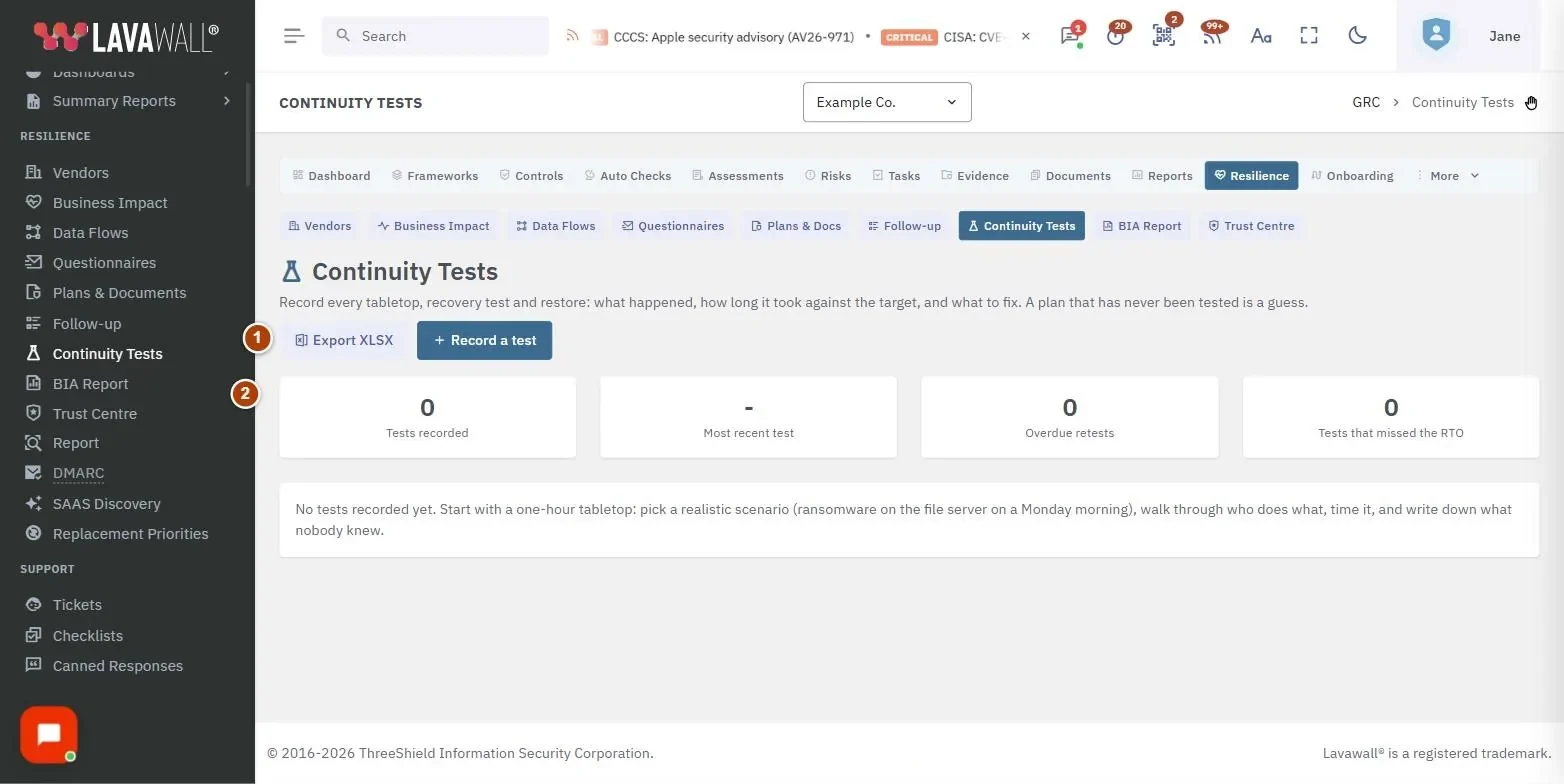
- Toolbar: Export XLSX and Record a test.
- Summary tiles: Tests recorded, Most recent test, Overdue retests and Tests that missed the RTO.
- Untested processes notice: mission-critical processes with no test on record.
- Test table: Date, Test, Process, Target RTO, Actual, Outcome, Next due and Evidence, with RTO missed and Overdue badges, plus buttons to open or delete each test.
- Record a test: the form for a new or existing test, including evidence upload.
How to record a test
- Select Record a test.
- Choose the Kind of test, enter a Title (for example "Q3 ransomware tabletop") and the Date of the test.
- Describe the Scenario (what was simulated and what the team had to do) and the Participants, including anyone who was missing but should have been there.
- Choose the Business process tested, or Not tied to one process. The Target RTO (hours) comes from the business impact assessment.
- Enter the Actual (hours) recovery time and the Outcome.
- Under Findings and actions, record what went wrong, what nobody knew, what will change and who owns it.
- Check Next test due. It defaults to twelve months after the test.
- Select Save.
How to attach evidence to a test
- Save the test first. The upload is available once the test exists.
- Under Evidence, choose the Control it supports (search by name, for example "backup testing").
- Enter an Evidence name and choose the File.
- Select Upload and file as evidence. Large files and screen recordings are fine.
- Select Close when finished.
How to edit or delete a test
- Select the open button on the test's row to edit it, change the details and select Save.
- To remove a test, select Delete on the row and confirm. Evidence already filed stays in the evidence register.
How to export the test register
- Select Export XLSX to download every test as a spreadsheet.
Tips
- If recovery took longer than the target, the form warns you. Record why in the findings, and either fix the recovery or agree a new target with the process owner.
- Test mission-critical processes first. Until they are tested, your recovery objectives are targets, not demonstrated capabilities.
- Older tests of the same kind for the same process show as superseded, so only the latest one counts toward overdue retests.
- Tests appear in the Continuity Testing section of the BIA Report.
- Reminders are sent before tests fall due.
Troubleshooting
- The upload button is greyed out. Save the test first, then attach evidence.
- "Your GRC role does not include viewing this page." Ask an administrator to change your compliance role.
- The Target RTO is empty. The process has no recovery target yet. Add one on Business Impact Assessment.
- I don't see Record a test or Delete. Your compliance role does not include edit or delete permission.
Task guides that use this page
Related articles
Still need help?
Search the support centre, or contact our support team and tell us which page you were on.
Names, companies, devices and figures in the pictures are examples. Other product and company names are trademarks of their respective owners.