Notify Computers
Put a message on the desktop of Windows computers in one organization or many, from a ready-made template or your own words, now or at a set time.
What the page is for
Notify Computers is a page in the Lavawall® console, in the Support area. Lavawall is the RMM, security, and compliance platform from ThreeShield, built and hosted in Canada. About this feature.
Use it to send one desktop notification, the message that appears on the screen of a Windows computer that runs the Lavawall agent, to many computers at once. It is the bulk version of the Notify button on a single computer.
It is useful when email is not the right way to reach people: a Microsoft or Google outage, a mail server that is down, a phishing message that is spreading, or mailboxes so full that a notice is easily missed. A notification is one more way to reach people. It does not replace email, and it cannot make anyone read it.
If you manage clients, you can choose one client organization or many, and send the same message to all of them in one go.
What you see
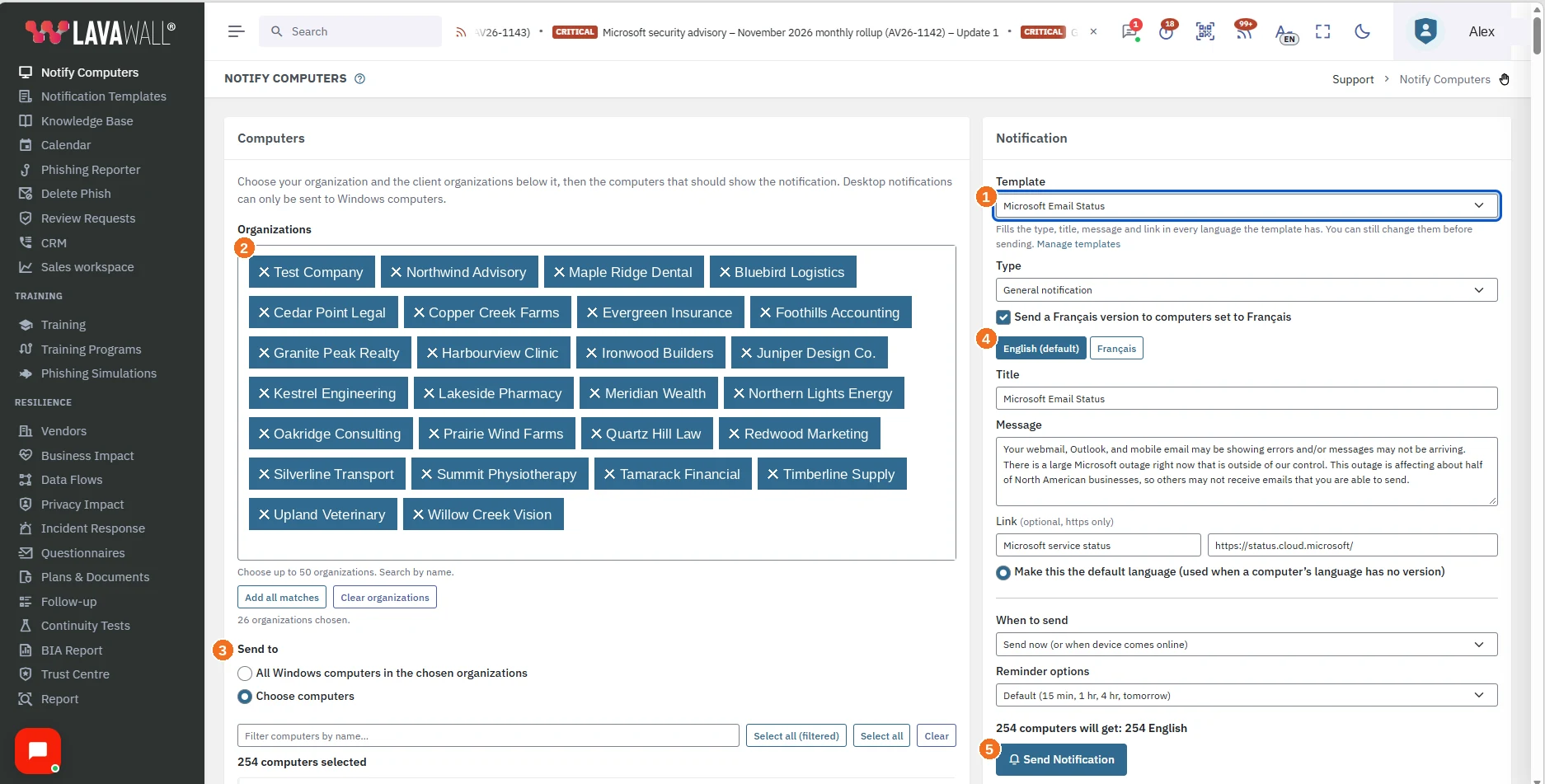
- Template: pick a ready-made message such as Microsoft Email Status. It fills in the type, title, message and link for every language the template has, and you can still change them before sending. Manage templates opens the Notification Templates page.
- Organizations: your own organization, with the client organizations below it. Search by name, or use Add all matches and Clear organizations. The page tells you how many you have chosen.
- Send to: All Windows computers in the chosen organizations, or Choose computers to pick them one by one with Filter computers by name…, Select all (filtered), Select all and Clear.
- The language tabs, English (default) and Français: each version has its own Title, Message and Link (https only). Tick Send a Français version to computers set to Français to include the French version.
- Send Notification: sends the message. Above it are When to send, Reminder options, and a line that says how many computers will get each language.
What people see on their computer
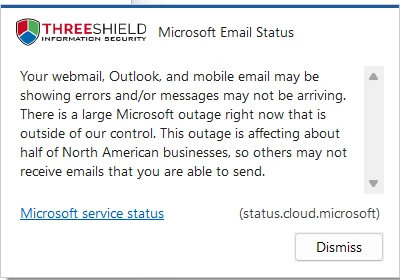
The message appears on the desktop of each chosen Windows computer with its title, the message, the link if there is one, and a Dismiss button.
How to use Notify Computers
How to notify many computers
- In Template, pick the message that fits, such as Microsoft Email Status or Planned Maintenance. Its text appears in the form.
- In Organizations, choose your own organization, one or more client organizations, or both.
- Under Send to, choose All Windows computers in the chosen organizations, or choose Choose computers and tick the ones that should show the notification.
- Check the Type, Title and Message, and change anything you like. You can add a Link, a short text and an address, for example to a status page. The address must start with https.
- Click the English (default) and Français tabs to read each version. Each computer receives the version written in its own language, or the default version when there is none. Choose which language is the default.
- Under When to send, keep Send now (or when device comes online), or choose Send at a specific date/time (see below).
- Under Reminder options, choose how people can be reminded, or choose No reminder (a single notice) to send one notice only.
- Check the line above the button that says how many computers will get each language, then click Send Notification and Yes, send to confirm. Notification Queued! tells you it is on its way.
How to write your own message
- Leave Template on No template, or pick a template that is close to what you need and change it.
- Choose the Type: General notification, Please close an application (for patching) or Restart required.
- Write the Title and Message on the English (default) tab. For an application notice add the Application name, and for a restart notice add the Reason.
- To send a French version too, tick Send a Français version to computers set to Français, open the Français tab and write it there.
- To keep a message you will use again, save it as a template on the Notification Templates page.
How to send at a set time
- Under When to send, choose Send at a specific date/time.
- Pick the Date & Time.
- Under Interpret time as, choose My local time (converted to UTC) or This device’s local time.
- Click Send Notification and confirm.
Tips
- Desktop notifications can only be sent to Windows computers. Other computers are listed but cannot be selected.
- Choose several client organizations to send the same message to all of them at once. Your own organization is listed first.
- Only computers that checked in during the last 30 days are included. A computer that is offline receives the notification when it next connects.
- The link on a notification must start with https. Linking to a status page is a good way to keep people informed as an outage develops.
- Every send is recorded in the activity log of each organization it reaches.
- Super Admins and Admins can always send to many computers. Other people need the Notify many computers permission, which a Super Admin or Admin can give them.
- A desktop notification does not replace email, and Lavawall cannot tell you that a person read it.
Troubleshooting
- "You do not have permission to notify many computers".
- Ask a Super Admin or Admin of your organization to send the notification, or to give you the Notify many computers permission.
- "Computer management is not part of this subscription".
- Desktop notifications are sent to computers that run the Lavawall agent, and that needs the Computer management part of your subscription.
- "No computers were found for this organization".
- No computer has checked in during the last 30 days. Check that the Lavawall agent is installed and the computers are on.
- A computer is greyed out.
- It is not a Windows computer, so a desktop notification cannot be sent to it.
- The notification does not say what I expected.
- The template fills in the type, title, message and link, but you can change them before you send. Check the English (default) and Français tabs, because each version is written separately.
- A computer has not shown the notification yet.
- A computer that is off or offline receives the notification the next time it connects to Lavawall.
- A message asks me to choose a computer or enter a title.
- Choose at least one computer, or All Windows computers in the chosen organizations, and fill in the title or message before you click Send Notification.
Related articles
Still need help?
Search the support centre, or contact our support team and tell us which page you were on:
- Chat now: use the chat button in the bottom-right corner of this page to reach our team right away. Where cookie consent is needed, the chat starts after you accept (cookie settings).
- Email: send our support team a message through the contact page. It goes straight to a person.
- Phone:
 AB: 1-403-538-5053
 US: 1-406-988-7333
 UK: +44 20 3695 9786
Names, companies, devices and figures in the pictures are examples. Other product and company names are trademarks of their respective owners.