Script Variables
Store the values your scripts need for each company, such as a server path or licence key, so one script works everywhere.
What the page is for
Script variables let you write a script once and give it different values for each company. In a script, a variable is written as {{variable_name}}. When the script runs on a device, Lavawall replaces the placeholder with the value for that device's company.
This page shows and edits the variables for the company chosen in the company selector at the top of the console. The page tells you which company you are editing.
Values can come from three places. Lavawall uses the first one it finds:
- A value set for this company.
- The parent company's value, if the variable is set to inherit.
- A global value that applies to everyone.
Variables can be marked secret, for passwords and keys. Secret values are write-only: they are never shown in the browser, never shown in a script's parameters, results or the activity log, and are only filled in on the device when the script runs.
What you see
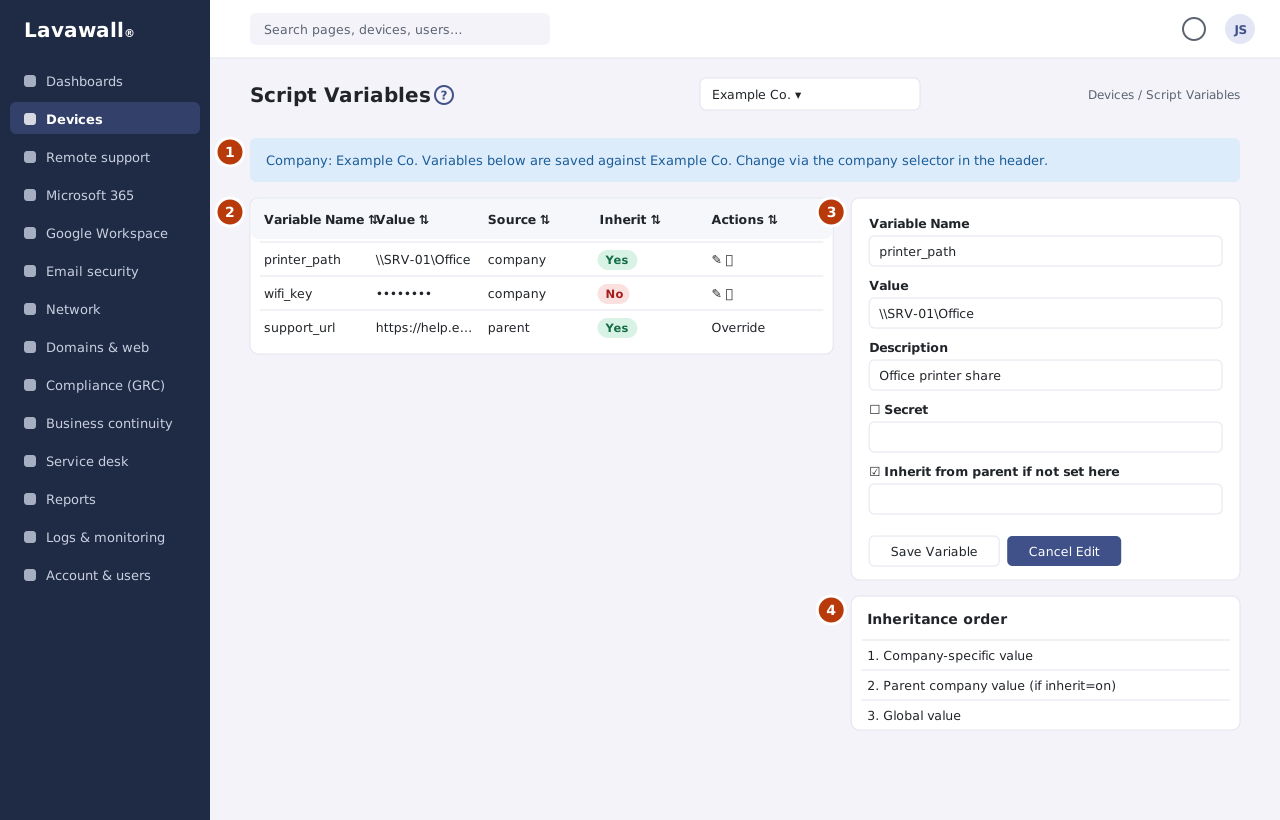
- Company: the company whose variables you are editing. Change it with the company selector at the top of the console.
- Variables: a table with Variable Name, Value, Source, Inherit and Actions. Inherited values show where they came from.
- Add Variable: Variable Name, Value, Description, Secret and Inherit from parent if not set here, with Save Variable and Cancel Edit.
- Inheritance order: a reminder of the order Lavawall uses to find a value.
How to manage variables
How to add a variable
- Choose the company in the company selector at the top of the console.
- Under Add Variable, enter a Variable Name using letters, numbers and underscores only.
- Enter the Value and an optional Description.
- Tick Secret if the value is a password or key.
- Leave Inherit from parent if not set here ticked if client companies should use this value when they have none of their own.
- Click Save Variable.
How to use a variable in a script
- In Add/Modify Scripts, type
{{variable_name}}in the script, or use Insert Variable. - Make sure every company that will run the script has a value, directly or by inheritance.
How to change or remove a variable
- Click the edit button in the variable's Actions. The form title changes to "Edit: " and the variable name.
- Change the value and click Save Variable, or Cancel Edit to stop.
- To remove it, click the delete button and confirm. This removes the variable for this company only.
How to give one company a different value
- Choose that company in the company selector.
- Find the inherited variable and click Override for this company.
- Enter the company's own value and click Save Variable.
Tips
- When editing a secret, leave Value blank to keep the current secret.
- Secret values appear as dots in the table. A secret with no value shows "(not set)".
- Set shared values once at the parent level and override only where a client is different.
- Variables are looked up when the script runs, using each device's own company.
Troubleshooting
- "Variable name must be letters, numbers, and underscores only". Remove spaces, hyphens and other symbols from the name.
- My saved variable is not on this company. Check the company named at the top of the page. Variables are saved against the company selected in the header.
- A script ran with an empty value. No value was found for that device's company. Add one here, or tick inherit on the parent's value.
Task guides that use this page
Related articles
Still need help?
Search the support centre, or contact our support team and tell us which page you were on.
Names, companies, devices and figures in the pictures are examples. Other product and company names are trademarks of their respective owners.