Vault
Store your team's passwords, notes, cards and one-time codes encrypted in your browser, share them safely, and fill them in with the Lavawall browser extension.
What the page is for
The Vault is a password manager built into Lavawall. Everything in it is encrypted and decrypted in your own browser with a key made from your vault passphrase, so Lavawall's servers only ever store encrypted data.
Items live in collections. You get a Personal collection when you set up your vault, and you can create shared collections for your team or for a client, then choose who else can open each one. Items can be logins (with username, password, website addresses and a live one-time code), secure notes, payment cards or identities.
You can import from Bitwarden, LastPass or 1Password, generate strong passwords, see earlier versions of an item, and send a single item to someone outside Lavawall with a time-limited link. Administrators get usage reports and can manage organization recovery keys.
What you see
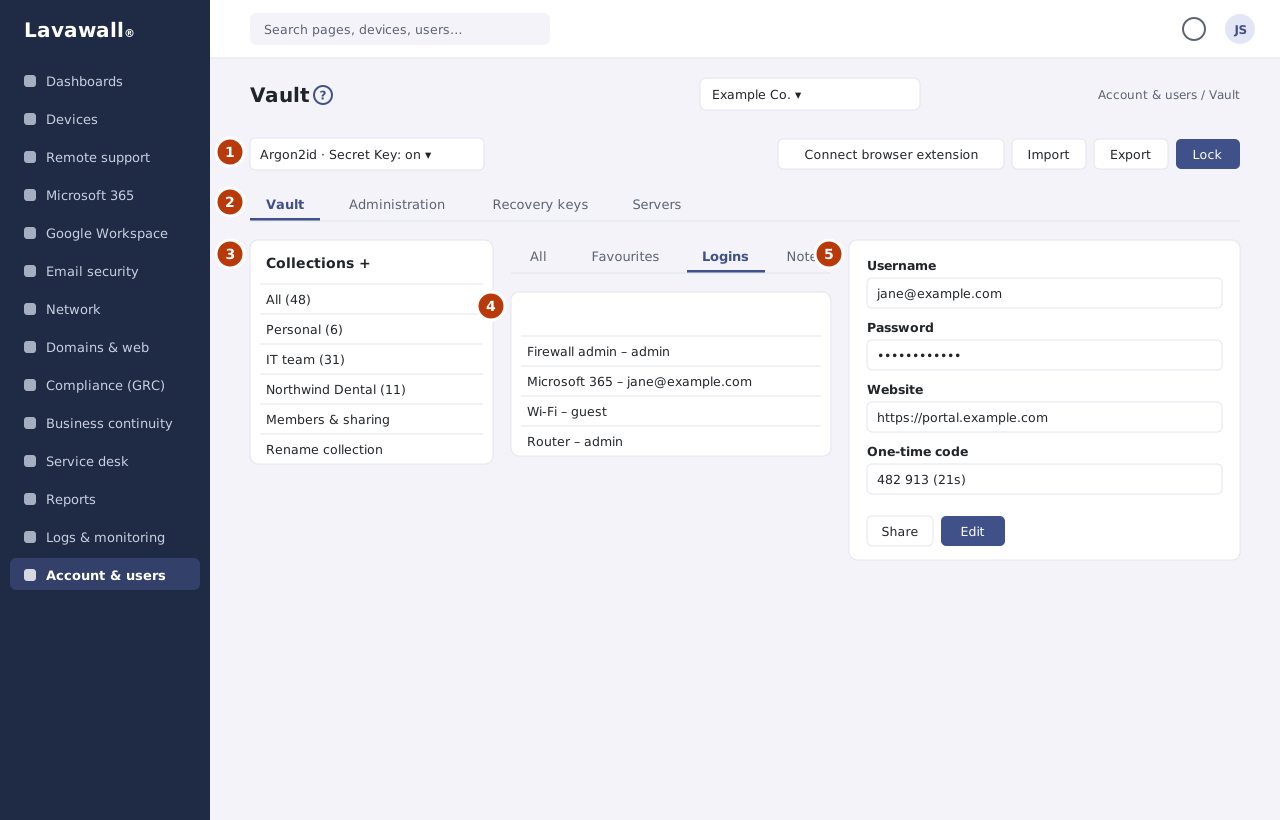
- Top bar: a badge showing how your vault is protected, whether a Secret Key is on, the lock status, and buttons for Unlock, Passkey, Connect browser extension, Import, Export, Add a Secret Key, Create recovery key, Icons and Lock.
- Tabs: Vault, plus Administration, Recovery keys and Servers for people with those rights.
- Collections: your collections with item counts, a New collection button, and Members & sharing, Rename collection and Delete collection for the selected one.
- Item list: a search box (name, user, URL, notes), filters for All, Favourites, Logins, Notes, Cards and Identities, and a New item button.
- Item detail: the selected item's fields with copy buttons, the one-time code with a countdown, and Favourite, Share, history, Edit and delete buttons.
How to set up your vault
- Open Vault. The first time, you see Set up your vault.
- Choose a vault passphrase of at least 12 characters and confirm it. It never leaves your browser, and Lavawall cannot recover it for you.
- Click Create my vault. Your keys are created and a Personal collection is made for you.
- Optional: click Add a Secret Key for a second secret that is needed with your passphrase, and Passkeys to unlock with a passkey or security key.
How to add an item
- Select a collection, then click New item.
- Choose the type and fill in the fields, for example name, username, password, website addresses and notes. For a one-time code, paste the otpauth:// link from the QR code or the base32 secret.
- Use the generator to create a password: set the length, choose character types, and click Use this password.
- Save the item. Copied passwords are cleared from the clipboard after 30 seconds.
How to share a collection with colleagues
- Select the collection and click Members & sharing.
- Under Add a member, pick a user and their role, then click Add.
- The first time you share with someone, confirm their key fingerprint with them by another channel. If a person's key changes later, the vault warns you before sharing again.
How to send an item to someone outside Lavawall
- Open the item and click Share.
- Enter the Recipient email and choose how they get the key: You give them a passphrase separately (strongest), Link by email, code by text message, or Both by email (lowest assurance).
- Set Expires (1, 8 or 24 hours) and Maximum views (1 to 3), then click Create share link.
How to import from another password manager
- Click Import and follow the instructions for Bitwarden, LastPass or 1Password.
- Choose the export file and the collection to import into, then start the import.
- When it finishes, delete the export file from your computer; it is not encrypted.
Tips
- Lock the vault with Lock when you step away. It also locks itself after your organization's idle time and maximum unlocked time.
- Use the history button on an item to see and restore earlier versions.
- Export creates a plain-text file of everything you can read. Only use it when you must, and store it encrypted.
- Connect the Lavawall browser extension to fill in logins on websites. Items in collections marked Use for servers are never filled into web pages.
- Ask an administrator to create an organization recovery key so shared collections can be recovered if someone forgets their passphrase.
Troubleshooting
- "You do not have access to the Vault." Your organization has the Vault, but your account has not been given access. An administrator can grant it under Users & Permissions.
- "The Vault is not part of your subscription." Click Add the Vault to add it on the Subscription page.
- "Unlocking paused" / "For your protection, unlocking is paused for …" Too many wrong passphrases. Wait, or ask an administrator to clear the lockout on the Access Policy page.
- "That user has not set up their vault yet." They need to open the Vault and create their keys before you can share with them.
- "The key stored for you does not match this collection." The collection is read-only for you until an administrator investigates.
- "That TOTP secret will not work." Paste the full otpauth:// link or a base32 key (letters A to Z and digits 2 to 7).
Task guides that use this page
Related articles
Still need help?
Search the support centre, or contact our support team and tell us which page you were on.
Names, companies, devices and figures in the pictures are examples. Other product and company names are trademarks of their respective owners.