Access Policy
Decide who can reach the Lavawall console and remote support, from where, and how strongly they must sign in.
What the page is for
The Access Policy page holds your organization's security rules for the console and for remote support sessions. You can limit access to trusted IP addresses or countries, require multi-factor authentication, single sign-on or a hardware security key before remote support, and set the default remote access given to new users.
Further sections control the encryption used for remote desktop sessions, the minimum standard for passkeys and security keys, how technician keys are approved on devices, password vault lockouts and time limits, and console session rules such as idle time-out, maximum session length, lockouts and a logon banner.
Most settings are saved together with Save Policy at the bottom. The vault, session policy, compliance and technician key sections have their own save buttons.
What you see
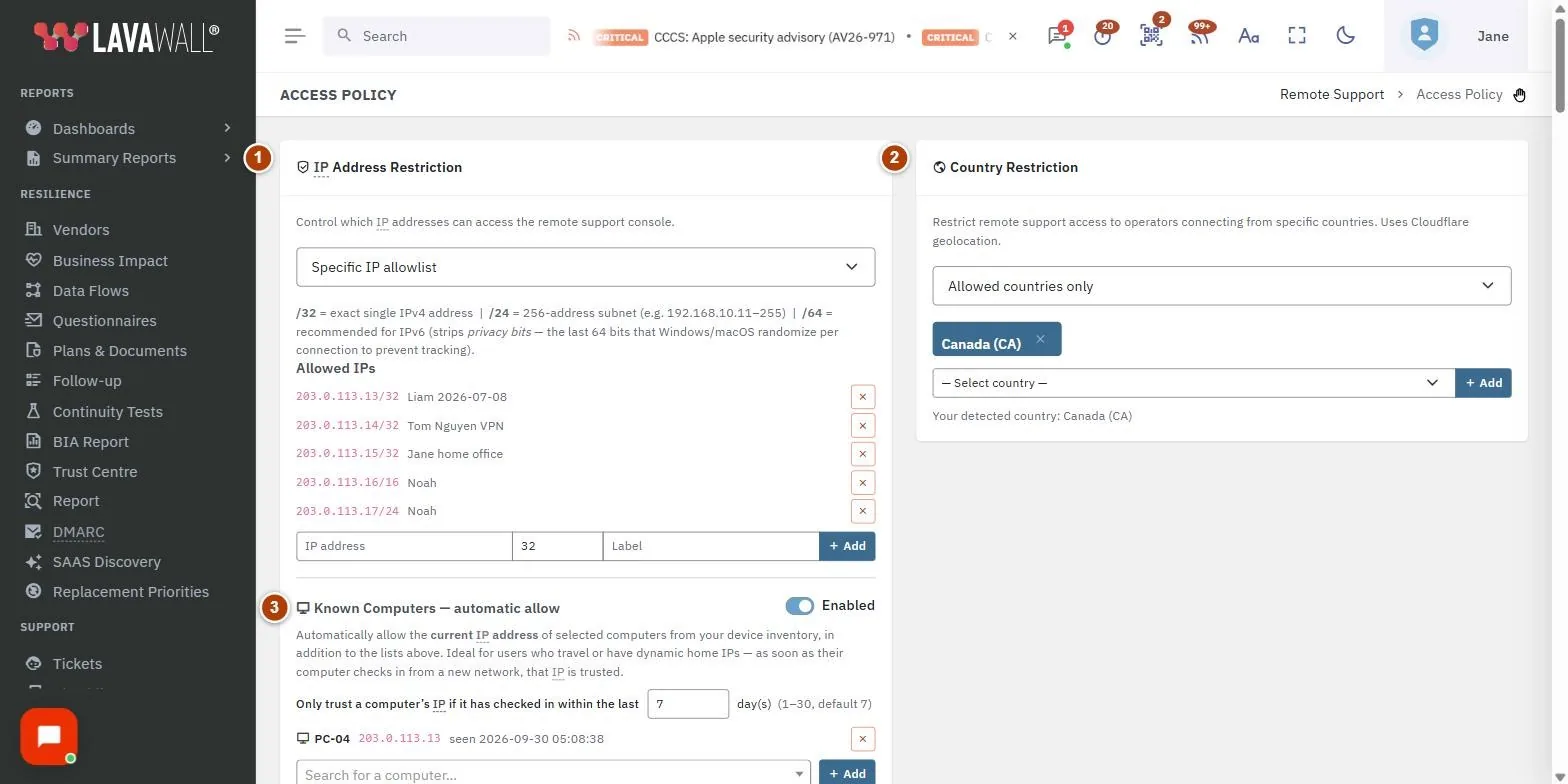
- IP Address Restriction: a mode drop-down with Trusted IPs and Allowed IPs lists, and Known Computers: automatic allow.
- Country Restriction: All countries or Allowed countries only, with a country list.
- Restriction Scope: whether the IP and country rules apply to Remote access only or the Entire console + remote access.
- Authentication Requirement: the extra sign-in needed before remote support.
- User Defaults: Default remote access for new users and client self-access options.
- FIPS, Passkey Assurance and End-to-End Encryption: remote desktop encryption mode, FIPS 140-3 compliance mode, Minimum authenticator standard, technician keys and the end-to-end session log.
- Vault Access Controls: unlock attempts, session limits, offline vault, key delivery, shares and pairing, passkey unlock, and Locked-out users.
- Console Session Policy: compliance standards, idle and maximum session times, MFA deferral, trusted computers, quick unlock methods, lockouts, logon banner and Locked accounts.
- Save Policy: saves the IP, country, scope, authentication, user default and encryption settings.
How to restrict console or remote access by IP address
- In IP Address Restriction, choose a mode: All IPs (no restriction), MSP & Client WAN IPs (from device inventory), Trusted IPs only or Specific IP allowlist.
- For a list mode, enter an IP address, a prefix length and a Label, then click Add. Use /32 for one IPv4 address, /24 for a 256-address subnet, and /64 for IPv6.
- Optional: turn on Known Computers: automatic allow, search for a computer and click Add. That computer's current internet address is allowed automatically whenever it checks in, which suits people who travel.
- In Restriction Scope, choose whether IP Restriction applies to remote access only or the entire console.
- Click Save Policy.
How to limit access to certain countries
- In Country Restriction, choose Allowed countries only.
- Pick a country and click Add. Repeat for each country. Click the × on a country to remove it.
- In Restriction Scope, set Country Restriction applies to.
- Click Save Policy.
How to require stronger sign-in for remote support
- In Authentication Requirement, choose Require MFA, Require Microsoft SSO, Require Google SSO, Require a hardware passkey with user verification, or Require a FIPS 140-3 validated security key.
- Click Save Policy.
How to set remote access for new users
- In User Defaults, choose Default remote access for new users: all companies, client companies only, own company only, or no remote access (the choices depend on whether you manage client companies).
- MSPs: choose whether to Allow client company users to remote their own company's devices.
- Click Save Policy. Change individual users on Users & Permissions.
How to set console session rules
- In Console Session Policy, set Idle limit (minutes), Maximum session length (hours) and Unlock window (minutes).
- Choose whether MFA enrolment may be deferred, and how many days Trusted computers may skip the authenticator code.
- Tick the Quick unlock methods allowed after the idle limit, and choose Lockout release, Failed attempts before lock and Lockout window (minutes).
- Optionally enter a Logon banner that users must acknowledge before signing in.
- Click Save Session Policy. To release a locked account, click Clear beside it under Locked accounts.
How to set vault lockouts and time limits
- In Vault Access Controls, set the unlock attempt limits, Idle lock (minutes) and Maximum unlocked time (minutes).
- Choose whether devices may keep an offline copy of the vault, and whether a passkey may unlock it.
- Click Save Vault Access Controls. Clear a lockout under Locked-out users with Clear.
Tips
- Before switching IP or country restrictions to Entire console, add your own current address or country, or you may lock yourself out.
- Passkey enforcement can run in report-only mode first: leave Enforce this level off and check Users with no key that meets this level until it is empty.
- Security keys that meet this level lists hardware keys you can buy or issue before turning enforcement on.
- Settings marked "inherit" follow the parent organization's policy.
- Clearing a lockout is recorded in the activity log.
Troubleshooting
- "You are not authorized to manage remote support policy." Only a Super Admin, or a user a Super Admin has given the Access Policy permission, can open this page.
- A section says it is not available yet or is read-only. That feature has not been switched on for your console yet. Contact support.
- Someone cannot sign in from home. Check the IP and country lists and the Restriction Scope, or add their computer under Known Computers.
- A technician's new browser is blocked. Under Technician keys, an administrator can clear the pin in Keys approved on each device so the device accepts the technician's next key.
Task guides that use this page
Related articles
Still need help?
Search the support centre, or contact our support team and tell us which page you were on.
Names, companies, devices and figures in the pictures are examples. Other product and company names are trademarks of their respective owners.