Single Sign-On
Let your people sign in to Lavawall with your own identity provider, and create or deactivate their accounts automatically.
What the page is for
This page connects Lavawall to your identity provider over OpenID Connect, so people sign in with the same account they use everywhere else. It works with Entra ID, Okta, Auth0, Google Workspace, JumpCloud and Ping.
You tell Lavawall which email domains belong to the provider, and it sends those people to your provider to sign in. You can create Lavawall accounts automatically the first time someone signs in, map provider groups to GRC roles, let invited external auditors use it, and, once you have tested it, require single sign-on so password sign-in is refused for your domains.
The SCIM provisioning tab gives you an address and tokens so your identity provider can create, update and deactivate Lavawall accounts for you.
What you see
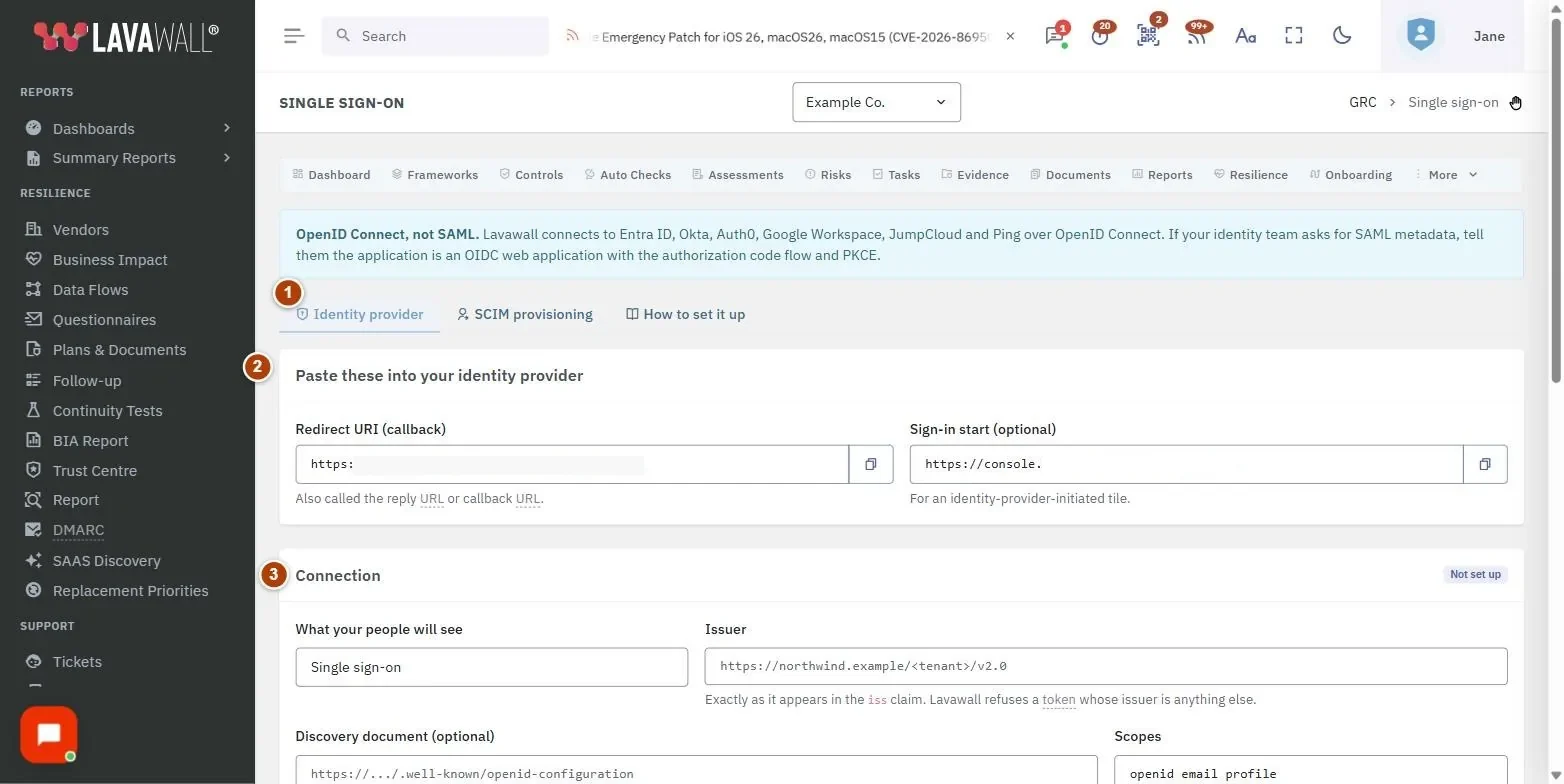
- Tabs: Identity provider, SCIM provisioning and How to set it up.
- Paste these into your identity provider: the Redirect URI (callback) and Sign-in start (optional) addresses, each with a copy button.
- Connection: What your people will see, Issuer, Discovery document (optional), Scopes, Client (application) ID, Email domains this provider owns, Email claim, Group claim (optional) and Group to GRC role.
- Client secret: Save secret and Forget the stored secret.
- New people and switches: Create a Lavawall account the first time somebody signs in (with the GRC role and console role for new accounts), External auditors may use it, Single sign-on is switched on and Require single sign-on.
- Save settings and Test discovery.
- SCIM provisioning: the SCIM 2.0 base URL and the Provisioning tokens table with New token.
How to connect your identity provider
- At your identity provider, create a web application using the authorization code flow with PKCE, and set its redirect URI to the Redirect URI (callback) shown here.
- Give it the scopes openid, email and profile (plus your groups scope if you want group mapping).
- In Lavawall, enter the Issuer exactly as your provider shows it, the Client (application) ID and the Email domains this provider owns. Enter a button label in What your people will see, such as "Sign in with Okta".
- Create a client secret at your provider, paste it into Client secret and click Save secret.
- Click Save settings, then Test discovery. It should read your provider's signing keys.
- Tick Single sign-on is switched on and click Save settings.
How to require single sign-on
- Sign in yourself through your provider in a private browser window to prove it works.
- Tick Require single sign-on and click Save settings. Password sign-in is then refused for people on your domains.
How to create accounts automatically on first sign-in
- Tick Create a Lavawall account the first time somebody signs in.
- Choose the GRC role for new accounts and the Console role id. A new account is never given the Super Admin role.
- Optional: enter a Group claim and a Group to GRC role map so people get GRC roles from their provider groups. The strongest matching role wins.
- Click Save settings.
How to set up SCIM provisioning
- Open the SCIM provisioning tab and copy the SCIM 2.0 base URL into your identity provider.
- Click New token, enter what will use it (for example "Okta provisioning") and click Create.
- Copy the token from the window and paste it into your provider, then click I have copied it. It is shown only once.
- To stop a token, click revoke on its row and confirm. Anything using it stops provisioning at once.
Tips
- Lavawall uses OpenID Connect, not SAML. If your identity team asks for SAML metadata, tell them it is an OIDC web application with the authorization code flow and PKCE.
- Signing in through your provider replaces the Lavawall password, not the Lavawall second factor. People are still asked for their authenticator code unless your session policy says otherwise.
- Public email domains such as gmail.com cannot be claimed.
- SCIM deactivation locks the Lavawall account rather than deleting it, so the audit trail stays intact. Group provisioning is not supported; use the group-to-role map instead.
- The client secret is stored encrypted and never shown again, even to you.
Troubleshooting
- "Only a GRC administrator can change how people sign in to this company." Ask a Super Admin or MSP Client Administrator.
- Test discovery fails. Check that the Issuer matches your provider exactly, or enter the Discovery document address.
- Someone is refused at sign-in. Every refusal is recorded in the company's compliance history with the reason. Check the email domain, the email claim and the token signing algorithm.
- Tokens are refused. Lavawall accepts RS256, RS384, RS512, ES256, ES384 and ES512 with RSA keys of at least 2048 bits. Tokens signed with "none" or an HMAC algorithm are refused.
Task guides that use this page
Related articles
Still need help?
Search the support centre, or contact our support team and tell us which page you were on.
Names, companies, devices and figures in the pictures are examples. Other product and company names are trademarks of their respective owners.