System Types
Choose which kinds of systems you track administrators for, and add your own.
What the page is for
Company Systems & Admin Access tracks who administers each system a client uses. System Types is the list of kinds of system you can track, such as security tools, productivity suites, hosting, domains, website platforms, backup and monitoring.
Lavawall includes built-in types shared by all MSPs. You can hide built-in types you never use, and add custom types for tools that are not in the list. Each type has a name, category, icon, colour and an optional admin address, so the matching system cards look right and can link to the admin site.
What you see
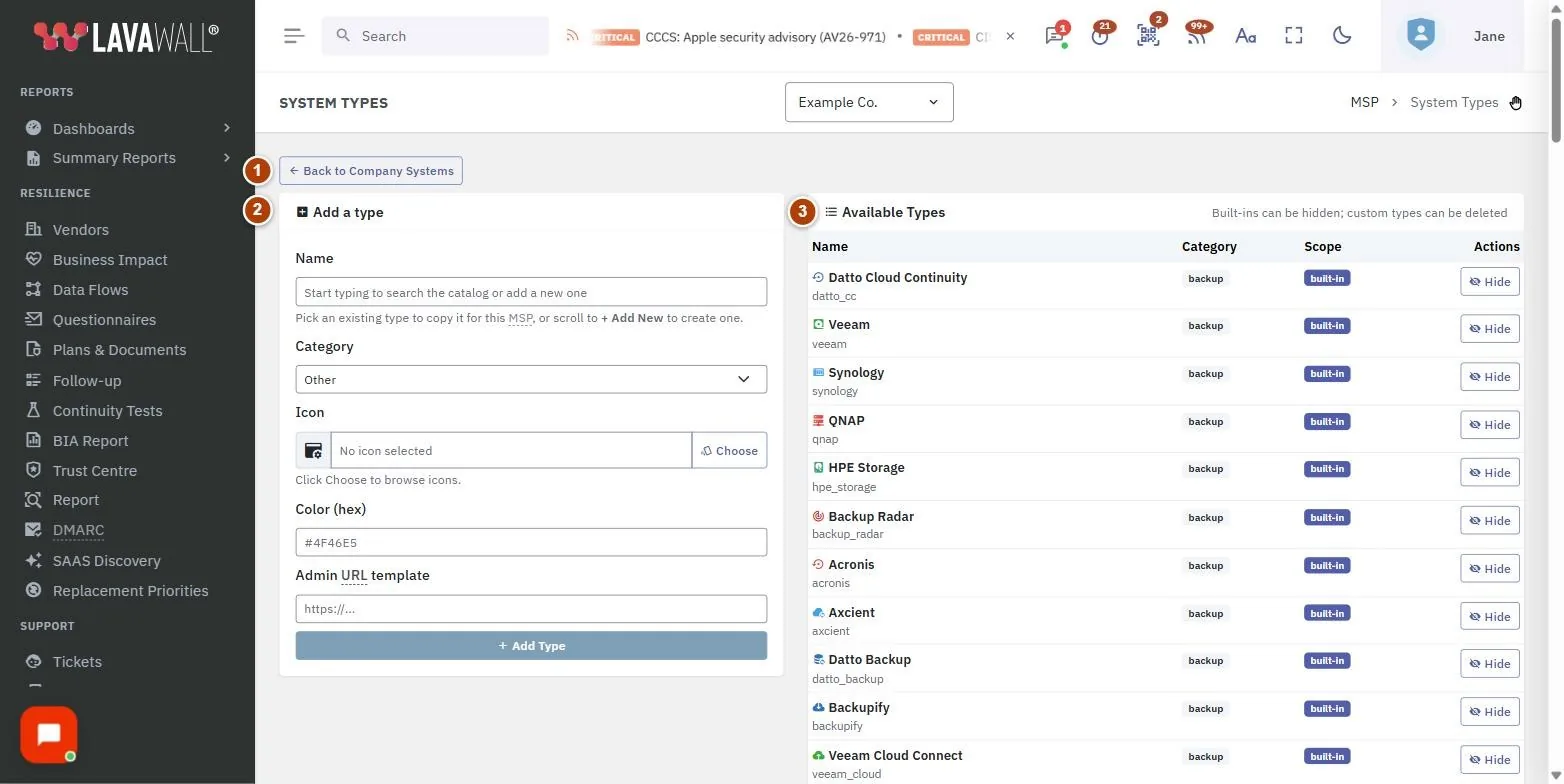
- Back to Company Systems: returns to the admin coverage page.
- Add a type: Name (with a search of the catalogue), Category, Icon, Color (hex), Admin URL template and Add Type.
- Available Types: Name, Category, Scope (built-in or custom) and Actions (Hide, Show or Delete).
How to use this page
How to add a custom system type
- In Add a type, start typing in Name.
- Pick an existing type from the list to copy it for your MSP, or scroll to + Add New to create a new one.
- Choose a Category: Security, Productivity, Hosting, Domain, CMS, Backup, Monitoring or Other.
- Select Choose to pick an icon, and enter a Color (hex) such as #4F46E5.
- Enter the Admin URL template for the system's admin site, if it has one.
- Select Add Type.
How to hide or show a built-in type
- Find the type in Available Types. Built-in types show built-in under Scope.
- Select Hide to remove it from your choices. Hidden types appear faded.
- Select Show to bring it back.
How to delete a custom type
- Find the type. Custom types show custom under Scope.
- Select Delete and confirm.
Tips
- Hiding a built-in type only affects your MSP. Other MSPs still see it.
- Deleting a custom type removes it from the list of choices, but does not delete any systems you are already tracking with it.
- Types are grouped by category, so choose the category that matches where you expect to find the system.
- A short identifier is generated from the name automatically; if it matches another type, a suffix is added.
Troubleshooting
- "Name required" appears when you select Add Type without a name.
- The Add Type button is greyed out. Enter a name first.
- "Icon picker not loaded" means the icon browser did not load. Refresh the page and try again.
Related articles
Still need help?
Search the support centre, or contact our support team and tell us which page you were on.
Names, companies, devices and figures in the pictures are examples. Other product and company names are trademarks of their respective owners.