Billing Summary
See what each client is using, from computers and security licences to support hours, so you can bill accurately and catch renewals in time.
What the page is for
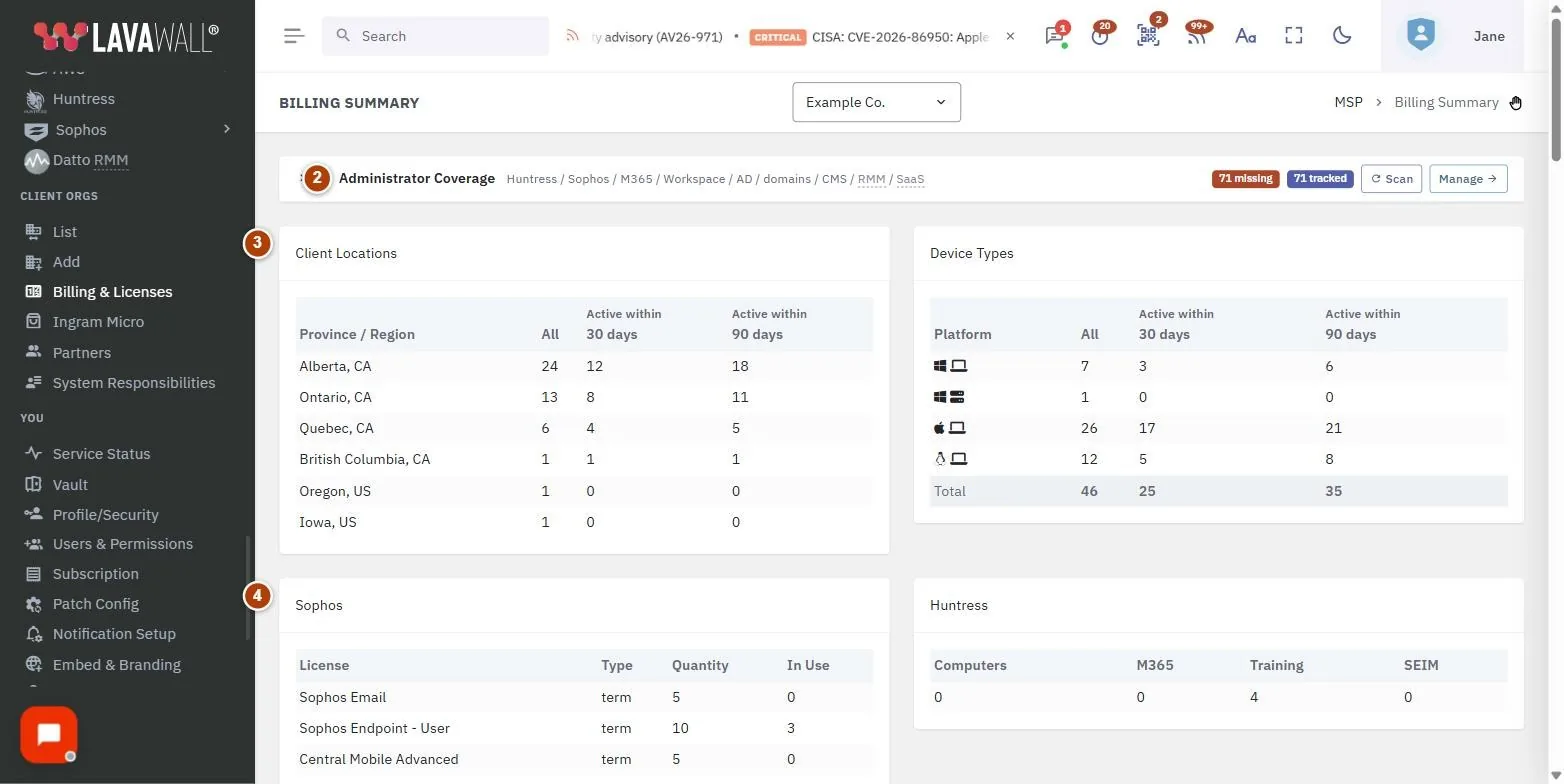
Billing Summary brings together the counts you need at the end of the month. It shows how many computers report in by region and by device type, the licences your clients hold with connected security vendors, Microsoft 365 and Google Workspace licence use, and upcoming Microsoft 365 renewals.
For clients on a service plan with included hours, it shows how many hours have been used this month and flags clients running low. An Administrator Coverage card flags client systems that have no administrator on record, or only one.
Choose "All Companies" to see totals across every client, or pick one client to see just their numbers. When a single client is selected and you have billing access, an Invoicing card lets you preview, generate and send that client's invoice.
What you see
- Service Plan Hours: for clients on an included-hours plan: Client, Plan, Included, Used, Remaining and Usage, with a count of clients that need attention.
- Administrator Coverage: badges for systems with missing admins, single-admin systems and all tracked systems, with Scan and Manage.
- Client Locations and Device Types: computers by Province / Region and by Platform, with totals and how many were active within 30 and 90 days.
- Sophos and Huntress: licence and seat counts from those services when connected.
- Microsoft 365 Licenses: purchased, used and available seats, utilization and Annual Renewals that are overdue, upcoming or just renewed.
- Google Workspace Licenses: assigned and total seats, with active security alerts for licensed users.
- Invoicing: for a single client: agreement, period, Preview, Generate and Recent invoices.
How to use this page
How to review a month's usage
- Select All Companies in the company selector to see every client, or pick one client.
- Check Client Locations and Device Types for computer counts. Use the Active within 30 days column for billing active devices.
- Review Sophos, Huntress, Microsoft 365 Licenses and Google Workspace Licenses for licence counts.
- Review Service Plan Hours for clients close to or over their included hours.
How to check administrator coverage
- Select the Administrator Coverage title to expand the card.
- Select the missing or single-admin badge to show only the clients with that problem.
- Select Scan to re-check now.
- Select Manage to open Company Systems & Admin Access and add administrators.
How to catch licence renewals
- In Microsoft 365 Licenses, look at Annual Renewals.
- Overdue and upcoming renewals are highlighted; the badges show how many of each.
- Adjust seat counts with the client before the renewal date.
How to create an invoice
- Select a single client in the company selector.
- In Invoicing, choose the billing agreement and the month.
- Select Preview to see each line's Description, Qty, Unit, Amount and Tax region, with subtotal, taxes and total.
- Select Generate and confirm Generate invoice? to create a draft.
- Under Recent invoices, use Approve, Send to QuickBooks or Void as needed.
Tips
- Service plan clients are sorted with anyone over their hours first, then by the share of hours used.
- A client "needs attention" when it has used a set share of its hours (75% unless changed for that client) or has little time left.
- Single-admin systems are a risk: if that one person leaves, you may lose access. Add a second administrator.
- For Google Workspace, select View security alerts to see alerts for licensed users.
Troubleshooting
- "You do not have any devices for locations yet" means no agent has reported in. Select Add computers to download the agent.
- "You do not have any Sophos licenses or the Sophos API has not yet been configured" or the Huntress equivalent: select Setup Sophos or Setup Huntress to connect the service.
- "No billing agreement exists for this client yet." Create an agreement on the Client Billing page, then return to Invoicing.
- The Invoicing card is missing. It appears only when one client is selected and you have billing access.
- Service Plan Hours is missing. It appears only for managed service providers with clients on an included-hours plan.
Task guides that use this page
Related articles
Still need help?
Search the support centre, or contact our support team and tell us which page you were on.
Names, companies, devices and figures in the pictures are examples. Other product and company names are trademarks of their respective owners.