Ingram Micro
Connect your Ingram Micro account so each client's cloud subscriptions, with your cost and MSRP, show up against the right client.
What the page is for
If you buy cloud subscriptions or hardware through Ingram Micro, this page links your Ingram Micro account to Lavawall. Lavawall then reads your subscriptions, usage, cost and MSRP, and your hardware invoices if you want them.
Ingram Micro knows your end customers by its own records. This page matches each Ingram customer to one of your Lavawall clients, using identifiers such as the Microsoft 365 tenant ID, Google Workspace customer ID, domains or an exact name. Similar names are suggested for you to confirm. Once a customer is mapped, its subscriptions appear under that client on Billing Summary.
What you see
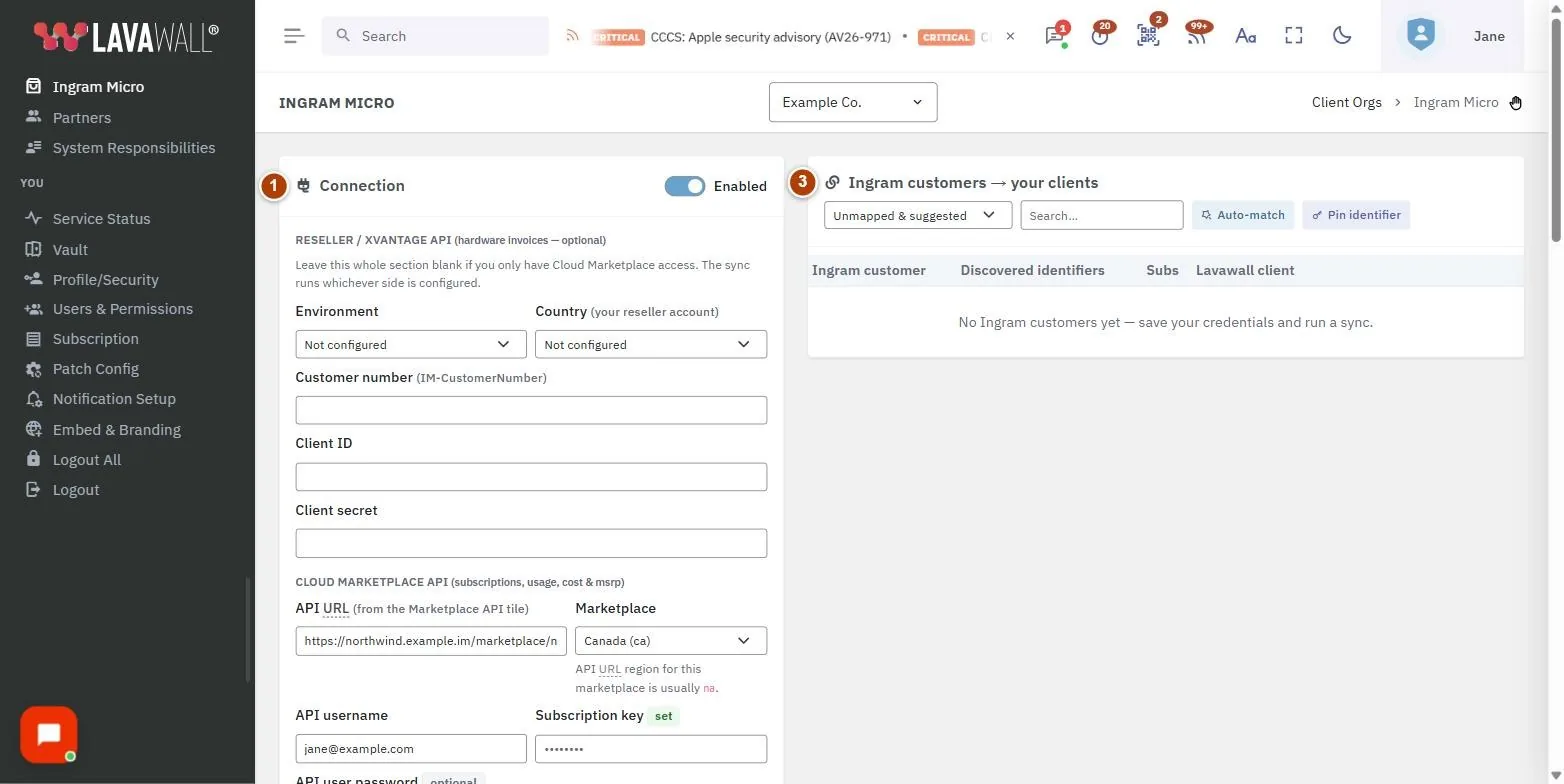
- Connection: the Enabled switch and your credentials for the Reseller / Xvantage API (optional, for hardware invoices) and the Cloud Marketplace API (subscriptions, usage, cost and MSRP), with Save, Sync now and Where do I get these?
- Sync status: whether the integration is enabled, the last status, last sync, recent runs and any last error.
- Ingram customers → your clients: All, Unmapped & suggested and Mapped filters, search, Auto-match and Pin identifier.
- Mapping table: Ingram customer, Discovered identifiers, Subs and Lavawall client, with Accept, Dismiss and unlink buttons.
How to use this page
How to connect Ingram Micro
- Select Where do I get these? for step-by-step instructions on finding each value in Ingram Micro.
- Under Cloud Marketplace API, enter the API URL, choose the Marketplace, and enter the API username and Subscription key from the Marketplace API tile. Leave API user password blank unless your API user was given one.
- If you also want hardware invoices, fill in Reseller / Xvantage API: Environment, Country, Customer number, Client ID and Client secret. Otherwise leave that section blank.
- Turn on Enabled and select Save.
- Select Sync now and watch Sync status.
How to map Ingram customers to your clients
- Under Ingram customers → your clients, select Unmapped & suggested.
- Where you see "Looks like" a client with a match percentage, select Accept to link it or Dismiss to reject the suggestion.
- For other customers, choose the right client from the Lavawall client list.
- Select Auto-match to run matching again across all customers.
How to pin an identifier to a client
- Select Pin identifier.
- Choose the Identifier type: Microsoft 365 tenant ID, Google Workspace customer ID, domain, Ingram end-customer name, Ingram customer ID or Ingram external ID.
- Enter the Value, choose the Client, and save.
- Use this when Ingram's record has nothing Lavawall can match on, or to map a customer before the first sync.
How to unlink a customer
- Find the customer under Mapped.
- Select the unlink button and confirm Unlink. Its subscriptions will no longer appear under that client in Billing Summary.
Tips
- Tick Apply high-confidence name matches automatically to link strong name matches without confirming each one. Identifier matches are always applied.
- The Marketplace API tile issues only a URL, username and subscription key. If the tile is missing, place the $0.00 "Marketplace API" order in the marketplace to activate it.
- Pick the Marketplace that matches the country part of your control panel address; the API URL region should agree with it.
- Saved secrets show set. Leave the box blank to keep the stored value.
- Ingram's cloud service desk can reissue the subscription key or reset the API user if you are stuck.
Troubleshooting
- "The Ingram Micro integration … is available on MSP accounts." Only managed service provider accounts can connect Ingram Micro.
- "You need the Billing admin permission to configure Ingram Micro." Ask a company administrator to grant it under Users.
- Sync status shows an error. Read Last error, check the API URL, marketplace, username and subscription key, then select Save and Sync now.
- A customer's subscriptions are missing on Billing Summary. Check that the customer is mapped under Mapped.
Related articles
Still need help?
Search the support centre, or contact our support team and tell us which page you were on.
Names, companies, devices and figures in the pictures are examples. Other product and company names are trademarks of their respective owners.