Google Workspace Users
Review every Google Workspace account in one list, and quickly find admins, accounts without 2-Step Verification and accounts nobody has used in months.
What the page is for
This page lists the user accounts in your connected Google Workspace with the details that matter for security: whether the person is an admin, whether 2-Step Verification (2SV) is turned on, whether the account is active or suspended, and how long since they last signed in.
Where a user's email address is seen on a computer running the Lavawall agent, the page links that user to the device, so you can jump from a person to their computers.
Summary tiles across the top double as quick filters. Click one to see just those users.
What you see
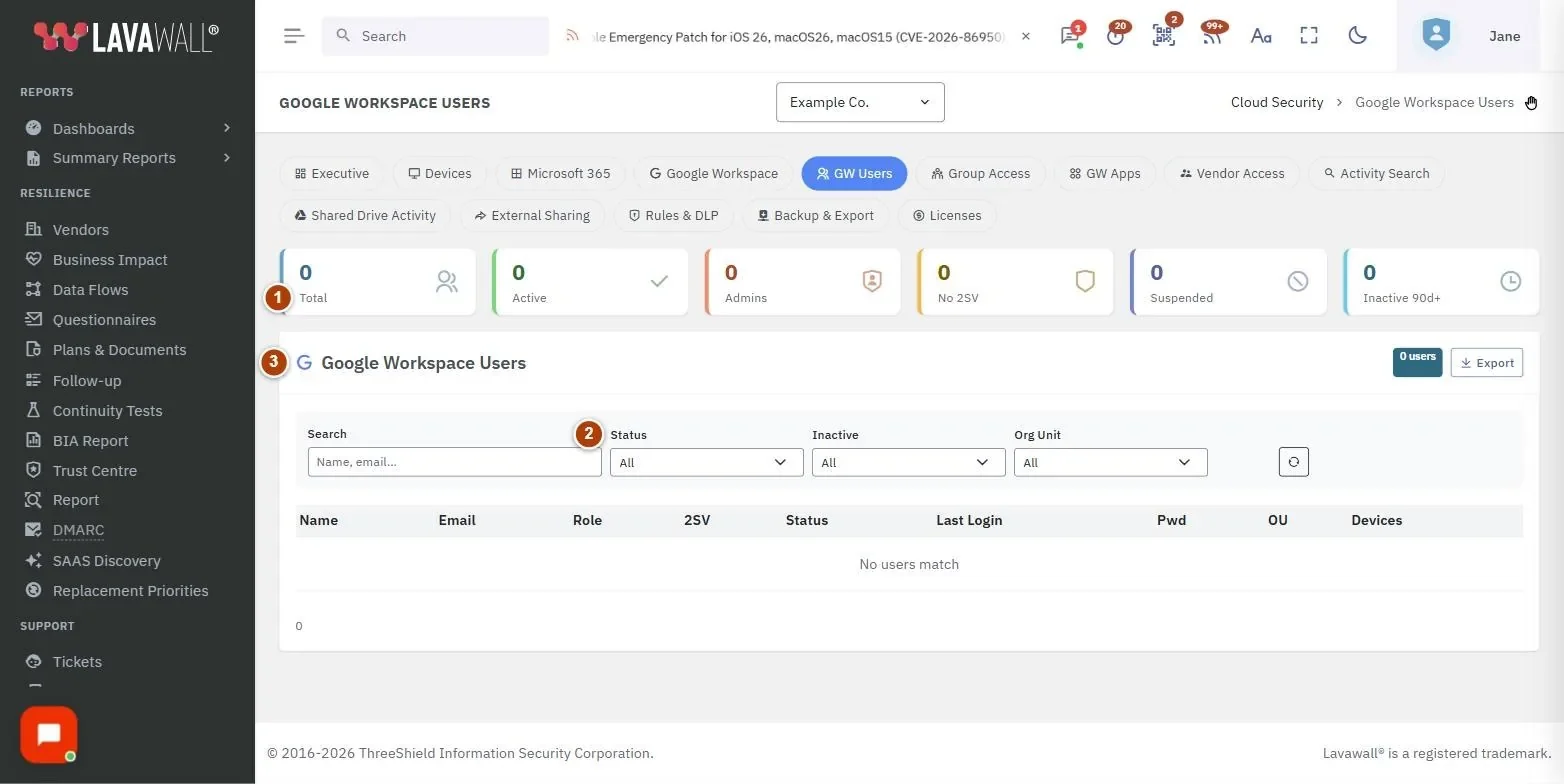
- Summary tiles: Total, Active, Admins, No 2SV, Suspended and Inactive 90d+. Click a tile to filter the list; click again to clear.
- Filters: Search (name, email), Status (Active, Suspended, Admins, No 2SV), Inactive (30+d, 90+d, 365+d, Never), Org Unit and a reset button.
- Google Workspace Users: the table with Name, Email, Role, 2SV, Status, Last Login, Pwd, OU and Devices, a user count and Export.
How to find accounts without 2-Step Verification
- Click the No 2SV tile, or set Status to No 2SV.
- Follow up with each user, or enforce 2SV in the Google Admin console.
How to find inactive or unused accounts
- Click Inactive 90d+, or choose a period in Inactive.
- Choose Never to see accounts that have never signed in.
- Sort by Last Login by clicking the column heading.
How to review admin accounts
- Click the Admins tile.
- Check that every admin still needs that access and has 2SV turned on.
How to open a user's computer
- Find the user in the list.
- Click the device name in Devices to open that computer's details in a new tab.
How to export the user list
- Click Export to download all users as a CSV file.
Tips
- Role badges: red Admin is a super administrator, blue Deleg is a delegated admin, grey User is a regular user.
- In 2SV, a green shield means 2SV is on and an amber shield means it is off.
- Last Login turns amber after 90 days.
- Pwd usually shows N/A. Google does not report password age; a value appears only when an admin password reset was recorded. A Reset badge means the user must change their password at next sign-in.
- Filter by Org Unit to review one department at a time.
Troubleshooting
- "No users match." Your filters exclude everyone. Click the reset button.
- Pwd shows N/A for everyone. This is expected. Google does not provide password age.
- A user has no devices listed. Their email has not been seen on a computer with the Lavawall agent.
- The list is empty or shows an error. Check that Google Workspace is connected for this company.
Related articles
Still need help?
Search the support centre, or contact our support team and tell us which page you were on.
Names, companies, devices and figures in the pictures are examples. Other product and company names are trademarks of their respective owners.