Google Group Access
Find Google Groups that include people from outside your organization, and see every member of every group.
What the page is for
Google Groups often control who receives email and who can open shared files. A group with outside members can quietly give those people access. This page lists your organization's groups and their members, and puts the groups with external members first.
Members are read from your connected Google Workspace. Each member is marked as internal or external, and members who belong through another group (a nested group) are shown with the group they came through.
Use it for access reviews and audits: see how many groups have outside members, which outside domains appear most, and export the list of external memberships.
What you see
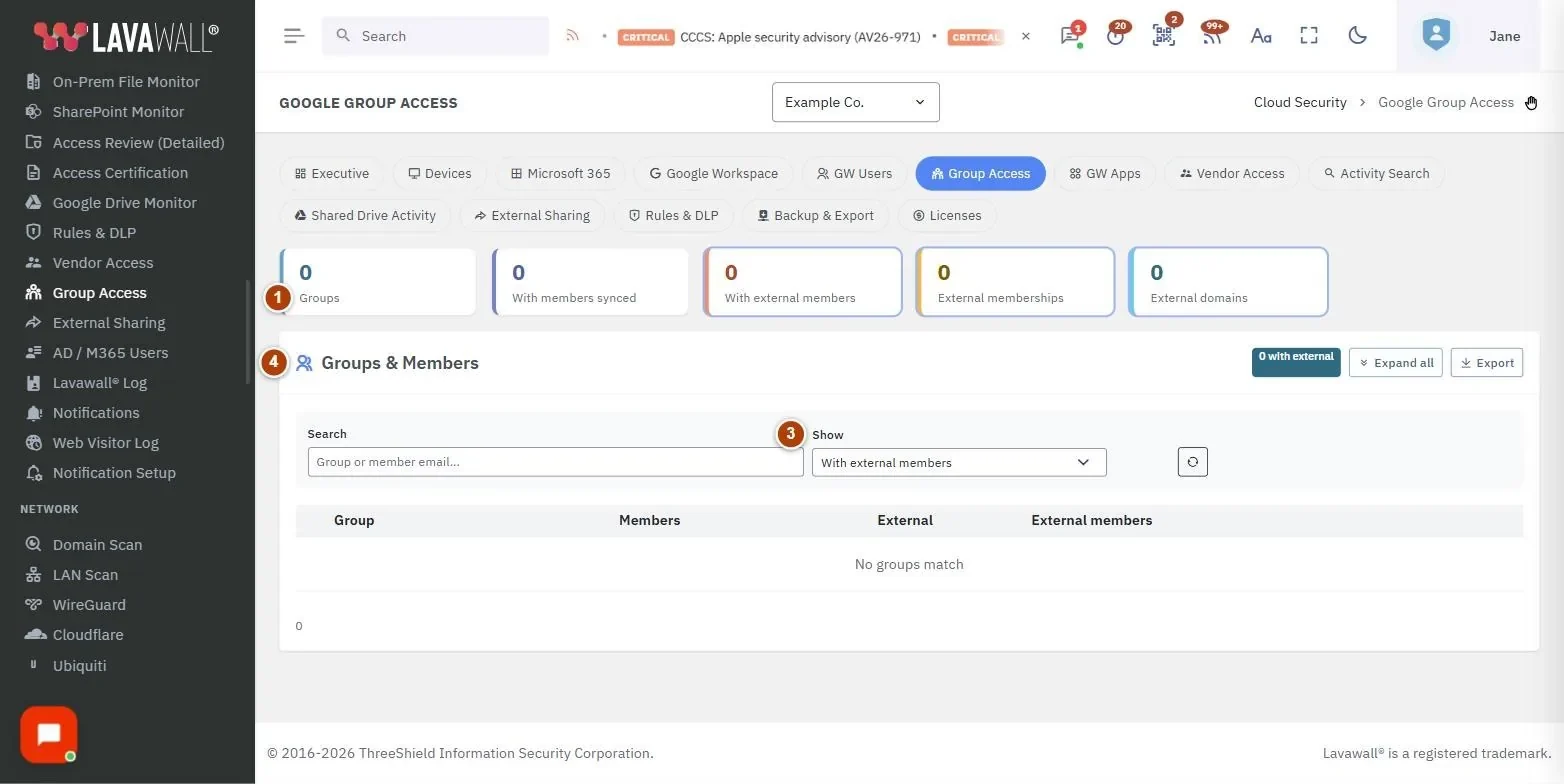
- Summary tiles: Groups, With members synced, With external members, External memberships and External domains. Click a tile to filter the table.
- External member domains: outside domains that appear in your groups, each with a count.
- Filters: Search (group or member email), Show (With external members or All groups) and a reset button.
- Groups & Members: the table with Group, Members, External and External members, plus Expand all and Export. Click a group to see its full member list.
How to review groups with external members
- The page opens with Show set to With external members.
- Read the red external member chips in each row. Hover over a chip to see the member's role and whether they belong through a nested group.
- Click the group name, the arrow or the member count to expand the full roster. External members are listed first.
How to see every group
- Click the Groups tile, or set Show to All groups.
- Click With members synced to hide groups that have no members.
How to find the groups a person belongs to
- Type the person's email address in Search.
- The table shows every group with a matching member. Expand a group to confirm.
How to export external memberships
- Click Export.
- A CSV file downloads with one row per external member: group, group name, member email, role, kind and the nested group they came through.
Tips
- Rows with external members are highlighted. The External count is red when it is above zero.
- Click Expand all to open every group at once, and Collapse all to close them.
- A tree icon next to a member means they belong through a nested group.
- The reset button clears the search, collapses all groups and goes back to groups with external members.
Troubleshooting
- "No group membership data yet." Membership has not been read from Google Workspace yet. It fills in after the next sync.
- "No groups match." Your search or filter excludes everything. Click the reset button or choose All groups.
- A group shows no member detail. The group has no members recorded from the last sync.
Related articles
Still need help?
Search the support centre, or contact our support team and tell us which page you were on.
Names, companies, devices and figures in the pictures are examples. Other product and company names are trademarks of their respective owners.