Google Workspace Vendor Access
See which outside apps and vendors have organization-wide access to your Google Workspace, and how risky that access is.
What the page is for
Some third-party apps can reach far more than one person's data. An app with domain-wide delegation can act as any user in your Google Workspace. Service accounts and apps an admin approved for everyone are also high impact. This page brings those grants together so you can review your vendors.
Each app is listed with who granted it, when, what it can reach and a risk score. Apps with Gmail, Drive, sensitive or admin permissions are flagged, and apps with domain-wide delegation are highlighted. The information comes from your connected Google Workspace.
Use it for vendor risk reviews and to spot apps that should be removed.
What you see
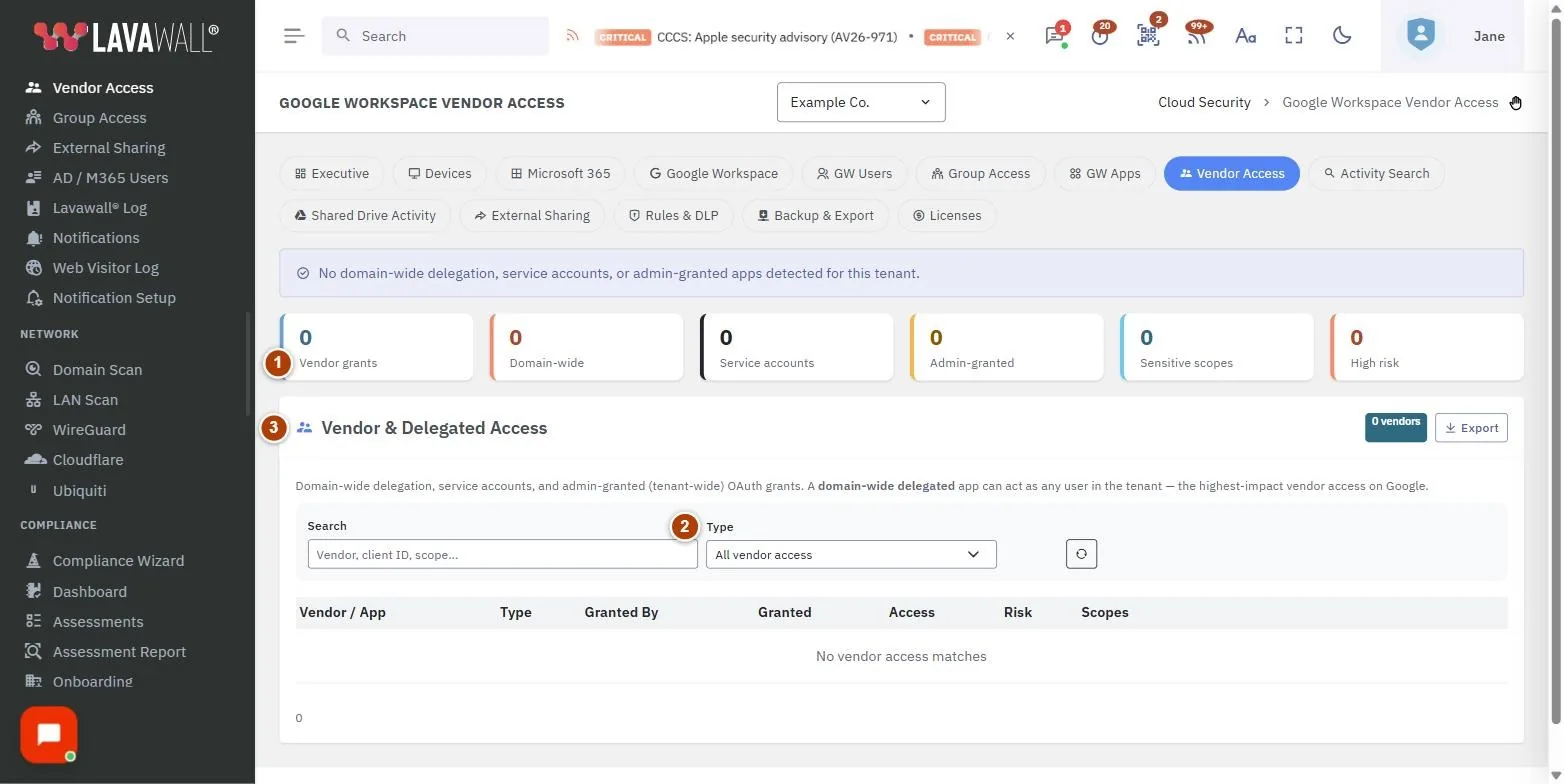
- Summary tiles: Vendor grants, Domain-wide, Service accounts, Admin-granted, Sensitive scopes and High risk.
- Filters: Search (vendor, client ID, scope), Type (Domain-wide delegation, Service accounts, Admin-granted, Sensitive) and a reset button.
- Vendor & Delegated Access: the table with Vendor / App, Type, Granted By, Granted, Access, Risk and Scopes, a vendor count and Export.
How to review domain-wide delegated apps
- Set Type to Domain-wide delegation.
- Check each app is one you still use and trust. These rows are highlighted.
- Remove any you no longer need in the Google Admin console under API controls.
How to find the riskiest apps
- The list is sorted by Risk, highest first.
- Click Risk to reverse the order.
- Hover over a Suspicious badge to see why the app was flagged.
How to see what an app can reach
- Look at the Scopes column. The badges show the number of permissions and whether the app can reach Gmail, Drive, sensitive data or admin settings.
- Click + more to see every permission. Hover over a permission name to see its full Google address.
How to export for a vendor review
- Click Export to download all vendor grants as a CSV file, including risk score, grant details and permissions.
Tips
- Risk colours: red is 70 or above, amber 40 to 69, green below 40.
- Domain-wide badges mean the app can impersonate any user in the tenant. Review these first.
- Sort by Granted to find the newest grants.
- For apps that individual users approved for themselves, see the Google Workspace apps page.
Troubleshooting
- "No domain-wide delegation, service accounts, or admin-granted apps detected for this tenant." No high-impact vendor access was found. This is a good result.
- "OAuth app data not available." App information has not been read from Google Workspace yet. It fills in after the next sync.
- "No vendor access matches." Your search or filter excludes everything. Click the reset button.
Related articles
Still need help?
Search the support centre, or contact our support team and tell us which page you were on.
Names, companies, devices and figures in the pictures are examples. Other product and company names are trademarks of their respective owners.