All App Summary
See which applications are installed across your computers, how many are missing updates, and the known vulnerabilities involved.
What the page is for
The All App Summary is a software inventory report. For each application found on your computers it shows how many devices have it installed, how many of those are missing patches, how severe and critical the gaps are, and the related CVEs (published vulnerability IDs).
The data comes from the Lavawall agent on each computer. Use the company selector at the top of the console to report on one company or all of them.
The report shows the top 2,000 products.
What you see
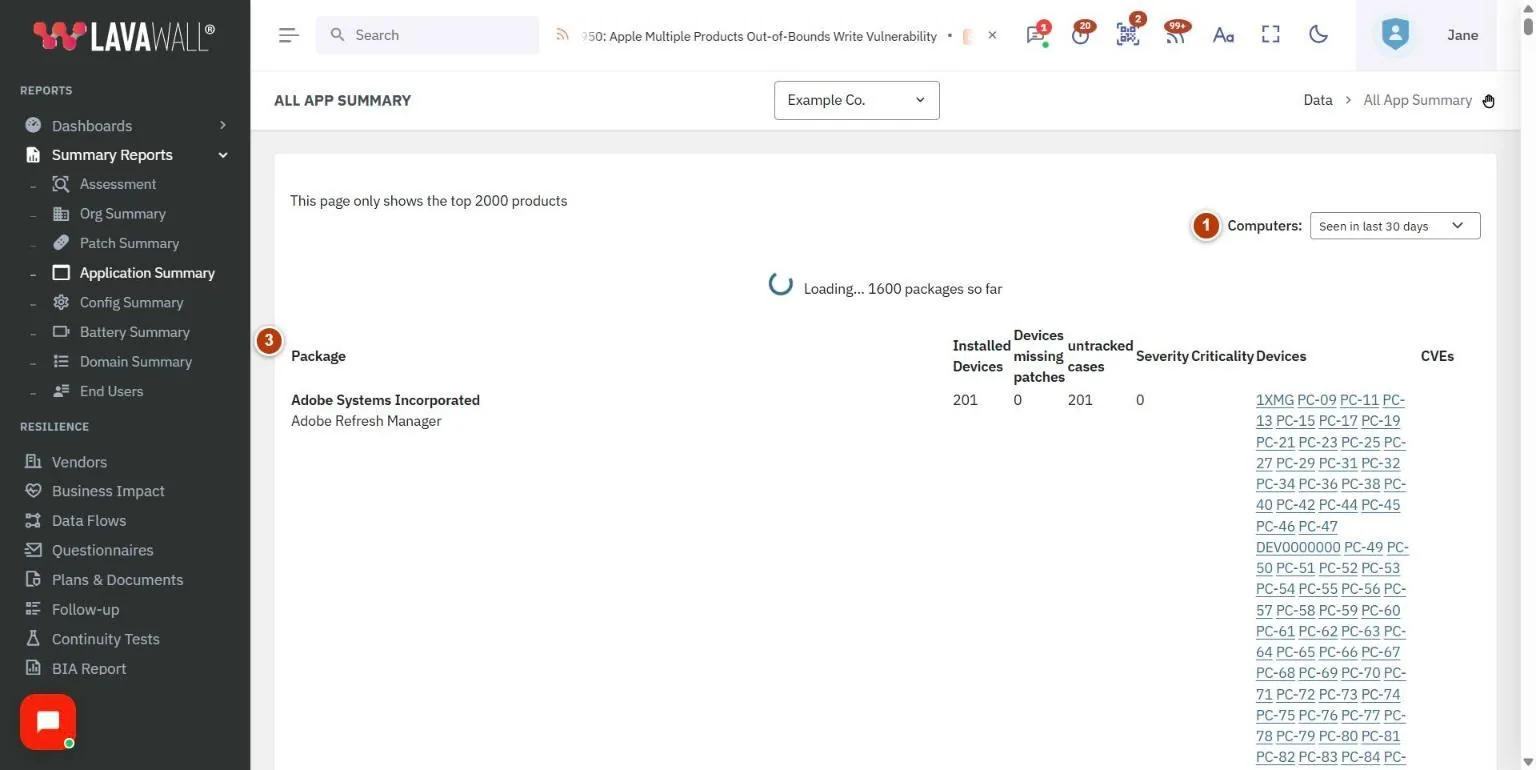
- Computers filter: include computers Seen in last 30 days (the default), Seen in last 90 days, Seen in last 365 days, or Show all.
- Table buttons and search: Copy, CSV, Excel, Print and Show rows, plus a search box.
- Application table: Package, Installed Devices, Devices missing patches, untracked cases, Severity, Criticality, Devices and CVEs.
How to use the report
How to find risky software
- Leave the Computers filter on Seen in last 30 days to focus on computers in use.
- Sort by Devices missing patches, Severity or Criticality by clicking the column heading.
- Check the Devices and CVEs columns to see which computers are affected and why.
How to look up one application
- Type the application name in the search box.
- The table narrows to matching packages.
How to export the list
- Click Excel or CSV to download the table, Copy to copy it, or Print.
- Use Show rows to change how many rows appear on screen.
Tips
- The report opens sorted by untracked cases, with the most first.
- Widen the Computers filter to Show all when doing a full software audit, including machines that are rarely on.
- Pair this report with Patch Config to decide which applications should be patched automatically.
Troubleshooting
- "No missing patches for this company". No application data was found for the selected company and time range. Try a wider Computers filter or check that the agent is installed.
- "Could not load data". Click Retry in the message, or reload the page.
- An application I expect is missing. Only the top 2,000 products are shown. Search for it, or choose a single company to narrow the report.
Related articles
Still need help?
Search the support centre, or contact our support team and tell us which page you were on.
Names, companies, devices and figures in the pictures are examples. Other product and company names are trademarks of their respective owners.