Patchable Package Summary
See which software packages are missing updates, how many computers each one affects and how serious the gap is.
What the page is for
The Patchable Package Summary lists every software package that has an update available on at least one of your computers, based on what the Lavawall agent reports. Instead of looking computer by computer, you see each package once, with the number of affected computers, its severity and criticality, which computers they are and the related CVEs.
The list is sorted with the most severe packages first, so you can decide which updates to roll out before others. It covers the selected company, or all your companies.
What you see
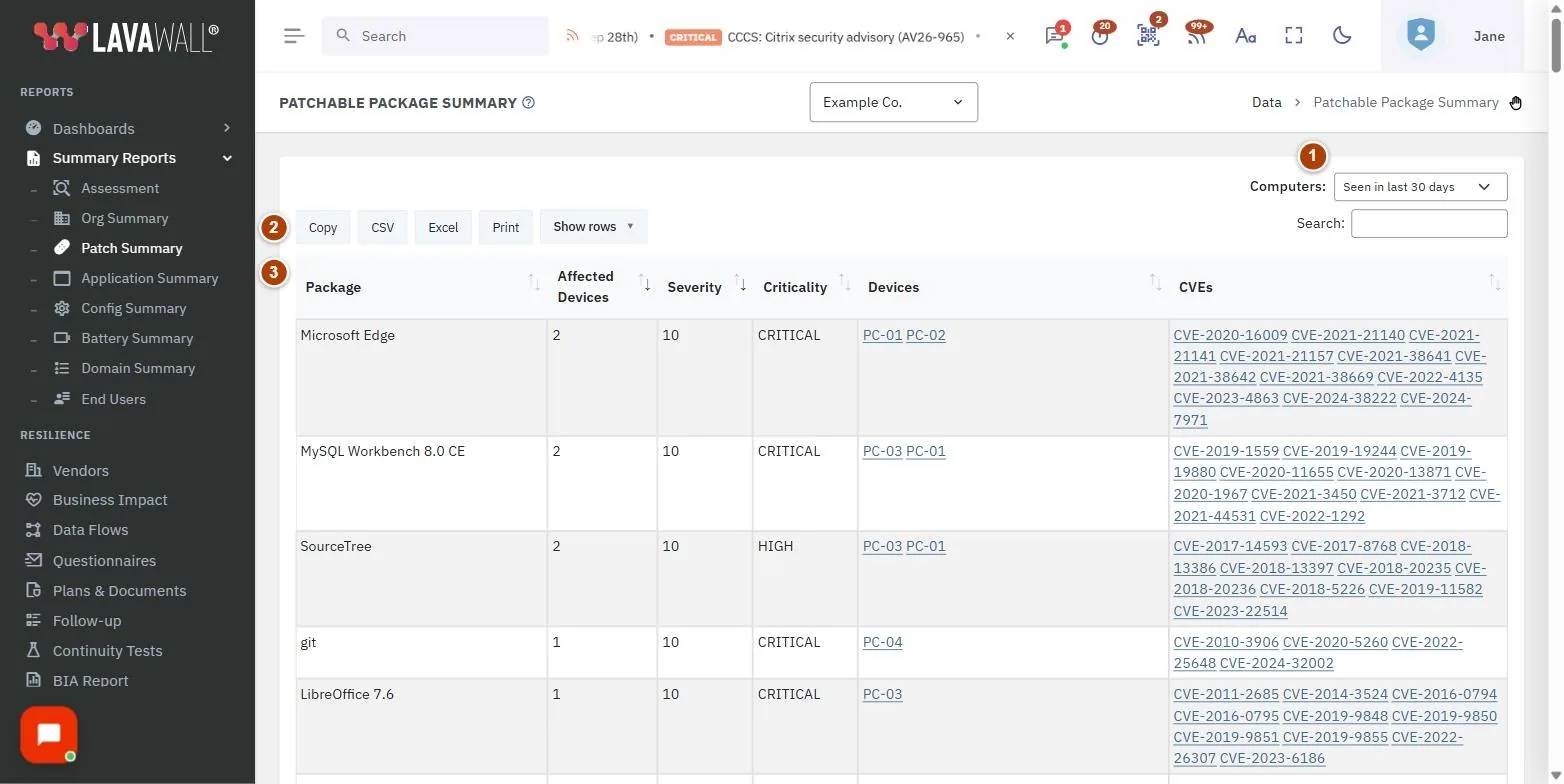
- Computers filter: limit the list to computers seen in the last 30, 90 or 365 days, or Show all.
- Table tools: Copy, CSV, Excel, Print, Show rows and a search box.
- Package table: Package, Affected Devices, Severity, Criticality, Devices and CVEs.
How to use Patchable Package Summary
How to find the updates that matter most
- Leave Computers on Seen in last 30 days to focus on computers in use.
- The table opens sorted by Severity, then by Affected Devices. Click any column heading to sort differently.
- Read the Devices column to see which computers need the update.
How to find a specific package
- Type the package name, a computer name or a CVE number into the search box.
- The table narrows as you type.
How to export the list
- Click Copy, CSV, Excel or Print above the table.
- Use Show rows first if you only want part of the list on screen.
Tips
- The filter only changes which computers are counted. A package that is missing only on computers you have not seen recently drops off the list, and a note tells you how many packages were hidden this way. Click Show all computers in that note to include them.
- Pick a single company in the company picker for a client-ready export.
- Pair this page with Patch Config to decide which packages update automatically.
Troubleshooting
- "No missing patches for this company". Every package on the counted computers is up to date. Try Show all to include computers not seen recently.
- A package appears on a computer's detail page but not here. The computer has not been seen within the chosen period. Change Computers to Show all.
- "Could not load data". Click Retry. Large companies load in batches, and the page shows how many packages it has loaded so far.
Task guides that use this page
Related articles
Still need help?
Search the support centre, or contact our support team and tell us which page you were on.
Names, companies, devices and figures in the pictures are examples. Other product and company names are trademarks of their respective owners.