Configuration Summary
See which security settings fail most often across your computers, ranked by risk.
What the page is for
Lavawall checks each computer's security configuration against a set of tests. The Configuration Summary turns those results into one row per test, showing how many devices pass and how many fail at each risk level.
Use it to find the settings that fail on the most computers, or the ones with critical risk, so you can fix them everywhere at once, for example with a script.
The results come from the Lavawall agent on each computer. Use the company selector at the top of the console to see one company or all of them.
What you see
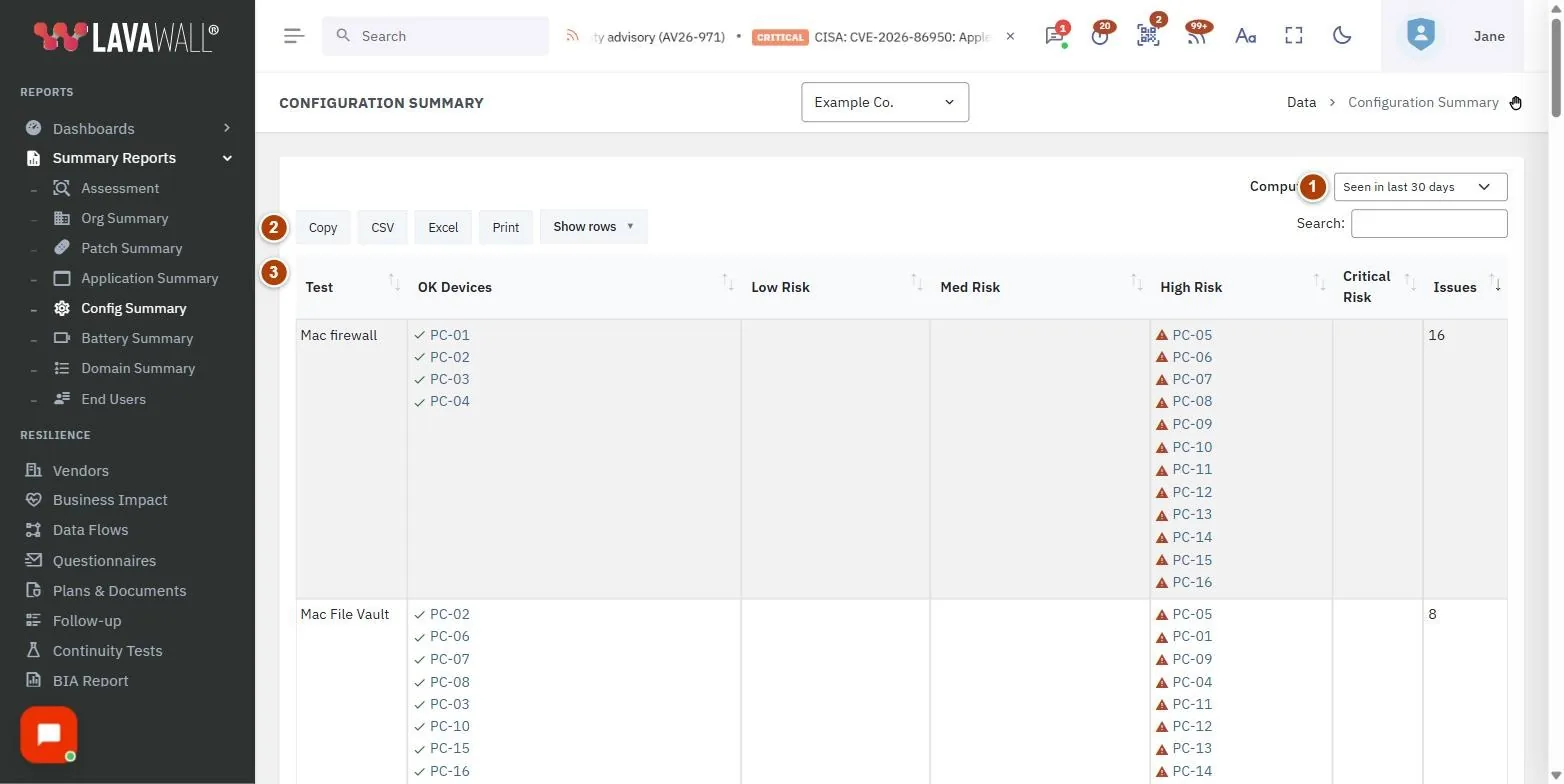
- Computers filter: include computers Seen in last 30 days (the default), Seen in last 90 days, Seen in last 365 days, or Show all.
- Table buttons and search: Copy, CSV, Excel, Print and Show rows, plus a search box.
- Test table: Test, OK Devices, Low Risk, Med Risk, High Risk, Critical Risk and Issues.
How to use the report
How to find the most important fixes
- The table opens with the most severe tests first, then the ones affecting the most devices.
- Look at Critical Risk and High Risk to see how many devices fail each test at that level.
- Fix the setting on the affected devices, or run a script across them from Run Script.
How to look up one test
- Type part of the test name in the search box.
How to export the results
- Click Excel or CSV to download, Copy to copy, or Print.
Tips
- OK Devices shows how many computers already pass, which helps you judge how widespread a problem is.
- After fixing a setting, wait for the computers to check in again before re-running the report.
- To see every failed test on one computer, open it from Devices › Computers and choose Config Issues.
Troubleshooting
- "No configuration issues for this company". No failed tests were found for the selected company and time range. Widen the Computers filter if you expected results.
- "Could not load data". Click Retry in the message, or reload the page.
Task guides that use this page
Related articles
Still need help?
Search the support centre, or contact our support team and tell us which page you were on.
Names, companies, devices and figures in the pictures are examples. Other product and company names are trademarks of their respective owners.