Authorize Google Workspace Backup
Give Lavawall's backup and export service permission to copy your Google Workspace data, then confirm it works, in about two minutes.
What the page is for
Before Lavawall can export or back up Gmail, Drive, Calendar, Contacts and Tasks, a Google super administrator has to authorize it in the Google Admin console. This page walks you through that in three steps and gives you the exact values to paste.
After you authorize, Verify authorization checks each Google service one by one and shows which are ready and which still need attention. Mail, Calendar, Contacts and Tasks are checked against a regular user, because administrator accounts often have no mailbox.
Access for copying data is read-only: the service can copy your data but cannot change, delete, move or send anything.
What you see
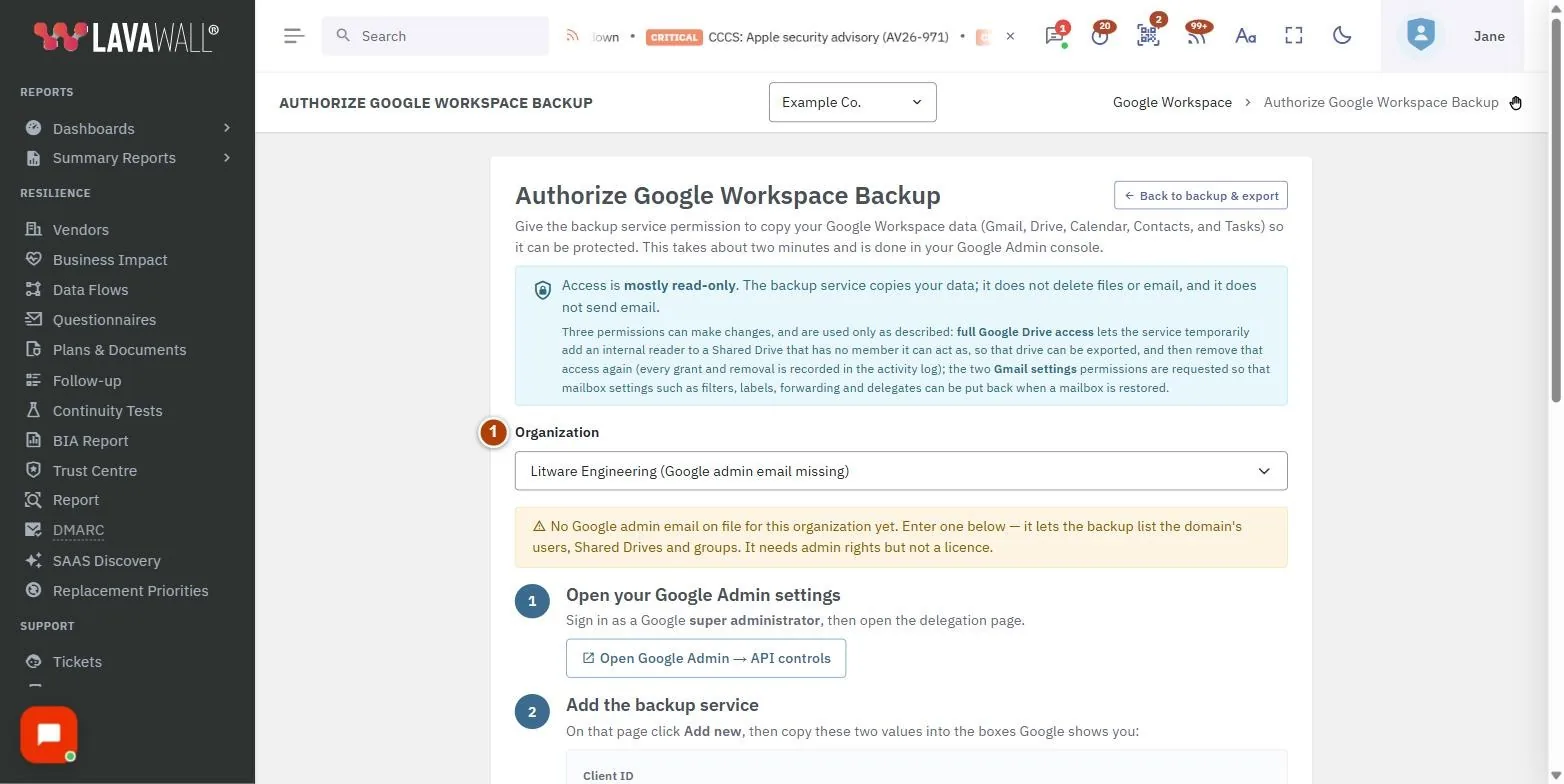
- Organization: which Google-connected company you are setting up (a picker if you manage more than one).
- Step 1: Open your Google Admin settings: the Open Google Admin → API controls button.
- Step 2: Add the backup service: the Client ID and OAuth scopes values, each with a Copy button.
- Step 3: Confirm it worked: the Google admin email field, Verify authorization, and the optional Check against a specific person's account.
- Results: a line per service (for example User directory, Shared Drives, Gmail, Calendar) marked Authorized or Not yet authorized.
- Advanced: use a dedicated key for this organization: optional, to paste a separate service-account key with Save key and Remove key.
How to authorize Google Workspace
- If you manage several organizations, choose one in Organization.
- Click Open Google Admin → API controls and sign in as a Google super administrator.
- In Google, click Add new.
- Click Copy next to Client ID and paste it into Google.
- Click Copy next to OAuth scopes and paste the whole line into Google.
- Click Authorize in Google.
How to verify the authorization
- Back on this page, enter a Google admin email for the domain. It needs admin rights but not a licence.
- Click Verify authorization.
- If you see "You're all set.", you are done. If you see "Almost there.", copy the scopes again, wait a minute and click Verify authorization again.
How to check against a specific person
- Open Check against a specific person's account (optional).
- Enter the email of a user who has a mailbox.
- Click Verify authorization.
How to use a dedicated key for one organization
- Open Advanced: use a dedicated key for this organization.
- Paste the Google service-account key file contents and click Save key. The key is stored encrypted and never shown again.
- Click Verify authorization.
- To go back to the shared service, click Remove key and confirm Remove.
Tips
- Google can take a minute or two to apply a new authorization. Wait before verifying again.
- Most "Not yet authorized" results come from a scope line that was cut off. Always use the Copy button and paste the whole line.
- The admin email is used only to list the domain's users, Shared Drives and groups. An unlicensed admin account works.
- Most organizations do not need a dedicated key.
- Use Back to backup & export to return to the export page.
Troubleshooting
- "Google Workspace isn't connected for your organization yet." Connect Google Workspace first, then return here.
- "Backup isn't available yet." The backup service has not been set up for your account. Contact your provider.
- "Enter the Google admin email first." Fill in Google admin email before clicking Verify authorization.
- Mail, Calendar or Tasks show as not authorized and the note says the mailbox could not be confirmed. Use the specific-person option with a user who has a mailbox.
- "That doesn't look like a valid key file." The pasted text is not a Google service-account key. Download the key again from Google Cloud.
Task guides that use this page
Related articles
Still need help?
Search the support centre, or contact our support team and tell us which page you were on.
Names, companies, devices and figures in the pictures are examples. Other product and company names are trademarks of their respective owners.