Google Workspace Export
Copy a Google Workspace organization's Shared Drives, user Drives, email, calendars, contacts and tasks to a local or external drive, and watch the export as it runs.
What the page is for
This page is the home of the Google Workspace Downloader for Windows. You run the downloader on a Windows PC, connect it to Lavawall with a one-time export token, and it copies the organization's Google data to a drive attached to that PC. It is useful for offboarding, migrations, legal holds and keeping an offline copy.
Setting up takes three steps, shown on the page: authorize Google access, download the tool, and create a token. Google access is authorized once per organization on the Set up Google access page.
While an export is running, the page shows live progress for every Shared Drive and user being copied, refreshed about every 15 seconds. Any items the tool could not copy in the last 30 days are listed under Export Errors with a plain-language explanation of what went wrong and what to do.
You can work with every Google-connected company you manage from this one page.
What you see
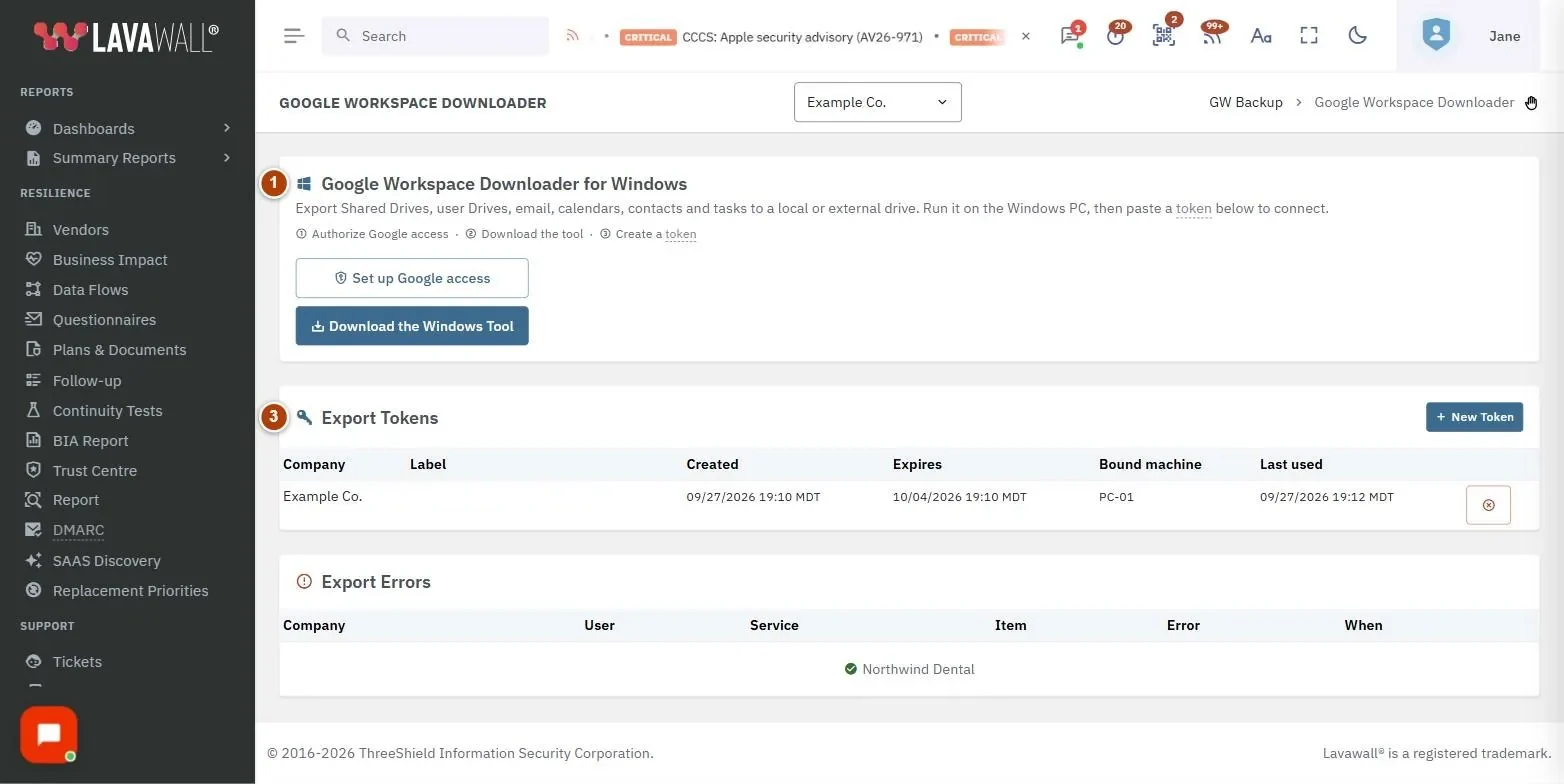
- Google Workspace Downloader for Windows: the three setup steps, with Set up Google access and Download the Windows Tool buttons.
- Export Progress: appears only while an export is running. A summary line per company (percent done, speed, items done, bytes copied) and a sortable table of each drive or mailbox with Company, Name, Type, Progress and Size, plus a Filter… box.
- Export Tokens: active tokens with Company, Label, Created, Expires, Bound machine and Last used, a revoke button on each row, and New Token.
- Export Errors: items that failed in the last 30 days with Company, User, Service, Item, Error and When, a Filter… box, Export CSV and an error count.
How to set up Google access for an organization
- Click Set up Google access.
- Follow the steps on that page to add the backup service in your Google Admin console, then click Verify authorization.
- Click Back to backup & export to return here.
How to export an organization with a token
- Click Download the Windows Tool and install it on the Windows PC that has the target drive attached.
- In Export Tokens, click New Token.
- In Company to export, choose the organization and click Generate.
- Copy the token from the Export Token: shown once window. It is shown only once.
- Paste the token into the Windows tool within 7 days. The token binds to the first machine that uses it.
- Start the export in the tool and watch Export Progress on this page.
How to sign the tool in from your browser instead
- Start sign-in from the Windows tool. It opens your browser on the Authorize the Google Workspace Downloader page.
- Check that the code matches the one in the tool, pick the company and click Approve & Sign In the App.
- The new token appears in Export Tokens with the machine it is bound to.
How to revoke an export token
- In Export Tokens, click the revoke button at the end of the row.
- Confirm Revoke. The tool on that machine can no longer use the token.
How to review and export errors
- Scroll to Export Errors.
- Type in Filter… to narrow by company, user, service or item.
- Hover over an error to see Google's original message.
- Click Export CSV to download the list.
Tips
- Tokens expire after 7 days and only active tokens are listed. Expired and revoked tokens drop off the list.
- Sort Export Progress by any column. It starts with the largest items first.
- In the progress bar, a green bar means the item is finished, "retrying" and "err" badges show items the tool is working through, and "skip" shows items that were skipped (for example, an unlicensed user).
- Many errors fix themselves: partial downloads resume and network drops are retried on the next run. Re-run the export before investigating.
- Make sure the target drive has enough free space before you start. A full drive shows as an error.
Troubleshooting
- "No active export tokens." Click New Token, then paste it into the Windows tool.
- "No eligible companies" when creating a token. No company you manage has Google Workspace connected. Connect Google Workspace first.
- An error says a Google API scope still needs authorizing. Open Set up Google access, copy the full scope line again into the Google Admin console, wait a minute and click Verify authorization.
- Errors about shared drives that only contributors can download. Update the Windows tool to the latest version and re-run the export; newer versions handle this automatically.
- "Administrator access required." Only administrators can use this page. Ask an administrator in your organization.
Task guides that use this page
Related articles
Still need help?
Search the support centre, or contact our support team and tell us which page you were on.
Names, companies, devices and figures in the pictures are examples. Other product and company names are trademarks of their respective owners.