Assets
Keep one inventory of every piece of company equipment, where it is, who has it and what state it is in.
What the page is for
The Assets page is your hardware inventory. Computers running the Lavawall agent appear automatically, with their serial number and last check-in. You can add everything else yourself, such as monitors, phones, printers and furniture, and add network equipment found by the LAN scan with a few clicks.
Each asset has a tag, type, company, location, status (In use, Spare, Pending wipe, Decommissioned, In repair, Lost or Disposed), who it is assigned to, serial number, warranty date, and whether it is company-owned or available for resale. Status changes are dated, so you can see how long something has been waiting, for example to be wiped.
What you see
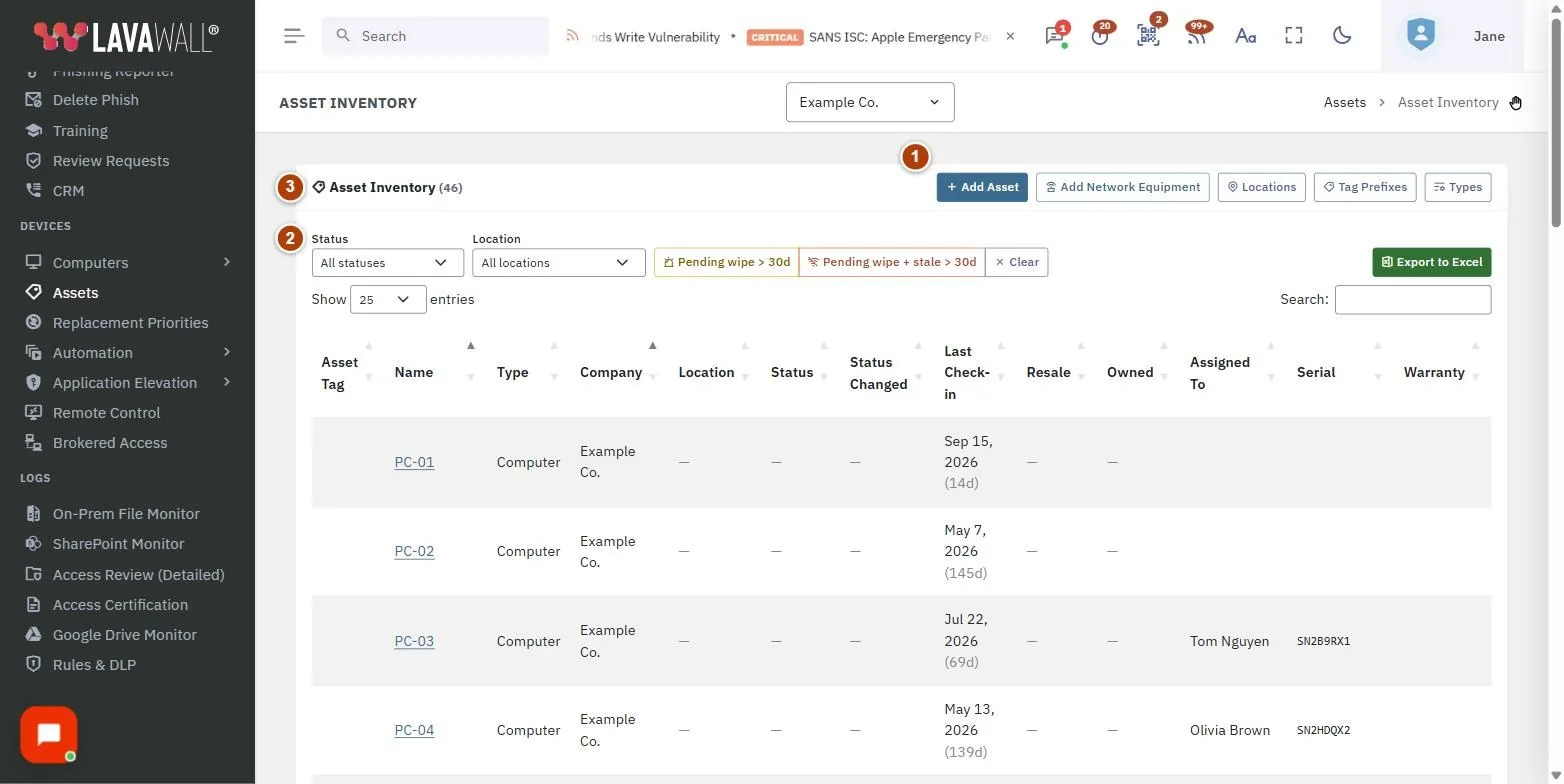
- Toolbar: Add Asset, Add Network Equipment, Locations, Tag Prefixes and Types.
- Filters and reports: Status, Location, the Pending wipe > 30d and Pending wipe + stale > 30d reports, Clear and Export to Excel.
- Asset Inventory table: Asset Tag, Name, Type, Company, Location, Status, Status Changed, Last Check-in, Resale, Owned, Assigned To, Serial and Warranty.
- Add Asset: the dialog for adding equipment the agent does not run on.
How to use Assets
How to add an asset
- Click Add Asset.
- Enter a Name (required) and choose the Company, Type, Location and Status.
- Type an Asset Tag or click Generate for the next tag in sequence.
- Optionally fill in Serial, Assigned to, Vendor, Purchase date, Cost and Warranty exp., and tick Company-owned or Available for resale.
- Click Add Asset.
How to add network equipment from the LAN scan
- Click Add Network Equipment.
- Review the devices the LAN scan found that are not assets yet (Name, IP, MAC, Type, Vendor, Company).
- Tick the ones your company owns, or use Select all / Select none.
- Optionally choose a location and leave Mark as company-owned ticked.
- Click Add selected.
How to set up locations
- Click Locations and choose the Company.
- Click Seed defaults to create the standard set of locations, or enter a Name, Kind (such as Main Office, User's Home, Spare, Pending Wipe, Decommissioned or Parent Storage) and optional Address, then click Save.
- Use the edit and delete buttons to change or remove a location.
How to set tag prefixes and types
- Click Tag Prefixes and give each company a 2–3 letter prefix (for example ACM, giving tags like ACM-00042). Click Save.
- Click Types to add your own asset types (for example Tablet), hide built-in types, or remove custom ones.
How to find equipment waiting to be wiped
- Click Pending wipe > 30d for assets that have been pending wipe for more than 30 days.
- Click Pending wipe + stale > 30d to also require no check-in for more than 30 days.
- Click Clear to reset, then Export to Excel to share the list.
Tips
- Selecting a company in the company picker narrows the list to that company.
- Click a computer's name to open its detail page.
- Home equipment belonging to employees is never added automatically; only what you tick in Add Network Equipment becomes an asset.
- Network equipment shows a router icon next to its name.
Troubleshooting
- A computer is missing. Only computers running the Lavawall agent appear automatically. Add other equipment with Add Asset.
- "No locations yet." Use Seed defaults or add a location.
- "Nothing selected". Tick the devices you want to add before clicking Add selected.
- "Export library not loaded yet". Wait a moment and click Export to Excel again.
Task guides that use this page
Related articles
Still need help?
Search the support centre, or contact our support team and tell us which page you were on.
Names, companies, devices and figures in the pictures are examples. Other product and company names are trademarks of their respective owners.