UniFi Monitoring
Watch your clients' Ubiquiti UniFi networks for outdated firmware, risky settings and signs of compromise, all from one screen.
What the page is for
UniFi Monitoring shows what Lavawall collects from the UniFi controllers you connect on the Controllers page. For one company, it lists every UniFi device with its firmware, state, CPU, memory and patch status; the console and site users; security settings; configuration backups; and sites.
It also watches for indicators of compromise and reliability problems, such as a new administrator being added, an admin login from a new or unusual location, a known-bad admin account, remote access being turned on, firewall or port-forward changes, firmware downgrades, devices going offline, the internet uplink going down, and backups not running. Each one becomes an alert you can acknowledge.
Choose All companies in the company picker to see a combined overview across every company with UniFi.
What you see
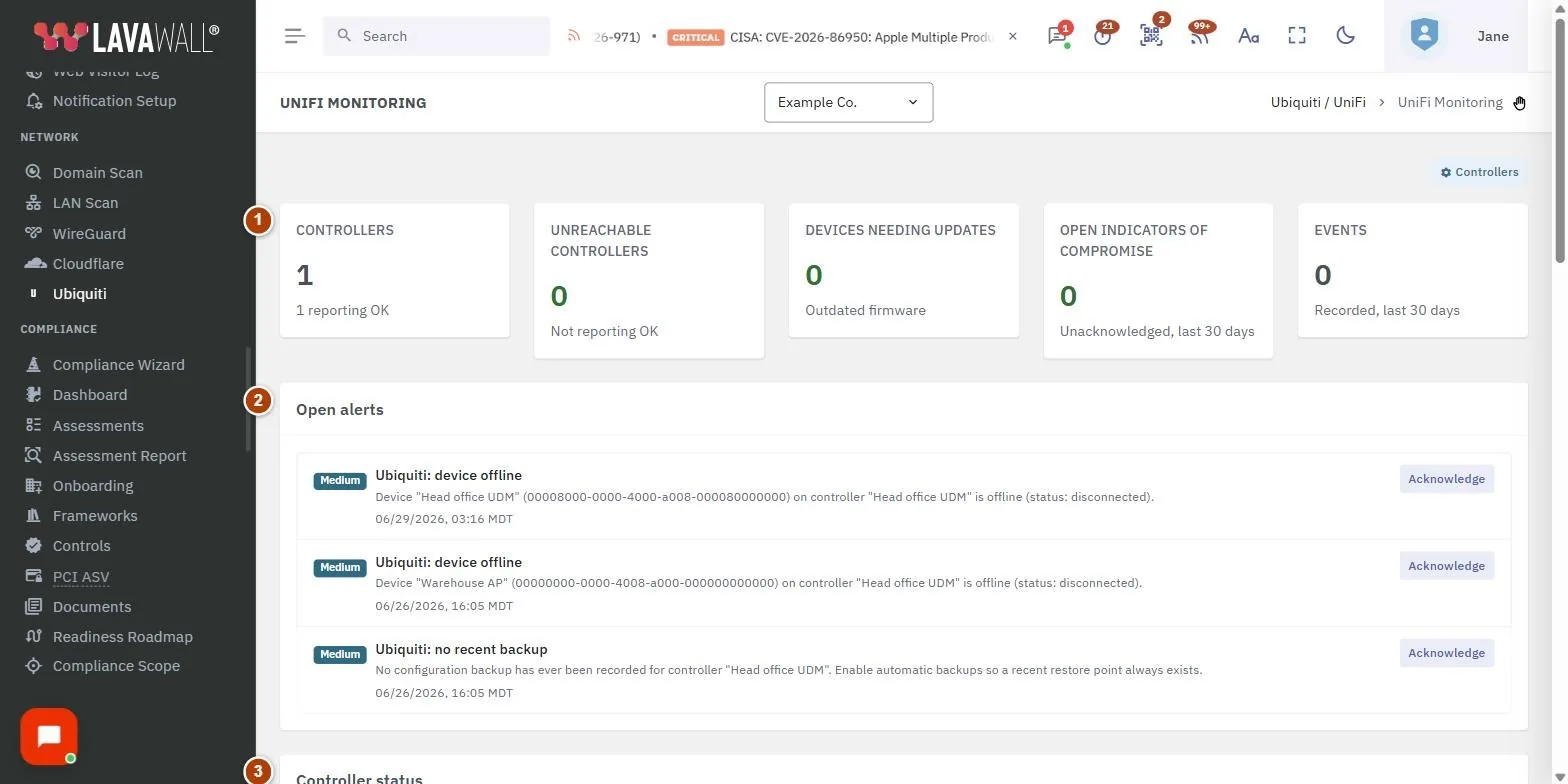
- Summary cards: Controllers (reporting OK), Unreachable controllers, Devices needing updates, Open indicators of compromise (last 30 days) and Events (last 30 days).
- Open alerts: unacknowledged alerts with severity and an Acknowledge button.
- Controller status: each controller with its address and last poll time.
- Devices & patch status: Device, Model, Controller, Firmware, State, CPU, Mem and Patch status.
- Console & site users, Security posture, Configuration backups and Sites: who has access, key security settings, recent backups and the sites on each controller.
- Recent indicators of compromise: Severity, Type, Controller, Subject, Summary and Time, with Show acknowledged and Refresh; click a row for Indicator detail.
How to use UniFi Monitoring
How to set up monitoring
- Select the company.
- If you see "No UniFi controllers set up for this company", click Set up a controller, or click Controllers at the top.
- After you add a controller, this page refreshes automatically while it waits for the first poll.
How to deal with alerts
- Review Open alerts, starting with Critical and High.
- Investigate the change on the controller.
- Click Acknowledge once you have confirmed it was expected or fixed it.
How to find devices that need firmware updates
- Check the Devices needing updates card.
- In Devices & patch status, look for Update available in Patch status.
- Hover the firmware version to see where the reading came from.
How to review who has access
- Open Console & site users.
- Look for unexpected names, super-admin badges, default account names and unfamiliar Last login IP addresses.
How to take a configuration backup
- In Configuration backups, click Back up (controller name).
- This is only available for local (direct) connections; cloud connections are read-only.
How to review past indicators
- In Recent indicators of compromise, turn on Show acknowledged to include ones already handled.
- Click Refresh to reload, and click a row to see the Indicator detail.
Tips
- Severity colours: red is Critical, amber is High, blue is Medium and grey is Low.
- The page refreshes itself shortly after each controller's next scheduled poll.
- Alerts also appear in Notifications, and can be emailed to subscribers from Notification Setup.
- Admin, backup and login checks need a local or agent-relayed connection; a cloud-only connection covers device inventory and firmware.
Troubleshooting
- "No UniFi controllers set up for this company". Add one with Set up a controller.
- "No open alerts." Nothing needs attention right now.
- Unreachable controllers is above zero. Open Controllers and check the status and error for that controller.
- "Triggering a backup requires a local (direct) controller connection". The cloud connection cannot start backups. Add a local connection if you need this.
- CPU and memory show a dash. With a cloud connection this needs an owner-generated API key and a console that supports the cloud connector. See UniFi Controllers.
Task guides that use this page
Related articles
Still need help?
Search the support centre, or contact our support team and tell us which page you were on.
Names, companies, devices and figures in the pictures are examples. Other product and company names are trademarks of their respective owners.