UniFi Controllers
Connect your clients' Ubiquiti UniFi networks to Lavawall so their gear is monitored alongside everything else.
What the page is for
The Controllers page is where you connect UniFi controllers for the selected company. There are two ways to connect:
- Cloud uses Ubiquiti's Site Manager (unifi.ui.com) with an API key. It is the easiest, with no VPN or port forwarding, and monitors device inventory and firmware.
- Local connects to a controller such as a UDM or Cloud Key with its address and a login. It is needed for the admin, backup and login checks that Ubiquiti's cloud does not provide. If the controller is only reachable on the client's network, a Lavawall agent on that network can collect its state and relay it.
Passwords and API keys are stored encrypted and are never shown again after you save them.
What you see
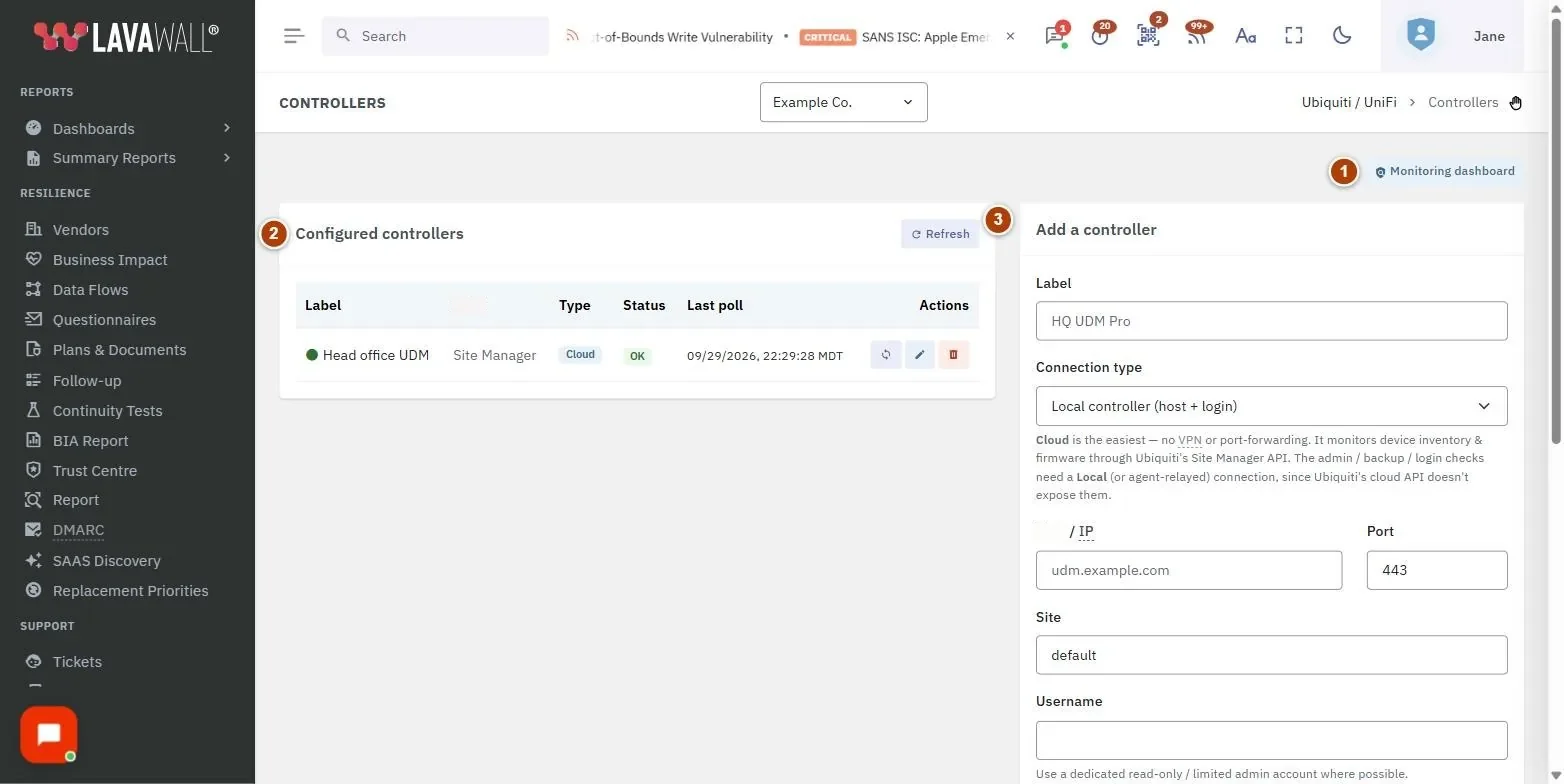
- Monitoring dashboard: opens UniFi Monitoring.
- Configured controllers: Label, Host, Type, Status and Last poll, with poll, edit and delete buttons and a Refresh button.
- Add a controller: the connection form (administrators only).
How to use UniFi Controllers
How to connect through the UniFi cloud
- Select the company.
- In Add a controller, enter a Label (for example "HQ UDM Pro").
- Choose Connection type: Ubiquiti Cloud: unifi.ui.com (API key).
- Create a key at unifi.ui.com under Settings › API Keys, signed in as the console owner, and paste it into Site Manager API key.
- Optionally enter a Console / host ID to limit monitoring to one console; leave it blank to cover every console the key can see.
- Set the Poll interval (s), leave Monitoring enabled on and click Save controller.
How to connect a local controller
- Choose Connection type: Local controller (host + login).
- Enter the Host / IP, Port (443 by default) and Site ("default" unless you use another site).
- Enter a Username and Password. Use a dedicated read-only or limited admin account where possible.
- Leave UniFi OS (UDM / CK Gen2+) on for current consoles, and Verify TLS certificate on unless the controller uses a self-signed certificate.
- Choose Polling mode: Direct if Lavawall can reach the controller over the internet, or Agent relay if it only lives on the client's network.
- Click Save controller.
How to check or edit a controller
- Click the poll button to check a controller now. Status shows OK, Auth failed, Unreachable or Error; hover the red icon for the error.
- Click the edit button, change the details and click Save controller. Leave the password or API key blank to keep the existing one.
- Click the delete button and confirm to remove a controller. This also removes its monitoring history.
Tips
- For cloud controllers, a badge shows the key type. Owner key gives all cloud features. Admin key: limited means device CPU, memory and full inventory are not available; create the key as the owner instead.
- Connector not supported means that console does not offer the cloud connector. Use a local connection with an agent relay for CPU and memory.
- The poll interval must be at least 60 seconds; 300 seconds is the default.
- Type badges show Cloud and agent (fed by a Lavawall agent on the network).
Troubleshooting
- "No controllers configured yet." Add one with the form.
- "Adding or editing a controller requires an administrator role." Ask an administrator to add it.
- Auth failed. Check the username and password, or create a new API key.
- Key rejected. unifi.ui.com did not accept the key. Create a new one and edit the controller.
- Unreachable. Lavawall cannot reach the controller directly. Check the address and port, or switch to Agent relay.
Task guides that use this page
Related articles
Still need help?
Search the support centre, or contact our support team and tell us which page you were on.
Names, companies, devices and figures in the pictures are examples. Other product and company names are trademarks of their respective owners.