Sophos Computers
See every computer Sophos protects across your organizations, spot unlicensed ones, and jump to their open cases.
What the page is for
This page lists the computers (endpoints) reported by Sophos Central for your linked Sophos organizations, as of the last Sophos sync. Each row shows the hostname, organization, platform, device type, operating system, LAN IP address, when Sophos last saw it, whether it holds a Sophos licence, and how many Sophos cases involve it.
Where a Sophos computer matches a computer in Lavawall, the hostname links to that computer's device page. The Cases number links to the Sophos Cases page filtered to that computer.
By default the list shows licensed computers only, and is filtered to the Sophos organizations linked to the company selected at the top of the console.
What you see
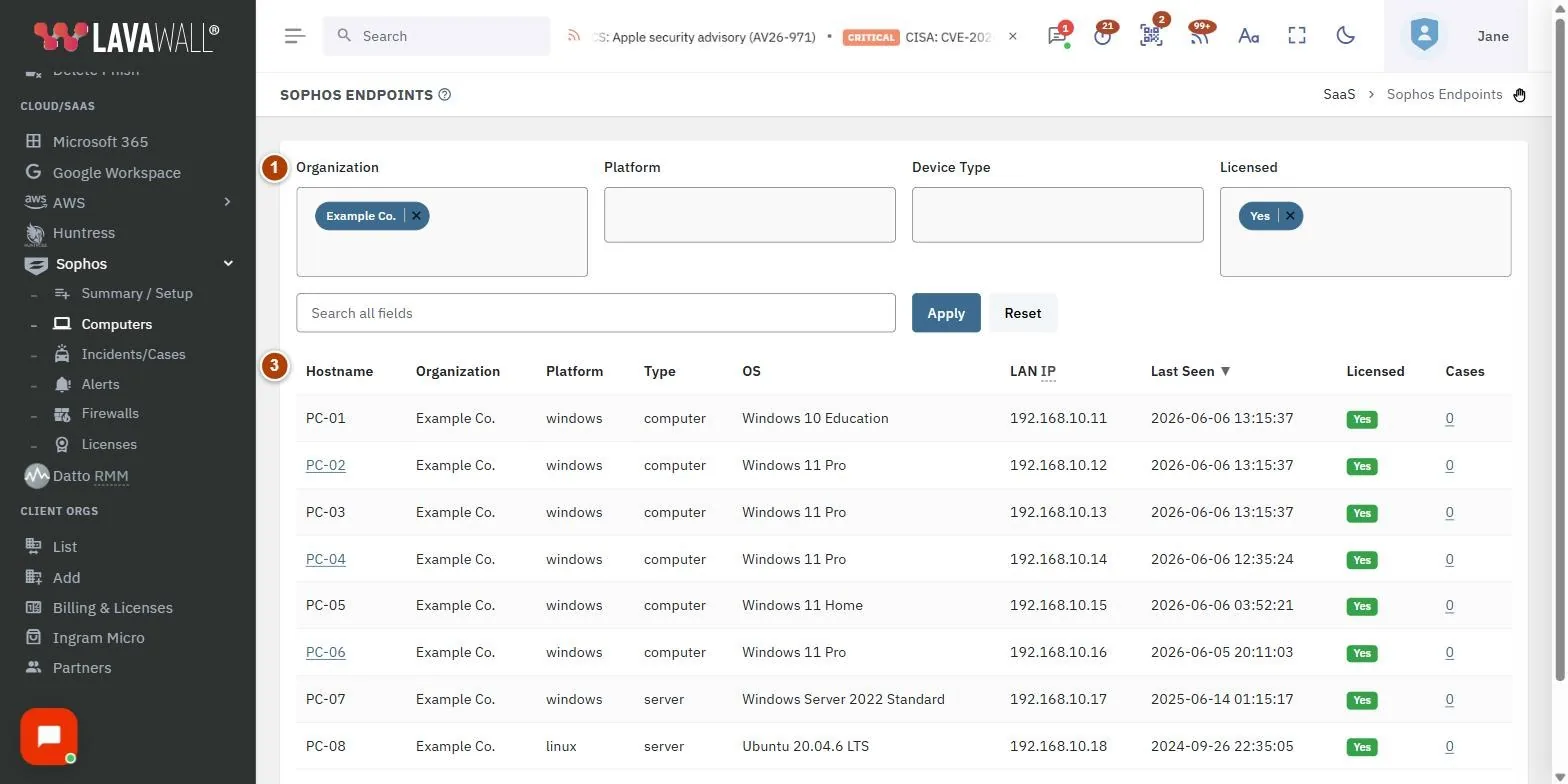
- Filters: Organization, Platform, Device Type and Licensed multi-select boxes.
- Search and buttons: a Search all fields box with Apply and Reset.
- Computer table: Hostname, Organization, Platform, Type, OS, LAN IP, Last Seen, Licensed and Cases.
How to find unlicensed computers
- In Licensed, remove Yes and choose No.
- Optionally narrow by Organization or Platform.
- Click Apply. Every computer Sophos reports without a licence is listed.
How to filter and search
- Choose one or more values in Organization, Platform, Device Type or Licensed. Click the small × on a chosen value to remove it.
- Type part of a hostname, operating system, IP address or other value in Search all fields.
- Click Apply. Click Reset to clear every filter and return to the defaults.
How to sort
- Click a column heading to sort by it. Click it again to reverse the order.
- The arrow beside the heading shows the current sort. Last Seen newest-first is the default.
How to see a computer's cases
- Find the computer in the table.
- Click the number in Cases. The Sophos Cases page opens filtered to that computer.
Tips
- Last Seen sorted oldest-first shows computers that have stopped checking in with Sophos.
- A green Yes badge means licensed; No means Sophos reports the computer without a licence.
- Click a hostname to open the Lavawall device page for the same computer, when Lavawall has matched them.
- To see licensed and unlicensed computers together, choose both Yes and No in Licensed.
- The table shows up to 1,000 computers. Use filters to narrow large estates.
Troubleshooting
- The table is empty. Check that a Sophos sync has run on Sophos Summary and Setup, and that the Sophos organization is linked to the company selected at the top of the console. Also check the Licensed filter; it starts on Yes.
- An organization is missing from the Organization filter. Only organizations that have at least one computer are listed.
- A hostname is not a link. Lavawall has not matched that Sophos computer to a Lavawall device.
Task guides that use this page
Related articles
Still need help?
Search the support centre, or contact our support team and tell us which page you were on.
Names, companies, devices and figures in the pictures are examples. Other product and company names are trademarks of their respective owners.