Training Reports
See who has completed their security awareness training, who is behind, and who has agreed to your policies, and export it for your records.
What the page is for
Training Reports shows every training enrolment for the selected company over a date range, with each person's status, score, due date and completion date. It answers the questions an auditor or manager asks: how many people finished, who failed, who is overdue, and what the average score is.
It also shows which policy versions people agreed to as part of their training, and links to each completion certificate. When your courses have slides, a separate table shows which slides people spent the most time on and how far they scrolled, which helps you spot content that is confusing or being skipped.
All figures come from the training courses assigned through Training Management. By default the page shows enrolments from the last 90 days.
What you see
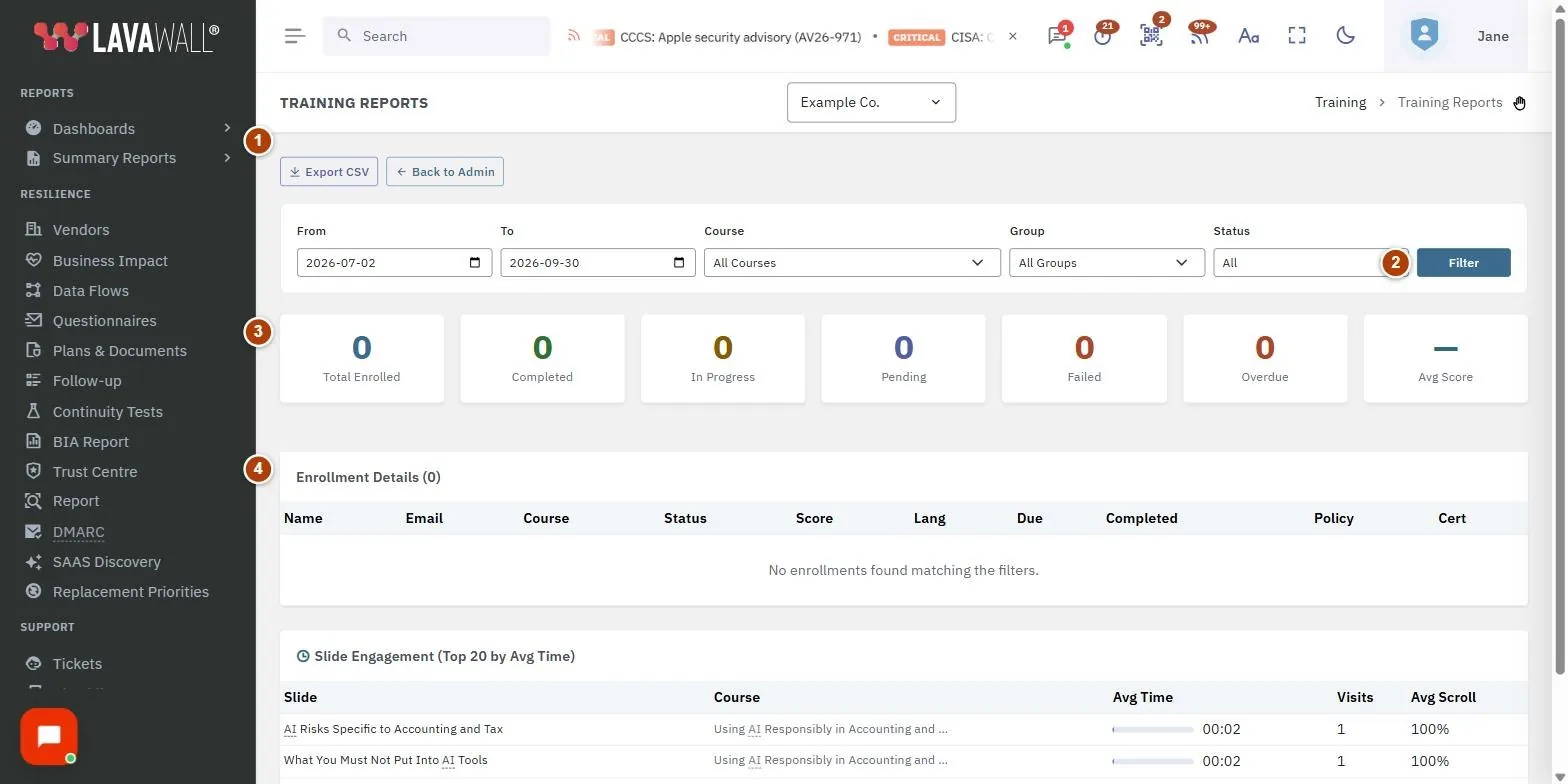
- Export CSV and Back to Admin: download the filtered list as a spreadsheet, or return to Training Management.
- Filters: From and To dates, Course, Group and Status, applied with Filter.
- Summary cards: Total Enrolled, Completed, In Progress, Pending, Failed, Overdue and Avg Score. Completed, Failed and Overdue also show a percentage of the total.
- Enrollment Details: one row per person per course: Name, Email, Course, Status, Score, Lang, Due, Completed, Policy and Cert.
- Policy Agreement Summary: each policy and version, how many people agreed, total agreements and when the last one was made. Shown only when someone has agreed to a policy.
- Slide Engagement (Top 20 by Avg Time): the slides people spent longest on, with average time, visits and average scroll depth. Shown only when there is slide data.
How to use Training Reports
How to see who is overdue
- Set Status to Overdue.
- Adjust From and To if the enrolments are older than 90 days.
- Select Filter. Overdue rows show a red OVERDUE badge.
How to report on one course or group
- Choose the course in Course, or a team in Group (or both).
- Select Filter.
- Read the summary cards for the totals and the table for the individual people.
How to export the report
- Set the filters you want.
- Select Export CSV. The file includes name, email, course, status, score, passed, due, enrolled and completed dates, policy agreed, policy version and certificate ID, using the same filters as the screen.
How to view or share a certificate
- Find the person in Enrollment Details.
- In the Cert column, select View. The certificate opens in a new tab.
How to check policy acknowledgement
- Look at the Policy column: a tick with a version number (for example ✅ v2) means that person agreed to that version. Hover over it to see when.
- Scroll to Policy Agreement Summary for the totals per policy and version.
Tips
- The date range filters on enrolment date, not completion date. Widen From if an older course is missing.
- Status colours: green is completed, amber is in progress, blue is invited, grey is pending, red is failed or overdue.
- A person is overdue when their due date has passed and they have not completed or failed the course.
- Avg Score only counts enrolments that have a score, so people who have not started do not pull it down.
- The table shows up to 2,000 enrolments; narrow the dates or filters for very large organizations.
Troubleshooting
- "No enrollments found matching the filters.": Nothing was enrolled in that date range with those filters. Widen the dates or set Course, Group and Status back to All.
- The Policy Agreement Summary or Slide Engagement section is missing.: These only appear when there is data: a policy agreement, or recorded slide time.
- You see a sign-in card or an access message instead of the report.: You need to be signed in with a training role for this company, and the company needs security awareness training.
- The export downloads "Not permitted.": Your session ended or you lack access to this company. Sign in again and export from the page.
Task guides that use this page
Related articles
Still need help?
Search the support centre, or contact our support team and tell us which page you were on.
Names, companies, devices and figures in the pictures are examples. Other product and company names are trademarks of their respective owners.