Canned Responses
Save the replies your team sends again and again, and insert them into any ticket with a quick shortcut.
What the page is for
Canned responses are ready-made ticket replies, such as "password reset instructions" or "we've received your request". Each one has a shortcut: in any ticket reply, type / at the start of a line followed by the shortcut, or use the Insert canned response drop-down, and the text is added for you.
Responses can include placeholders, such as {{first_name}} or {{ticket_number}}, that are filled in automatically from the ticket, the requester, the assigned agent and you. You can also define your own placeholders (variables), such as a support phone number, with a default value for everyone and a different value for particular client companies.
Responses can be shared with the whole team or kept private, grouped by category, restricted to one agent group, and switched off without being deleted.
What you see
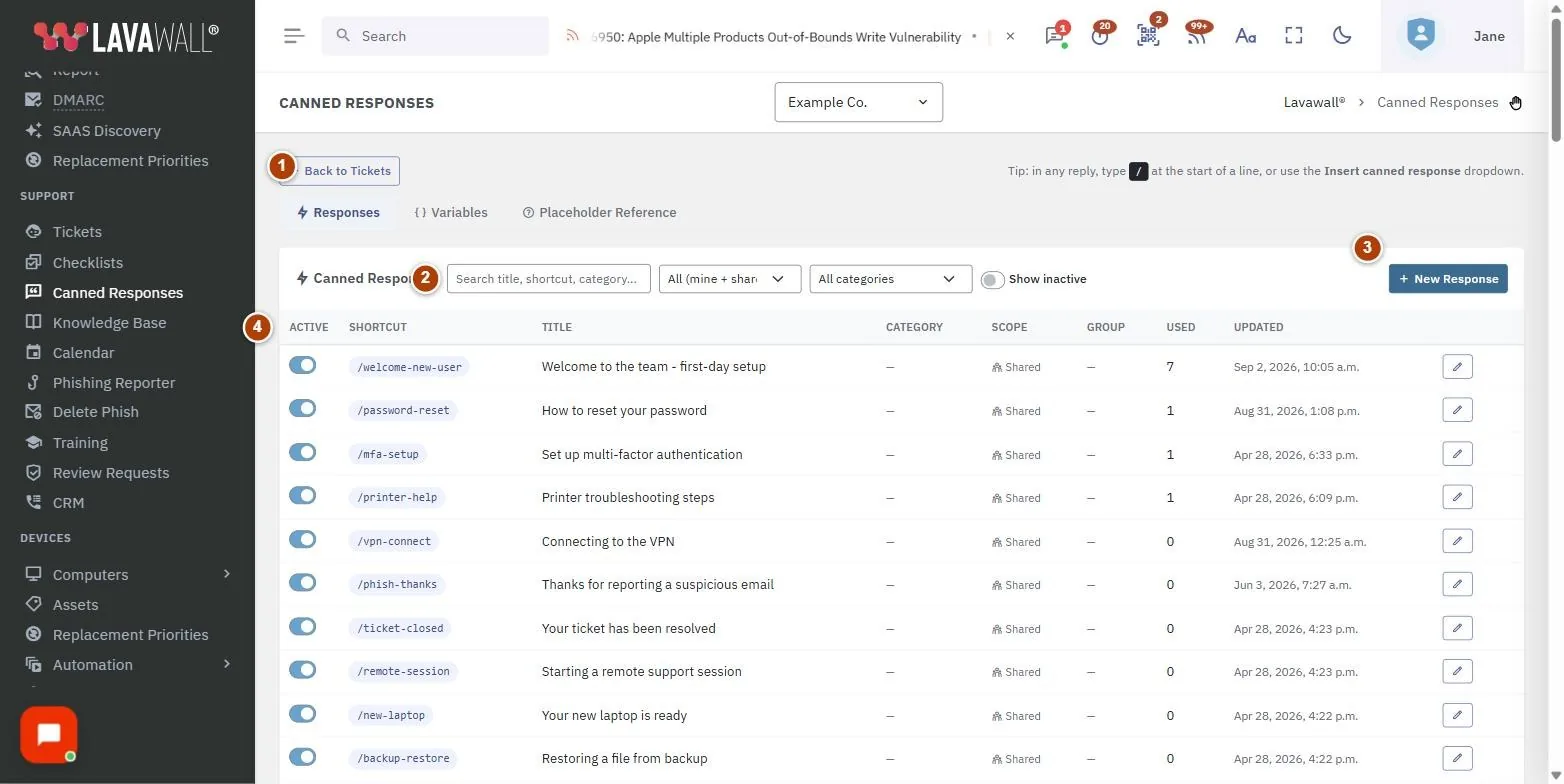
- Tabs: Responses, Variables and Placeholder Reference, plus Back to Tickets.
- Responses list: filters for All (mine + shared), My private or Shared, categories and Show inactive, with New Response, and the list of responses: Active, Shortcut, Title, Category, Scope, Group, Used and Updated.
- Custom Placeholders (Variables tab): one card per variable with its default value and per-company overrides, New Variable, Edit values, Add and Save all.
- Built-in Placeholders and Live Preview (Placeholder Reference tab): every placeholder Lavawall fills in automatically, and a preview that renders a response against a real ticket.
- Canned Response editor: Shortcut, Title, Category, Scope, Restrict to agent group, Active (visible in ticket replies) and Body, with Insert placeholder, Preview, Delete and Save.
How to create a canned response
- On the Responses tab, select New Response.
- Enter a Shortcut (you will type / and this in a ticket reply) and a Title.
- Choose or type a Category, and choose the Scope: Shared (team) or My private.
- Optionally pick an agent group under Restrict to agent group. Only members of that group will see the response.
- Write the Body. Use Insert placeholder or the { } toolbar button to add placeholders such as
{{first_name}}. - Check Placeholders in this response: each is marked built-in, defined or undefined. Select Rescan after editing.
- Select Preview to see it filled in for a contact, then Save. If you used new placeholders, you are offered Register & Save to create them as variables.
How to use a canned response in a ticket
- Open a ticket and start a reply.
- Type / at the start of a line and then the shortcut, or pick the response from the Insert canned response drop-down.
- The text is inserted with placeholders already filled in. Edit it if needed and send.
How to set up a custom variable
- Open the Variables tab and select New Variable.
- Enter the key (for example
support_email), an optional description and the default value used when there is no per-company override. - To give a client company a different value, select Edit values on the variable, select Add, choose the company, enter the value and select Save all.
- Use it in responses as
{{support_email}}.
How to check how a response will look
- Open the Placeholder Reference tab.
- Under Live Preview, select a response and a ticket, then select Render.
How to switch off or delete a response
- Open the response and turn off Active (visible in ticket replies), then select Save. Tick Show inactive to find it again later.
- To remove it permanently, open it, select Delete and confirm.
Tips
- Keep shortcuts short and memorable, such as
pwresetorthanks. - Categories filter as you type, so reuse an existing category rather than creating near-duplicates.
- The Used column shows which responses your team relies on. Review ones that are never used.
- Built-in placeholders cover the requester, the ticket (number, subject, status, priority, link, due date), the assigned agent, you (including your signature) and the date and time.
- Deleting a custom variable removes both its default and all per-company overrides.
Troubleshooting
- A placeholder shows as undefined. It is not a built-in placeholder and has not been created as a variable. Save with Register & Save, or create it on the Variables tab.
- A teammate can't see my response. It may be My private, restricted to an agent group they are not in, or inactive.
- A placeholder comes out blank. The ticket or contact has no value for it (for example no phone number), or the variable has no default value for that company.
- "Please log in to manage canned responses." Sign in to the console and reload the page.
Task guides that use this page
Related articles
Still need help?
Search the support centre, or contact our support team and tell us which page you were on.
Names, companies, devices and figures in the pictures are examples. Other product and company names are trademarks of their respective owners.