CRM & Help Desk
Manage your clients, prospects, contacts, deals, tickets and activities in one place, alongside the security information Lavawall already collects about them.
What the page is for
The CRM is where an MSP keeps track of the businesses it works with. Companies, contacts, deals, tickets and activities (notes, calls, emails, meetings, tasks and chats) are all linked, so opening a company shows its people, its pipeline, its history and what Lavawall knows about it: domain scan scores, devices and business intelligence.
For prospecting, you can scan prospects' domains and run intelligence scans that gather business and security information about a company from its domain, including a breach check. Duplicate companies can be found and merged, and merges can be undone.
The Settings tab controls how your help desk works: ticket numbering, deal and ticket stages, priorities, categories, tags, service types, SLA policies, service plans and billing, business hours and recurring schedules that create tickets or activities automatically.
What you see
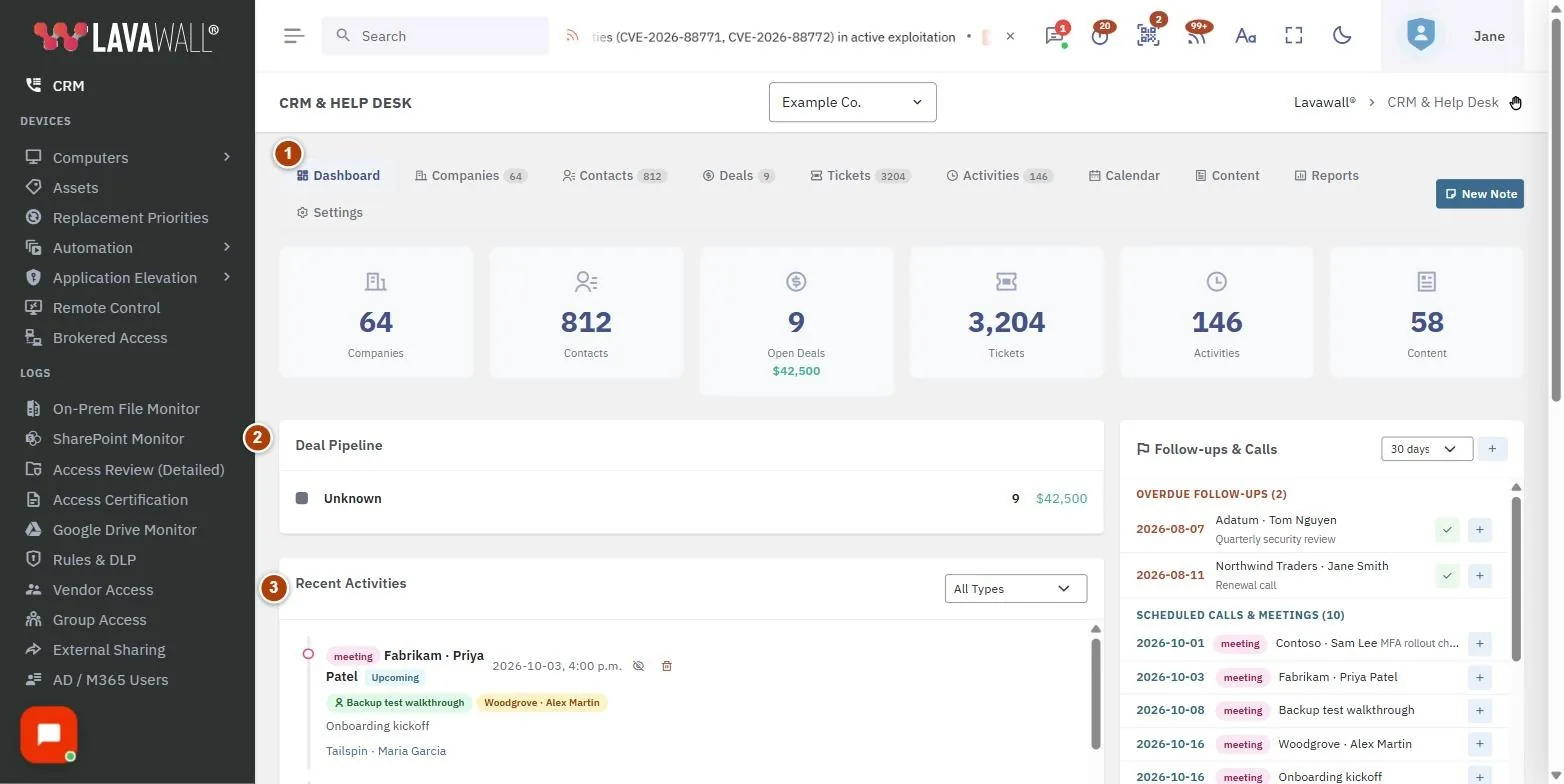
- Tabs: Dashboard, Companies, Contacts, Deals, Tickets, Activities, Calendar, Content, Reports and Settings, plus New Note.
- Dashboard: Deal Pipeline, Recent Activities, Follow-ups & Calls, Company Breakdown and Domain Scan Health.
- Companies: a type filter (clients, prospects, partners, auditors and so on), Export, New Company, Scan Prospects, Intel All Prospects, Find Duplicates, Merge History and Classify Industries, and the list: Company, Type, Domain, Score, Industry, Contacts, Deals and Activities.
- Company view: Overview, Intelligence and Activity tabs, with Edit, Note, Run Intel Scan, Full Intel Scan and Breach Only.
- Contacts, Deals, Tickets and Activities: lists with filters and Export; deals can be shown as List or Kanban.
- Reports: downloadable reports for activity, deals, company intel, tickets, contacts, domain scans, customer acquisition, and follow-ups and calls.
How to add a company
- Open Companies and select New Company.
- Enter the Company Name and, optionally, Short Name, Domain, Type, Industry, Source, Referred by (partner), phone and address.
- Save. The company appears in the list, and you can add contacts, deals and activities to it.
How to log an activity
- Select New Note, or Note on a company or contact.
- Choose the Type (Note, Call, Email, Meeting, Task, Chat or Other) and search for the Person / Company.
- Set the Direction (for calls and emails), Subject, Date/Time and Duration (min). For meetings, add Additional Attendees.
- To remind yourself, fill in Follow up with and Follow-up date. Follow-ups appear on the dashboard and the Calendar.
- Write the Body and select Save Activity.
How to manage deals
- Open Deals.
- Choose List or Kanban. In Kanban view, move a deal between stages as it progresses.
- Select Stages to rename or reorder your pipeline stages.
- Open a deal to change its Name, Amount, Close Date, Stage and Notes.
How to research a company or prospect
- Open the company and go to the Intelligence tab.
- Select Full Intel Scan for business and security intelligence from its domain, or Breach Only to check for known breaches.
- On Companies, use Scan Prospects to scan every prospect's domain, or Intel All Prospects to run intelligence scans on all of them.
- Under Settings, OSINT Intelligence offers Scan Stale (>30 days), Scan Stale (>7 days) and a standalone lookup.
How to merge duplicate companies
- On Companies, select Find Duplicates.
- For each group, review the suggested company to keep and select Merge into survivor.
- Check the details and select Merge & disable. The duplicate's contacts, activities and other records move to the survivor, and the duplicate is disabled.
- You can undo straight away, or later from Merge History with Undo.
How to set up your help desk
- Open Settings.
- Set Ticket Numbering (prefix and next number), Ticket Pipeline Stages, Priorities, Categories and Tags.
- Define SLA Policies and Service Plans & Billing (unlimited, included hours or hourly, with rates and minimum billable time).
- Under Business Hours, select Create Default (Mon-Fri 8-5) or set your own and select Save Hours. Time entries outside these hours are billed at the after-hours rate.
- Under Recurring Schedules, create tickets or activities that repeat automatically, and select Save Schedule.
Tips
- Use the company type filter to focus on Prospects when prospecting, or Clients for account management. Defunct and abandoned companies are hidden unless you choose them.
- Classify Industries fills in missing industries using intelligence scans. Existing industries are never overwritten.
- Tick several contacts to Assign company or Delete them in one go.
- The Tickets tab gives a quick view; select New Ticket / Full View for the full ticket workspace.
- The Content tab links to your blog, knowledge base and pages.
Troubleshooting
- "No prospects with domains." Scan Prospects and Intel All Prospects only work on prospects that have a domain. Add domains first.
- "Devices pending uninstall." The company you are merging away still has devices waiting to be uninstalled. You can merge anyway, but check those devices first.
- "No business hours configured." Select Create Default (Mon-Fri 8-5) or add your own hours.
- Intelligence results are missing. Some sources need an API key. Check Settings › Integrations for the API key status.
Task guides that use this page
Related articles
Still need help?
Search the support centre, or contact our support team and tell us which page you were on.
Names, companies, devices and figures in the pictures are examples. Other product and company names are trademarks of their respective owners.