Checklists
Run your team's morning, evening, weekly and monthly checks in one place, with live information beside each check and a clear record of what was found.
What the page is for
Most IT teams have routine checks: are backups green, are any services down, are any users flagged as risky. This page turns those routines into checklists your technicians can work through quickly, and keeps a history of every answer.
Each check is answered Good, Checked, Problem, Escalate or Notify client. A check answered Good or Checked rests until it is due again, based on its own frequency, and is hidden until then, so technicians only see what needs doing. Problem, Escalate and Notify client answers never rest: they come back every round until they change. Quick answers such as "same as last time" and "the rest are good" save time, and the record shows when a bulk answer was used.
A check can cover your organization as a whole or each of your client companies, with its own answer and comments per client. Checks can show live information alongside them, such as monitored services, service-provider status, Downdetector links, internet providers in use and risky users, and can embed a web page such as a vendor portal. MSPs can share a checklist with their clients, who then answer their own rows.
What you see
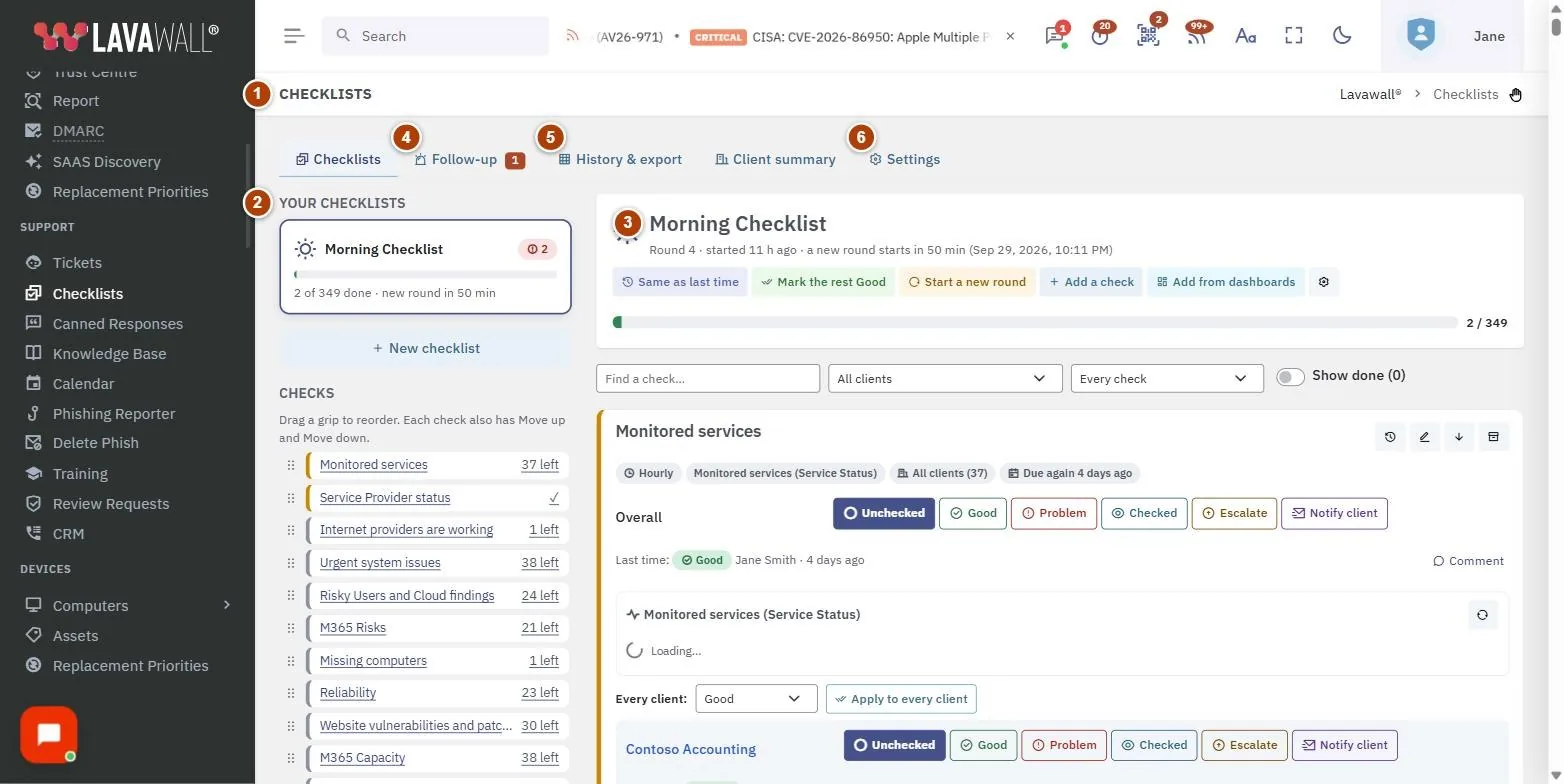
- Tabs: Checklists, Follow-up, History & export, Client summary and Settings.
- Your checklists: every checklist you can use, with New checklist. Choose one to open its checks alongside.
- Open checklist: the checks due in this round, with their live information, answer buttons and comments.
- Follow-up: Escalations and client notifications: every check answered Escalate or Notify client, until someone marks the follow-up done.
- History & export: a Heat map of answers by round, an Export of every answer, comment and follow-up as CSV, and Issues by client.
- Settings: Do it early windows and Service providers each client uses.
How to work through a checklist
- On the Checklists tab, choose a checklist under Your checklists.
- For each check, read How to check it and the live information shown with it.
- Choose the answer: Good, Checked, Problem, Escalate or Notify client. For client checks, answer each client's row.
- Add a comment where something needs explaining.
- Answered Good or Checked checks drop out of view until they are due again. Use the show-done option to see them.
How to create a checklist
- Select New checklist.
- Enter a Name, Description and Icon.
- Choose how long A round lasts (from 4 hours to 30 days). When a round is over, the next person to open the checklist starts a fresh one, and last round's answers stay visible as "last time".
- MSPs: choose what Client companies can see: Nothing: keep this checklist to ourselves, Only the checks that name them, or The whole checklist.
- Select Save.
How to add a check
- Open the checklist and add a check.
- Enter What to check and choose How often.
- Choose Live information to show with it and fill in its settings, and write How to check it.
- Optionally add a Page to show with the check (an https address) and its Height (px).
- Under Clients, choose An answer for each client or One answer for all clients, and All active clients, including future ones or Only the clients I tick. You can Leave out these clients.
- Tick Optional: not counted in the progress bar if it should not count toward completion.
- Select Save check.
How to add checks from the dashboards
- Use Add from the dashboards.
- Choose How often and tick the Dashboard items to add as checks. Each becomes its own check showing the same numbers as the dashboards for every client.
- Select Add checks. You can narrow each one to some clients afterwards with Clients on this check and Save clients.
How to follow up escalations
- Open the Follow-up tab.
- Work through Escalations and client notifications and mark each follow-up done when it is handled.
- Tick Also show the last 14 days of completed follow-ups to see what was recently closed.
How to review history and export
- Open History & export.
- Under Heat map, choose the Checklist and Rounds (last 14, 30, 60 or 90) and select Show.
- Under Export, choose From, To (inclusive) and the Checklist, then select Download CSV. Times in the file are UTC.
- Under Issues by client, choose the dates and select Show to see every Problem, Escalate and Notify client answer given for a client, with its comments.
Tips
- Set an early window on the Settings tab under Do it early. With 25%, a daily check done at 9:00 is due again from 3:00 the next morning, and a monthly one from about day 23. Select Save early windows.
- Under Service providers each client uses, set a provider to Always or Never to override automatic detection. These providers also appear on the client's Service Status page.
- Providers are detected automatically when they are set up in Lavawall for the client (for example Cloudflare, Sophos, Huntress, Datto RMM, UniFi, AWS, Microsoft 365 or Google Workspace) or their product is found installed on the client's computers.
- Many websites refuse to be shown inside another page. An "Open in a new tab" link is always offered.
- A client that can see a checklist never sees your main answers, other clients' rows or your comments on them.
- To retire a checklist, open it and select Archive.
Troubleshooting
- "Checklists are part of the Complete package." Your subscription does not include checklists. See your subscription to add them.
- "Your account has not been given access to checklists." Ask an administrator to tick a Checklists permission for you in Users & Permissions.
- I can't change the early windows. Only people with the add or change checklist items permission can change them.
- "Please log in to use checklists." Your session has ended. Log in again.
Related articles
Still need help?
Search the support centre, or contact our support team and tell us which page you were on.
Names, companies, devices and figures in the pictures are examples. Other product and company names are trademarks of their respective owners.