Domain Summary
Compare the security of every domain you monitor in one table, so you can see which ones need work first.
What the page is for
The Domain Summary lists every monitored domain for the selected company, or for all your companies, with the key results of its latest scan side by side. For each domain you see its company, when it was added, whether a web application firewall (WAF) protects it, its registrar, whether DNSSEC, DMARC, SPF and DKIM are in place, whether DMARC reports are being collected (RUA), and error counts by area: total, admin, web, email DNS, domain, encryption and exposed ports.
It is the quickest way to spot, for example, every client domain still missing DMARC.
What you see
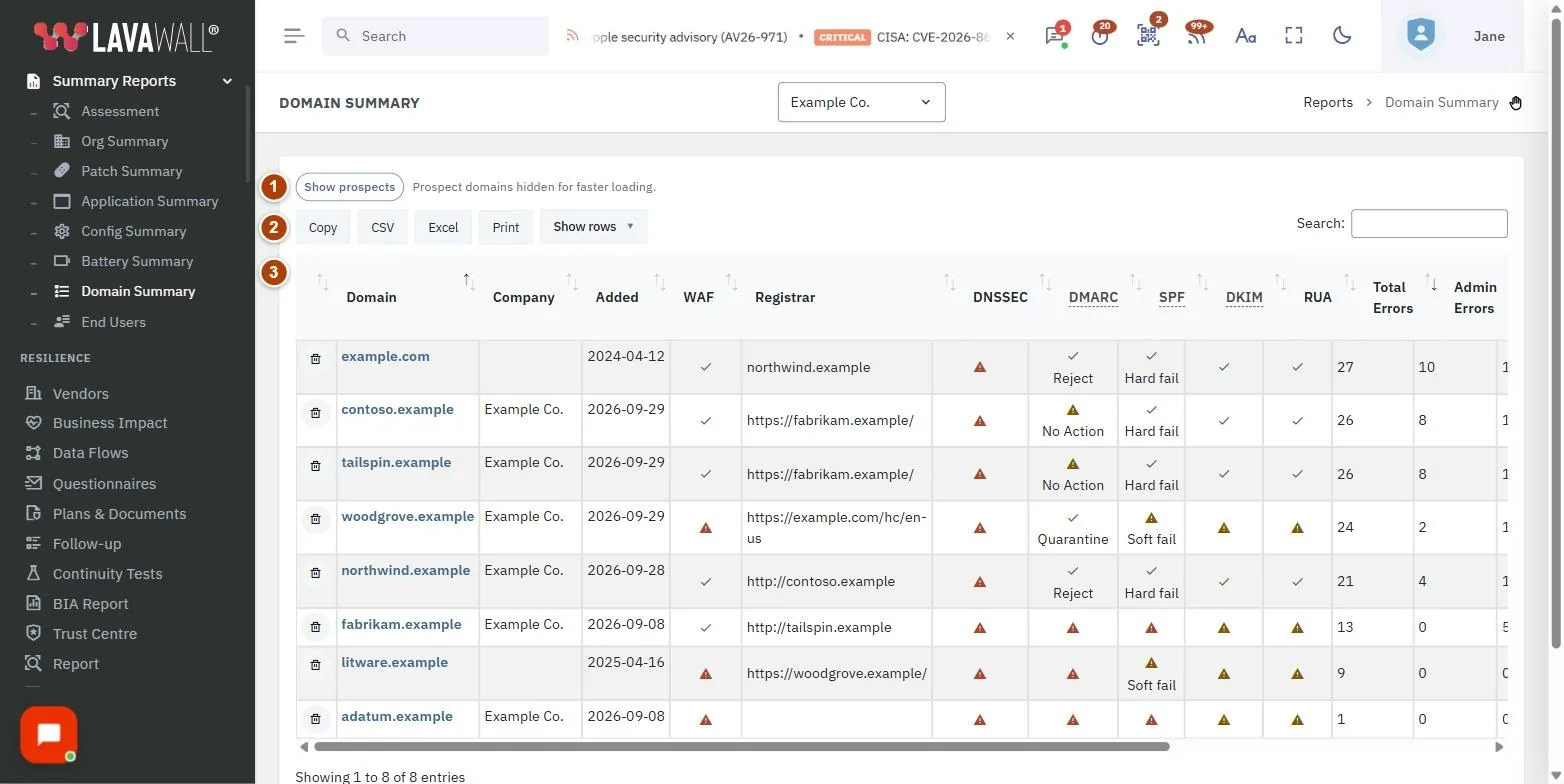
- Prospect toggle: Show prospects / Hide prospects.
- Table tools: Copy, CSV, Excel, Print, Show rows and a search box.
- Domain table: Domain, Company, Added, WAF, Registrar, DNSSEC, DMARC, SPF, DKIM, RUA, Total Errors, Admin Errors, Web Errors, Email DNS Errors, Domain Errors, Encryption Errors and Exposed Ports, with a remove button on each row.
How to use Domain Summary
How to find domains that need attention
- Click the Total Errors heading to sort the worst domains to the top.
- Or sort by DMARC, SPF or DKIM to group domains missing email protection.
- Type in the search box to find a domain or company.
How to open a domain's full results
- Click the domain name. Its Domain Scan Results open.
How to export the summary
- Click Copy, CSV, Excel or Print.
How to remove a domain
- Click the remove button at the start of the row.
- In Domain Removal Confirmation, type the domain name exactly and confirm.
Tips
- Select a single company in the company picker for a client-ready export.
- Prospect domains are hidden by default for faster loading.
- Pair this page with DMARC Setup to fix missing DMARC, SPF and DKIM records.
Troubleshooting
- "You have not added any domains yet." Click Add domain to scan your first domain.
- "Please type the name of the domain to confirm removal". The text you typed did not match the domain. Type it again exactly.
- "You are not authorized to remove that domain". The domain belongs to a company you cannot change.
Task guides that use this page
Related articles
Still need help?
Search the support centre, or contact our support team and tell us which page you were on.
Names, companies, devices and figures in the pictures are examples. Other product and company names are trademarks of their respective owners.