DMARC Setup
Set up your Lavawall DMARC reporting address, get a ready-to-paste DNS record for each domain, and choose how strictly to protect your domains from spoofing.
What the page is for
DMARC tells mail providers what to do with email that claims to come from your domain but fails SPF and DKIM checks, and where to send reports about it. This page gives you a personal Lavawall address to receive those reports, then builds the correct _dmarc DNS record for each of your domains.
For each domain you can see its current DMARC policy, pick a new one (None (monitor), Quarantine or Reject), roll it out gradually with a percentage slider, and set a separate policy for subdomains. The page recommends the next step based on the domain's current policy and pass rate.
You can also get an email alert when unauthorized senders appear in the reports. Lavawall fills in your domains for you the first time from the domains it already knows about.
What you see
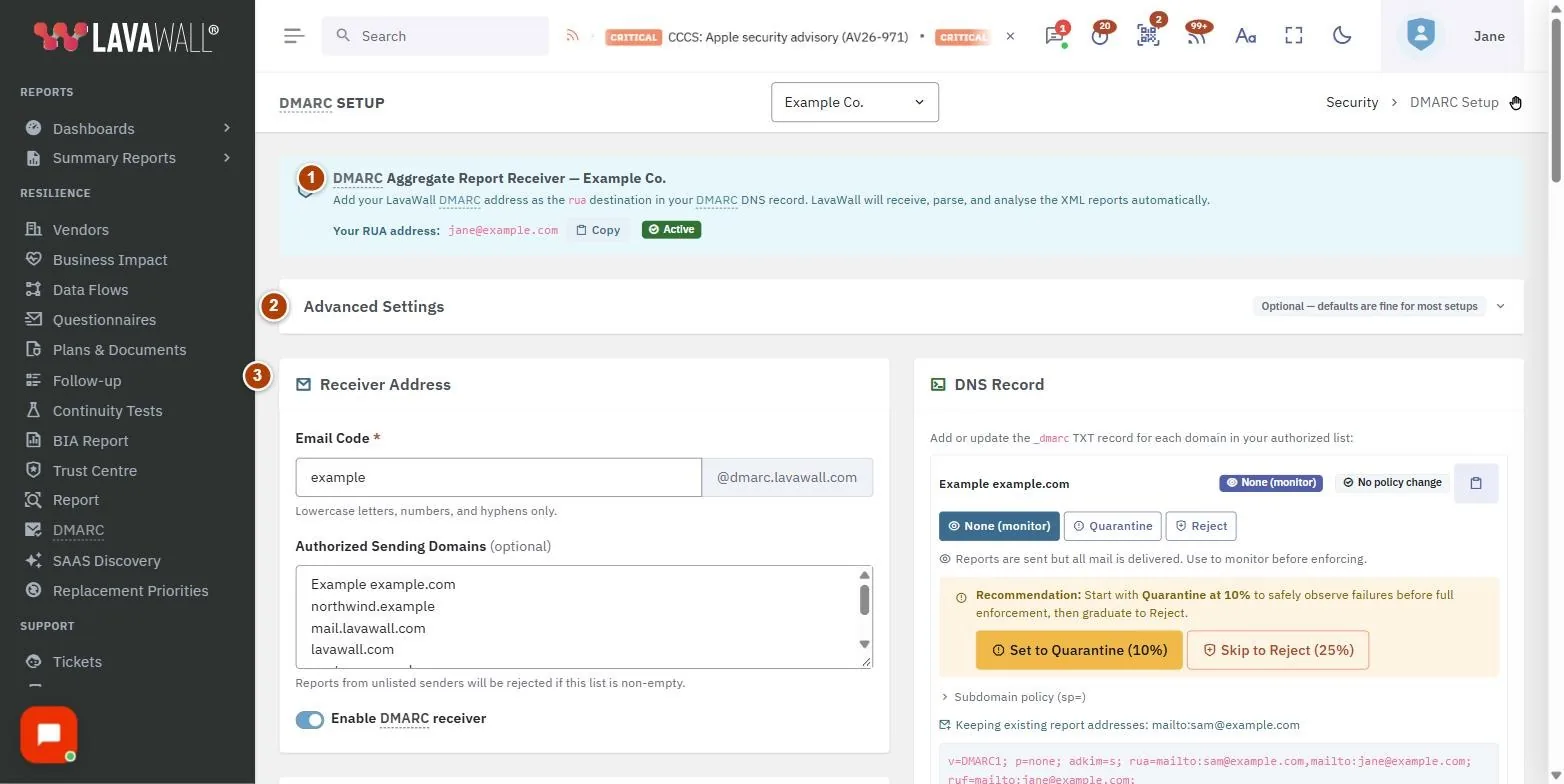
- DMARC Aggregate Report Receiver: Your RUA address with Copy, and whether the receiver is Active or Inactive.
- Advanced Settings: optional DMARC options: DKIM Alignment, SPF Alignment, Failure Reporting Options, Separate Forensic Report Address and Reporting Interval.
- Receiver Address: Email Code (the first part of your address @dmarc.lavawall.com), Authorized Sending Domains and Enable DMARC receiver.
- Alerting: Alert Email and Alert Threshold (Any failure, 5+, 10+ or 50+ failures).
- DNS Record: a card per domain with its current policy, a change badge (for example New record or Upgrading from none), policy buttons, the Policy Percentage slider, Subdomain policy (sp=), the finished record and a copy button.
- View Reports and Save Configuration.
How to set up DMARC reporting
- Check or change the Email Code. Use lowercase letters, numbers and hyphens only.
- List your domains in Authorized Sending Domains, one per line.
- Tick Enable DMARC receiver.
- Click Save Configuration.
- In DNS Record, click the copy button for each domain and add the record as a TXT record named
_dmarcat your DNS provider.
How to tighten a domain's policy safely
- In the domain's card, start with None (monitor) and let reports collect.
- When the page recommends it, click Set to Quarantine (10%).
- Raise the Policy Percentage slider over time as reports stay clean.
- When the pass rate is above 95%, click Upgrade to Reject (25%), then raise to 100%.
- Copy the updated record into DNS each time you change it.
How to set a different policy for subdomains
- In the domain's card, open Subdomain policy (sp=).
- Choose Inherit or a different policy.
- Copy the updated record into DNS.
How to get alerts
- Enter an Alert Email.
- Choose an Alert Threshold.
- Click Save Configuration.
Tips
- Leave Advanced Settings at their defaults unless you have a specific reason. Strict alignment breaks many email services and forwarding.
- New domains typed into Authorized Sending Domains are saved automatically ("Domains saved"). Other changes need Save Configuration.
- If your domain already sends reports elsewhere, the new record keeps those addresses as well.
- Most major providers ignore the percentage and apply the policy to all mail, so treat the slider as a guide.
- Major providers send reports daily whatever the Reporting Interval says.
Troubleshooting
- Reports from a provider are not arriving. If Authorized Sending Domains is not empty, reports for domains not on the list are rejected. Add the domain.
- The receiver shows Inactive. Tick Enable DMARC receiver and click Save Configuration.
- "Save failed". Check the Email Code uses only lowercase letters, numbers and hyphens, then save again.
- A domain card shows "No record". The domain has no DMARC record yet. Copy the new record into DNS.
Task guides that use this page
Related articles
Still need help?
Search the support centre, or contact our support team and tell us which page you were on.
Names, companies, devices and figures in the pictures are examples. Other product and company names are trademarks of their respective owners.