Download Agents / Add Computers
Download the Lavawall agent for Windows, Mac or Linux, or deploy it through Datto RMM, so your computers start reporting.
What the page is for
This page gives you the installer and step-by-step instructions to add computers to Lavawall. Installing the agent is what lets Lavawall monitor patches, configuration, performance and security, and makes remote support possible.
Installers are tied to a company. The company you choose in the company selector at the top of the console decides which company new computers join, and the page shows that company's name next to each download link. The Windows installer is built for each company.
If you already use Datto RMM, the page also explains how to push the agent to every site from there.
What you see
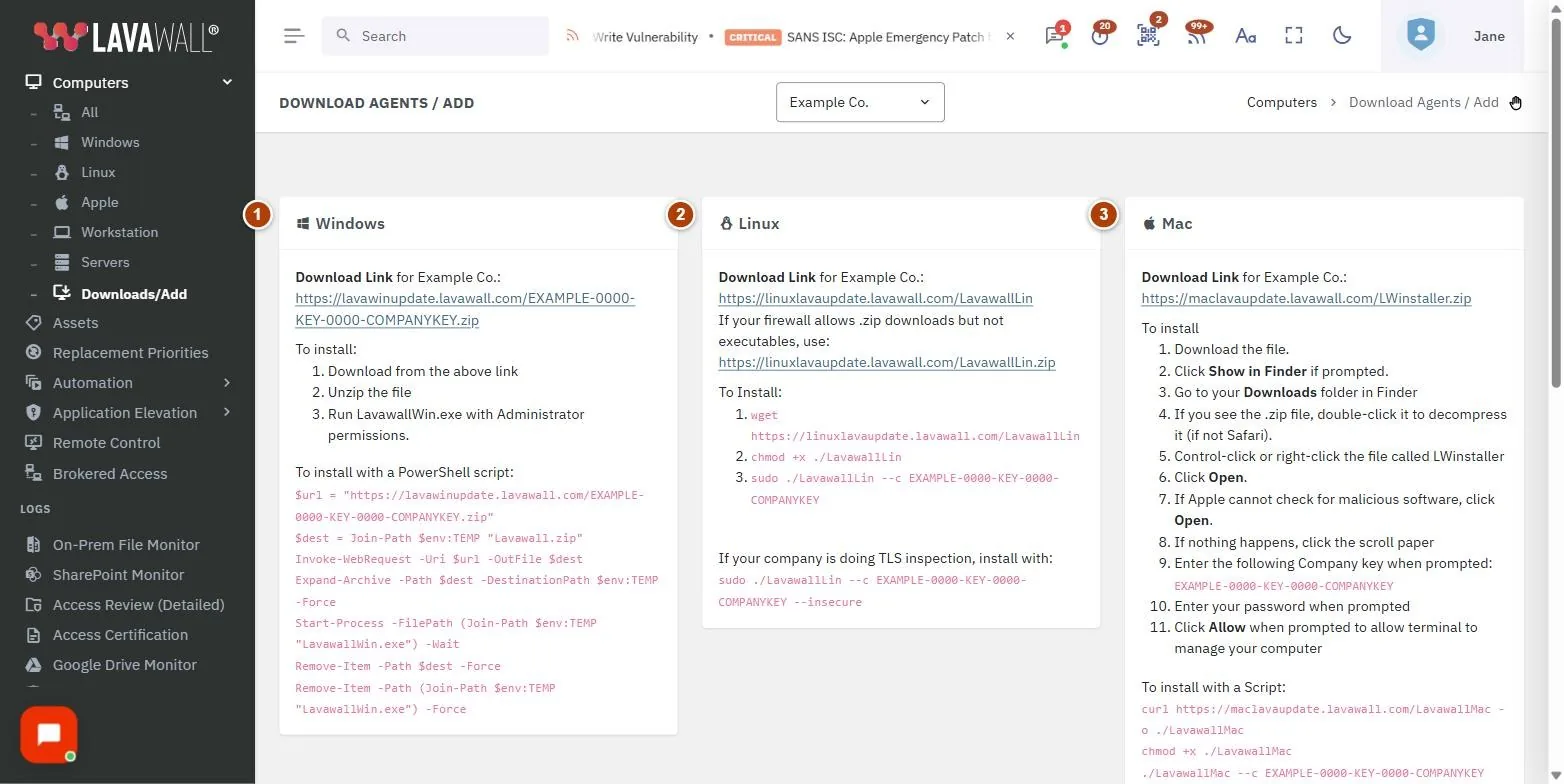
- Windows: a Download Link for the selected company and the install steps.
- Linux: download links and the commands to install, including the company key.
- Mac: a Download Link, install steps and a one-line script option.
- Datto RMM for Windows, Datto RMM for Linux and Datto RMM for Mac: how to add the Lavawall key to each Datto site and import or create the install component.
How to add computers
How to choose the company
- In the company selector at the top of the console, choose the company the computers belong to.
- Check that the company name appears next to each Download Link.
How to install on Windows
- Click the Windows Download Link.
- Unzip the file.
- Run LavawallWin.exe with administrator permissions.
How to install on a Mac
- Click the Mac Download Link. Click Show in Finder if prompted.
- In your Downloads folder, double-click the .zip file to decompress it if needed.
- Control-click or right-click LWinstaller and click Open. If macOS says it cannot check the file for malicious software, click Open again.
- Enter the company key shown on the page when prompted, then your Mac password.
- Click Allow when asked to let Terminal manage your computer.
To install with a script instead, use the three commands shown under "To install with a Script".
How to install on Linux
- Run the commands shown on the page: download the installer, make it executable, then run it with
sudoand your company key. - If your firewall blocks executable downloads, use the .zip link shown instead.
- If your network inspects TLS traffic, use the alternative command shown with the
--insecureoption.
How to deploy through Datto RMM
- In Datto RMM, open each site's Settings, click Add Variable, and add a variable named LAVAWALL_KEY with the value shown on this page. Click Save Site.
- Repeat for every site, choosing the matching company in Lavawall's company selector each time.
- For Windows or Mac, download the Datto component from this page, then in Datto RMM go to Automation › Components and click Import.
- For Linux, create a new component named Lavawall Install Linux in the Scripts category, set the script type to Shell (Unix, macOS) and paste the script shown on the page.
- Run the component as a job on your devices. Run jobs as a system account.
Tips
- Choose the right company before downloading. A computer joins the company whose key is in its installer.
- The Datto site setup only needs doing once per company, even if you deploy to Windows, Mac and Linux.
- After installing, check Devices › Computers. New computers appear once they check in.
- The help icon next to each Datto RMM heading opens detailed instructions with screen captures.
Troubleshooting
- "We are compiling the custom installer for … Please reload this page in a minute." A new company's Windows and Mac installers are still being built. Wait a minute and reload.
- The download link shows my own organization "(for all)". No single company is selected. Pick the client company in the company selector first.
- The Linux install fails behind a firewall or proxy. Try the .zip download, or the
--insecurecommand if your network inspects TLS traffic. - The Mac installer does nothing when opened. Follow the on-page step "If nothing happens, click the scroll paper", then continue with the company key.
Task guides that use this page
Related articles
Still need help?
Search the support centre, or contact our support team and tell us which page you were on.
Names, companies, devices and figures in the pictures are examples. Other product and company names are trademarks of their respective owners.