Visitor Web Log
See who visits your website, where they come from and what they read, without a separate analytics tool.
What the page is for
When you add the Lavawall chat and logging code to your website and turn on visitor web logging, every page view is recorded here. The Visitor Web Log turns those records into a traffic dashboard: page views, unique visitors, time on page, where visitors are, which devices and browsers they use, and how they found you.
It separates human visitors from bots, and breaks bots down by type, such as AI assistants, search engines and security scanners. It highlights visits referred by AI assistants, search terms and campaigns, and shows how visitors move through your site. You can follow a single visitor's journey, filter everything by clicking on a value, and export the log to a spreadsheet.
What you see
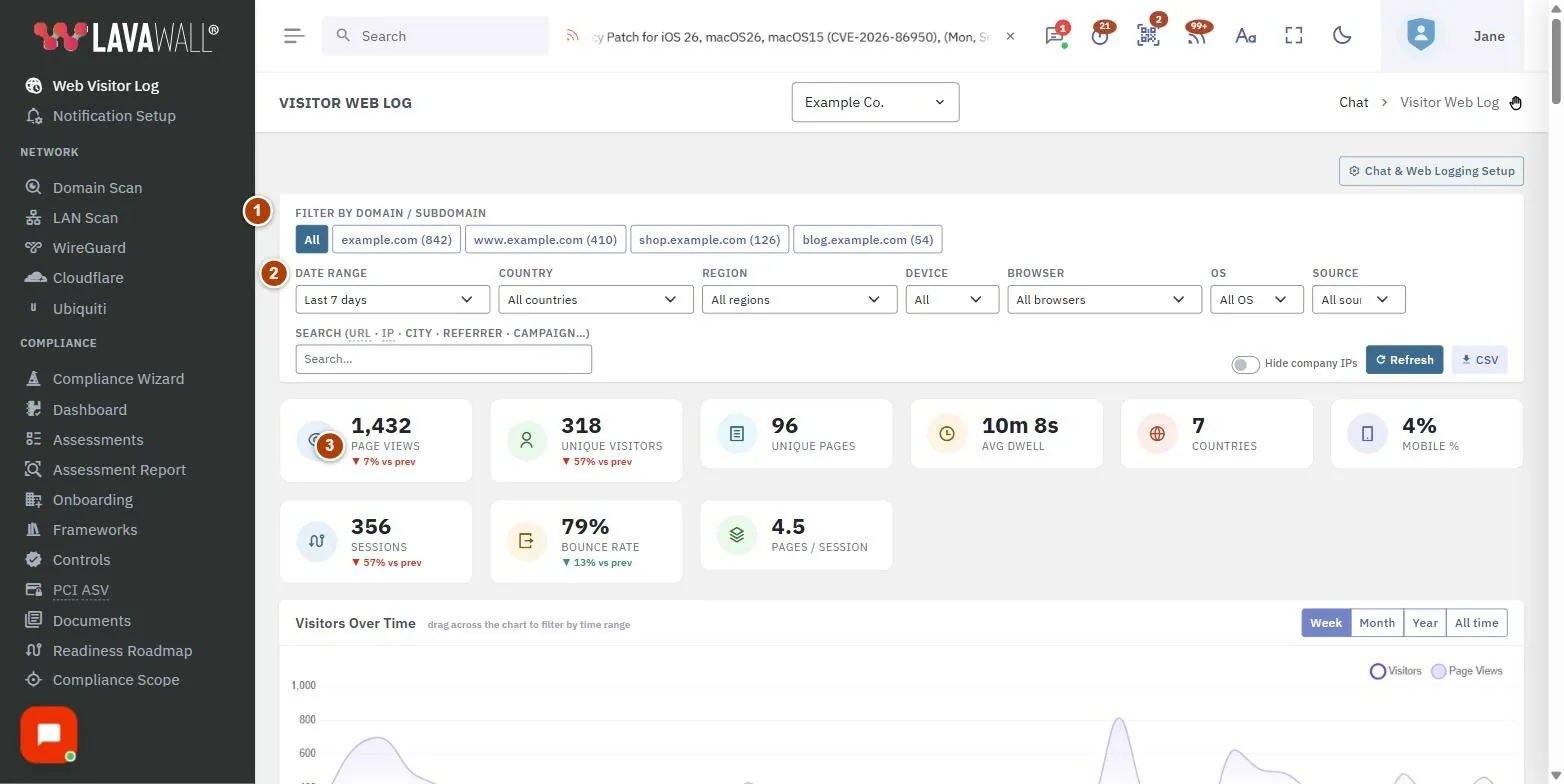
- Filter bar: Date range, Country, Region, Device, Browser, OS, Source, Traffic and Search, with Hide company IPs, Refresh and CSV. Active filters show above, with Clear all.
- Summary tiles: Page Views, Unique Visitors, Unique Pages, Avg Dwell, Countries and Pages / Session, with change from the previous period.
- Charts: Visitors Over Time, New vs Returning, Activity by Day & Hour and a Connection Origins map.
- Traffic Flow: how visitors arrive and move through the site, as an Aggregate flow or Visitor journeys.
- Page log: Time, Page, Country, City / Region, IP, Device, Browser, Dwell and Visitor, with page buttons.
- Breakdowns: Top Pages, Entry Pages, Exit Pages, Countries, Top Referring Domains, Bot Activity, Traffic Sources, AI / LLM Referrers, AI / LLM Landing Pages, Search Terms & Campaigns, Device Types, Browsers and Operating Systems.
How to use this page
How to see this week's traffic
- Leave Date range on Last 7 days, or choose another range up to Last year.
- Read the summary tiles and Visitors Over Time.
- Turn on Hide company IPs to leave out visits from your own organization's devices.
How to filter the log
- Choose values in the filter bar, or type in Search to find a page, IP address, city, referrer or campaign.
- In any breakdown, select + beside a value to include only it, or − to exclude it.
- Drag across Visitors Over Time to filter to a time range. Select Clear range to undo.
- Use Traffic to switch between Humans only (the default), All traffic, All bots or a bot type.
- Select Clear all to remove every filter.
How to follow a visitor's journey
- In the page log, select a visitor's IP address.
- The Visitor journey window shows every page that visitor viewed, in order.
- In Traffic Flow, choose Visitor journeys to see whole sessions with their Source, Path, Pages, Duration and location.
How to see how people reach a page
- Filter to one page, for example by selecting + beside it in Top Pages.
- Path to Filtered Page shows the entry pages and sources of sessions that reached it, the page viewed just before, and where visitors went next.
How to export the log
- Set your filters.
- Select CSV to download the matching records.
Tips
- Activity by Day & Hour is shown in your local time; use it to schedule posts and campaigns.
- AI / LLM Referrers and AI / LLM Landing Pages show visits sent by AI assistants, and which of your pages they point people to.
- In Traffic Flow, select a box to drill in, Back to go up a level, and Show all to clear the flow filter. You can download the diagram as an image.
- When you have more than one domain or subdomain, chips at the top let you filter by site.
- Select Chat & Web Logging Setup to change the chat widget or logging settings.
Troubleshooting
- "No records found for the selected filters." Widen the date range, set Traffic to All traffic, or select Clear all.
- Nothing is being logged. Check that the embed code is on your site, Enable visitor web logging is on in setup, and your domain is in Allowed Domains.
- "Not enough multi-page sessions in this range to chart a flow yet." Choose a longer date range.
- Your own visits show up. Turn on Hide company IPs.
Task guides that use this page
Related articles
Still need help?
Search the support centre, or contact our support team and tell us which page you were on.
Names, companies, devices and figures in the pictures are examples. Other product and company names are trademarks of their respective owners.