MSP Client Onboarding
Run every new client through the same onboarding steps, see where each client stands, and let Lavawall detect progress for you.
What the page is for
MSP Client Onboarding gives a managed service provider one place to onboard clients consistently. The All Clients view lists every client company with its onboarding status, current phase, steps completed, the technician assigned and the target date.
When you start onboarding a client, a list of steps is created, grouped into areas such as security, compliance, monitoring, training and migration. Steps can be conditional on the client's profile, so setting the profile first (for example whether the client takes card payments or needs an email migration) makes sure the right steps are included.
Auto-Detect Progress fills in the steps Lavawall can measure itself: managed devices against the target device count, endpoint protection, Microsoft 365 or Google Workspace users synced, and backup products found on the client's computers. You can also record your own default tool stack (PSA, RMM, EDR and so on) so every client gets the same tools.
What you see
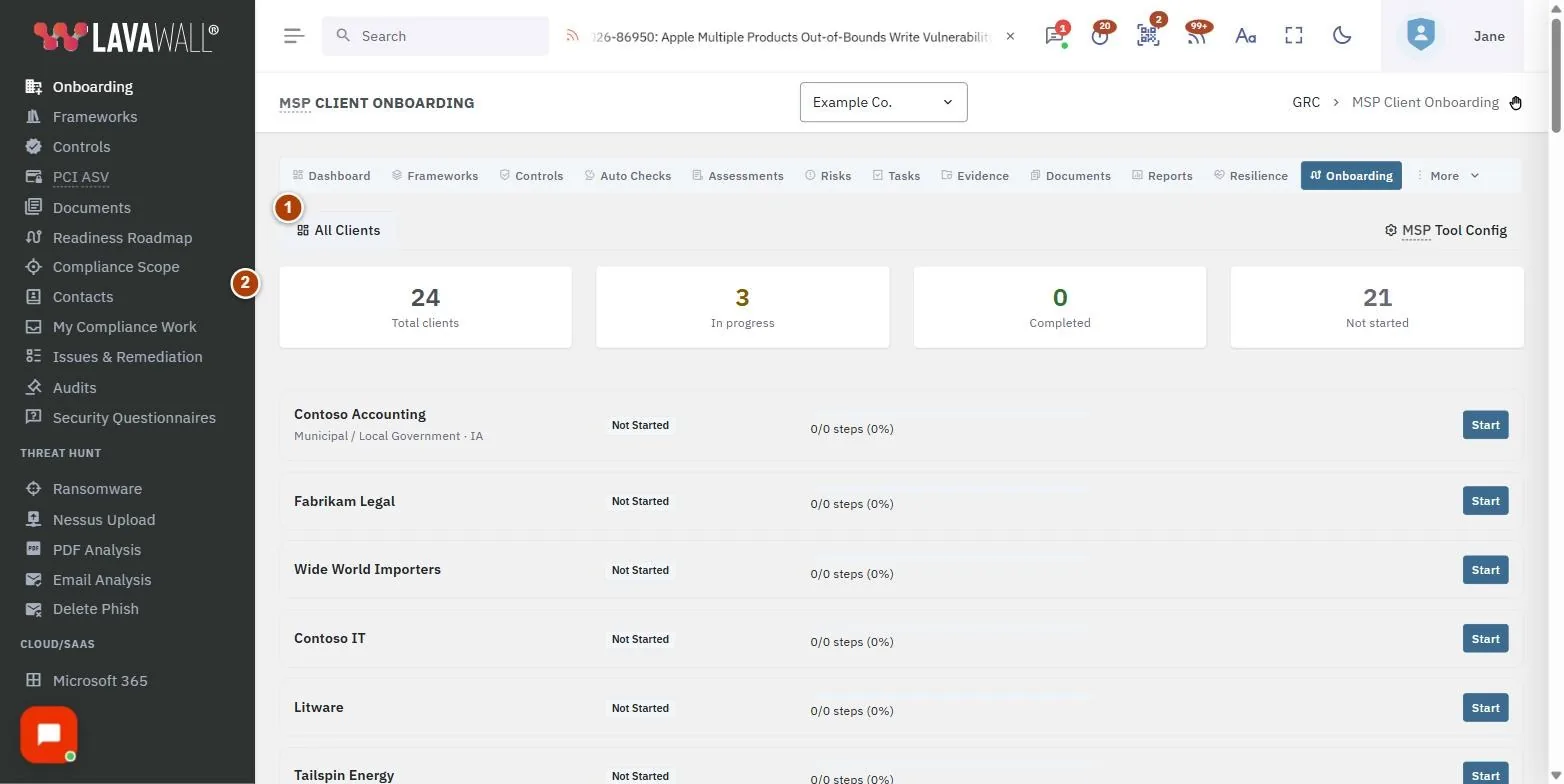
- Tabs: All Clients, the selected client's tab, and MSP Tool Config.
- Summary cards: Total clients, In progress, Completed and Not started.
- Client list: each client with industry and province or state, a status badge and phase, a progress bar with steps done, the assigned technician and target date, and Start or Open.
- Client view: All Clients, Client Profile and Auto-Detect Progress buttons, overall progress, and the client's steps with "Auto-detect" badges where Lavawall can measure them.
- MSP default tool stack: your standard tools with Category, Tool, Required and Add Tool.
How to start onboarding a client
- On All Clients, find the client and select Start.
- In Start onboarding, select Set Profile First if the client profile is not filled in yet (recommended).
- Enter Assigned to (the technician) and a Target completion date.
- Select Start Onboarding.
How to fill in the client profile
- Open the client and select Client Profile.
- Choose Industry, Sub-industry, Country and Province/State, and enter Employee count and Target device count.
- Set Current email and Target email, and tick any Compliance requirements that apply: PCI DSS (payment cards), US healthcare (HIPAA), US government clients (NIST 800-171 / CMMC), Canadian defence supplier (CPCSC), Publicly traded (SOX / C-SOX) or Needs email migration.
- Review Suggested frameworks, then select Save Profile.
- Turn the suggested frameworks on from the Frameworks page, or run the Compliance Wizard for a fuller analysis.
How to work through the steps
- Open the client from All Clients.
- Select Auto-Detect Progress to update the steps Lavawall can measure.
- Click a step to open it, read its instructions, set Status (Not Started, In Progress, Completed, Skipped, Blocked or N/A), add Notes, and select Save.
How to set up your default tool stack
- Open MSP Tool Config and select Add Tool.
- Choose a Category, enter the Tool name, URL and Setup instructions.
- Leave Required for all clients ticked if every client must have it, then select Save.
- To remove a tool, select its delete button and confirm Yes, remove it.
Tips
- Fill in the client profile before starting. Conditional steps, such as email migration or PCI, are only included when the profile calls for them.
- Every client is suggested a baseline framework, plus privacy and industry frameworks based on country, province or state and industry.
- A target date shown in red has passed.
- Re-run Auto-Detect Progress after deploying agents or connecting Microsoft 365 or Google Workspace.
Troubleshooting
- "Client onboarding is a tool for managed service providers. It is not available for this account." Only MSP accounts can use this page.
- "No client companies found. Add client companies first." Add your clients to Lavawall, then return.
- "No onboarding started for this client." Select Start now (or Start on the client list) to create the steps.
- "Your GRC role does not include access to client onboarding." Ask a GRC administrator for a suitable role.
Task guides that use this page
Related articles
Still need help?
Search the support centre, or contact our support team and tell us which page you were on.
Names, companies, devices and figures in the pictures are examples. Other product and company names are trademarks of their respective owners.