Security Questionnaires
Answer the security questionnaires your customers send you in a fraction of the time, using a library of approved answers.
What the page is for
Customers and prospects often send long security questionnaires as spreadsheets. This page lets you upload the customer's own file, tell Lavawall which columns hold the questions and answers, and have answers drafted from your library of approved answers. You review and approve each answer, then download the customer's file with the answers filled into their cells.
The Answer library holds your organization's approved answers. Each answer can have a short answer, a longer explanation, a linked control, linked evidence, tags and a review date. To keep answers trustworthy, someone other than the last person to change an answer has to approve it, and only approved answers are used to draft questionnaire answers. You can also seed draft answers from the controls you have already implemented.
When your organization has switched it on, AI can draft answers where nothing in the library matches. AI drafts must cite approved material and are clearly marked so they are reviewed before use.
What you see
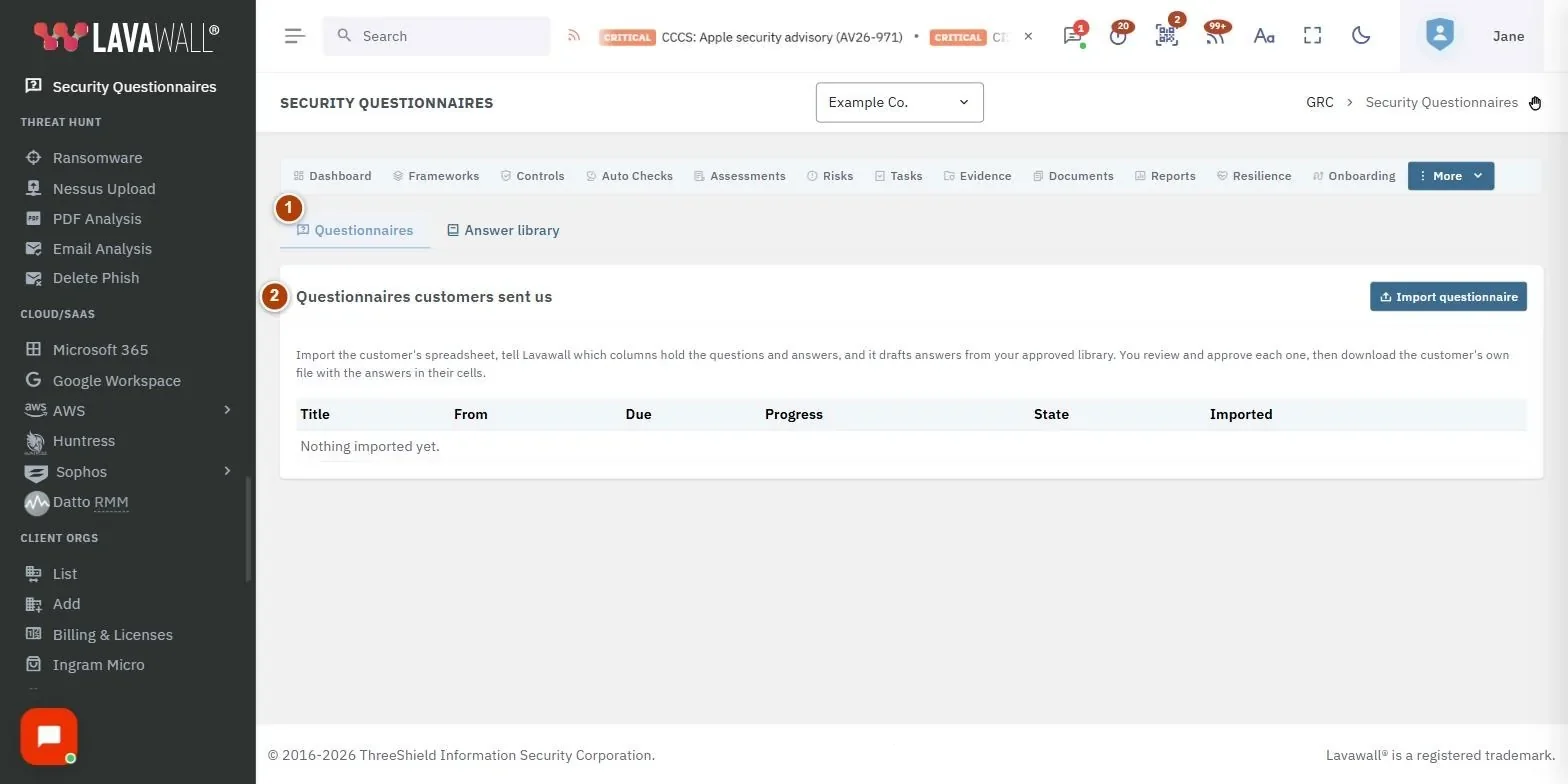
- Tabs: Questionnaires and Answer library.
- Questionnaires customers sent us: each imported questionnaire with Title, From, Due, Progress, State and Imported, and Import questionnaire.
- Questionnaire workspace: drafting options (library match threshold and AI), Draft answers, Try again for unanswered, filters by state, source and match, the question list (Where, Question, Answer, Source, State), Approve selected, Export and More.
- Answer library: Seed from our controls, New answer, a state filter, and the list of answers with Question, Answer, Linked to, State, Review by and Used.
How to import a customer's questionnaire
- On the Questionnaires tab, select Import questionnaire.
- Enter a Title, From (customer) and Due date, and choose The customer's file (.xlsx or .csv).
- Select Upload and continue.
- Under Which columns hold the questions and answers?, check each sheet: the question column, the answer column Lavawall writes into, an optional comment column for longer explanations, and the first row that holds a question. Lavawall has guessed these from the header row.
- Select Import questions.
How to draft and approve answers
- Open the questionnaire.
- Choose Use a library answer when the match is at least a given percentage. Lower finds more drafts to check; 90% matches near-identical questions only.
- If available, tick Ask AI when nothing matches (drafts must cite approved material).
- Select Draft answers. Use Try again for unanswered after you add to the library.
- Filter by state (Unanswered, Drafted, Flagged, Approved) or source (Library, AI draft, Written by a person) to work through the list.
- Edit an answer and select Save, then Approve. Use Flag for answers that need attention, or To library to save a good answer to the library as a draft.
- To approve many at once, tick them and select Approve selected.
How to export the completed questionnaire
- In the questionnaire, select Export.
- Choose Customer's file with our answers (their own workbook with answers in their cells) or Clean workbook (every question).
- Tick Include answers not yet approved only if you want drafts included.
- When you have sent it, select More › Mark as sent to the customer.
How to build your answer library
- Open the Answer library tab.
- Select Seed from our controls to create draft answers from implemented controls, or New answer to write one.
- Enter the Question, Short answer and Answer, and optionally link a Control, Evidence, Tags and a Review by date.
- Select Save as draft. Ask a colleague to approve it.
How to manage a questionnaire
- Select More in the questionnaire.
- Choose Edit details, Map columns again, Mark as sent to the customer, Reopen or Delete.
Tips
- Seed the library from your controls before your first questionnaire, and approve the answers. Drafting works best with a well-stocked library.
- Changing the words of an approved answer sends it back to draft so someone else can approve it again.
- If nobody else can approve an answer, you can approve your own but must give a reason, which is shown to auditors.
- AI drafts are marked "AI draft - review before use". Always check them before approving.
- Retire answers that are out of date rather than deleting them.
Troubleshooting
- My .xls file won't upload. Open it in Excel and save it as .xlsx first.
- "Columns not mapped yet." Open the questionnaire and select Map columns to finish setting it up.
- "AI drafting is off for this company." AI drafting is off by default. Ask an administrator whether it can be switched on in compliance settings.
- "AI limit reached." There is an hourly limit on AI drafting. Try again later.
- "Only the first … questions are imported." Very large questionnaires are capped. Split the file if you need more.
Task guides that use this page
Related articles
Still need help?
Search the support centre, or contact our support team and tell us which page you were on.
Names, companies, devices and figures in the pictures are examples. Other product and company names are trademarks of their respective owners.