Compliance Search
Find any control, document, risk, vendor or piece of evidence from one search box, without having to remember which page it lives on.
What the page is for
Compliance Search looks across every register in the compliance module at once: controls and the framework references they answer (for example "CC6.1"), requirement text, documents, risks, vendors, evidence, audit findings, issues, tasks, people, questionnaire answers and scope items.
Results are grouped by kind, with the matching words highlighted. Each result links straight to the record. You only see results you could already open elsewhere in the console: kinds your plan or GRC role does not include are skipped, and the summary line tells you which kinds were not searched and why.
What you see
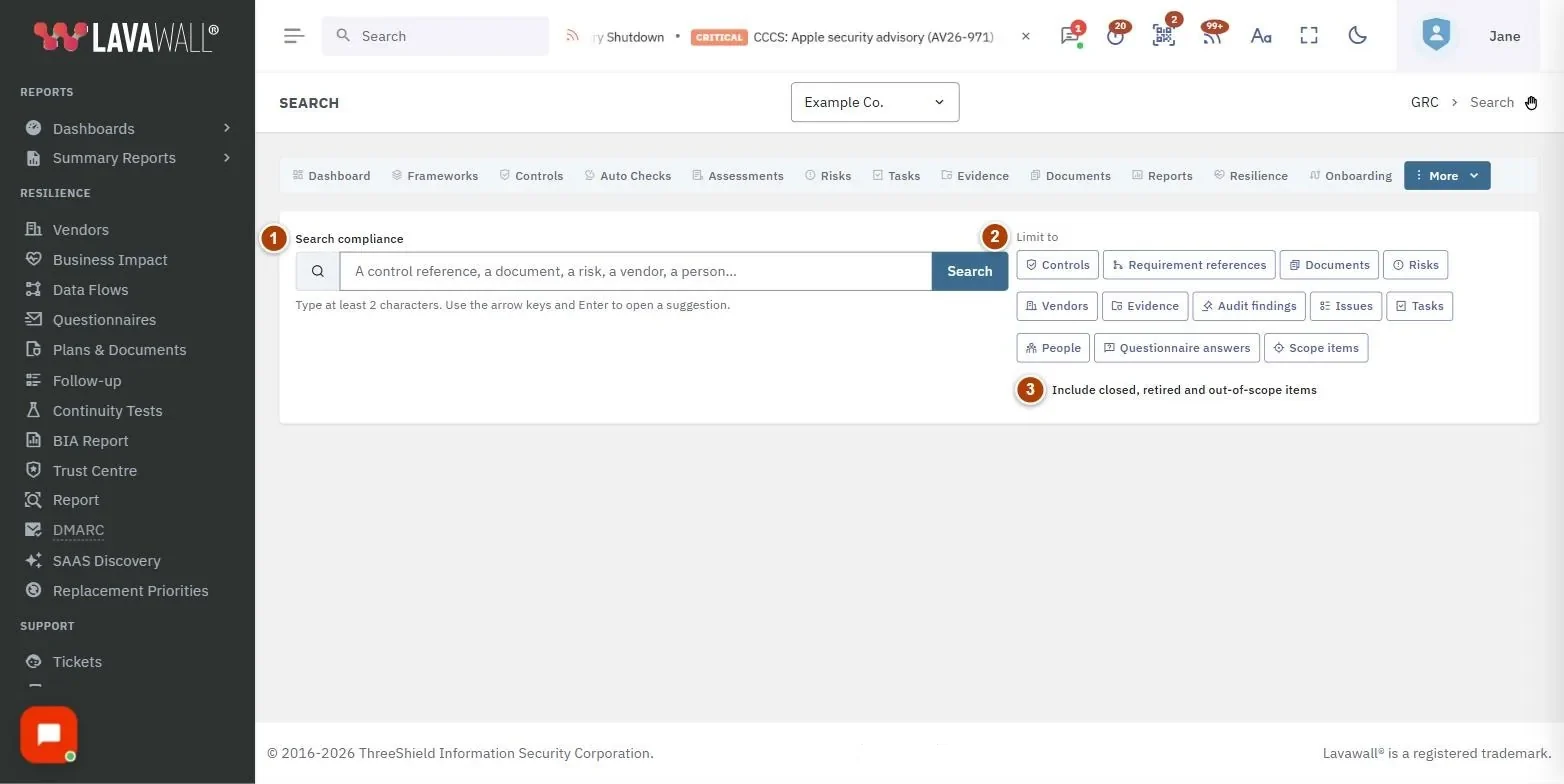
- Search compliance: the search box with type-ahead suggestions and a Search button.
- Limit to: one button per kind of record (controls, documents, risks and so on) to narrow the search.
- Include closed, retired and out-of-scope items: a switch that widens the search to archived records.
- Summary line: how many results were found, how many more matched, and any kinds that were not searched.
- Results: a card per kind, each hit showing its title, reference, status, a highlighted snippet and when it was last updated.
How to search
- Type a control reference, a document name, a risk, a vendor or a person into Search compliance.
- Pick a suggestion with the arrow keys and press Enter (or click it) to jump straight to that record.
- Or press Enter or select Search to see all results grouped by kind.
- Click a result's title to open it.
How to narrow or widen the results
- Under Limit to, select one or more kinds. The search reruns with only those kinds.
- Turn on Include closed, retired and out-of-scope items to include archived records.
- In a result card, select Show more to search that kind on its own and see further matches.
How to share a search
- Run a search. The page address updates to include your search term.
- Copy the address and send it to a colleague. When they open it, the same search runs (they see only what they are allowed to see).
Tips
- Framework references such as "CC6.1" or "A.5.15" find both the requirement and the controls that answer it.
- Suggestions appear as you type; press Escape to close them.
- If a kind was "skipped to keep the search fast", select it under Limit to on its own.
- Each result shows its status as a small badge, so you can tell open items from closed ones at a glance.
Troubleshooting
- "Type at least … characters." Very short terms are not searched. Add another character or two.
- "No matches for …" Check the spelling, clear the Limit to buttons, or turn on Include closed, retired and out-of-scope items.
- A kind shows "Not searched". The reason is given in brackets: not included in your plan, not part of your GRC role, not set up yet, or your company has not chosen any frameworks yet.
- "There is nothing to search on this server yet." The compliance registers have not been set up. Start with the Compliance Wizard.
Related articles
Still need help?
Search the support centre, or contact our support team and tell us which page you were on.
Names, companies, devices and figures in the pictures are examples. Other product and company names are trademarks of their respective owners.