Ransomware Hunter
Sweep a company's Windows computers for the tell-tale signs of ransomware such as Akira, and see at a glance which ones need a closer look.
What the page is for
The Ransomware Hunter is a scan that runs on each computer through the Lavawall agent and looks for indicators of compromise used by common ransomware strains, such as Akira. It checks for ransom notes and ransomware file extensions, suspicious programs and commands, configuration files for data-exfiltration tools, new services, scheduled tasks, autorun entries, administrator and group changes, new user accounts, staging archives, suspicious prefetch entries and remote support tools.
The page summarizes the results in two ways. Cards group the remote support tools, possible exfiltration tools and suspicious processes found, with the computers each was seen on. A table then lists every scanned computer with an overall result and a Yes/No for each indicator.
A red Yes badge can be clicked to see the details behind it, which you can copy or export to Excel for an investigation.
What you see
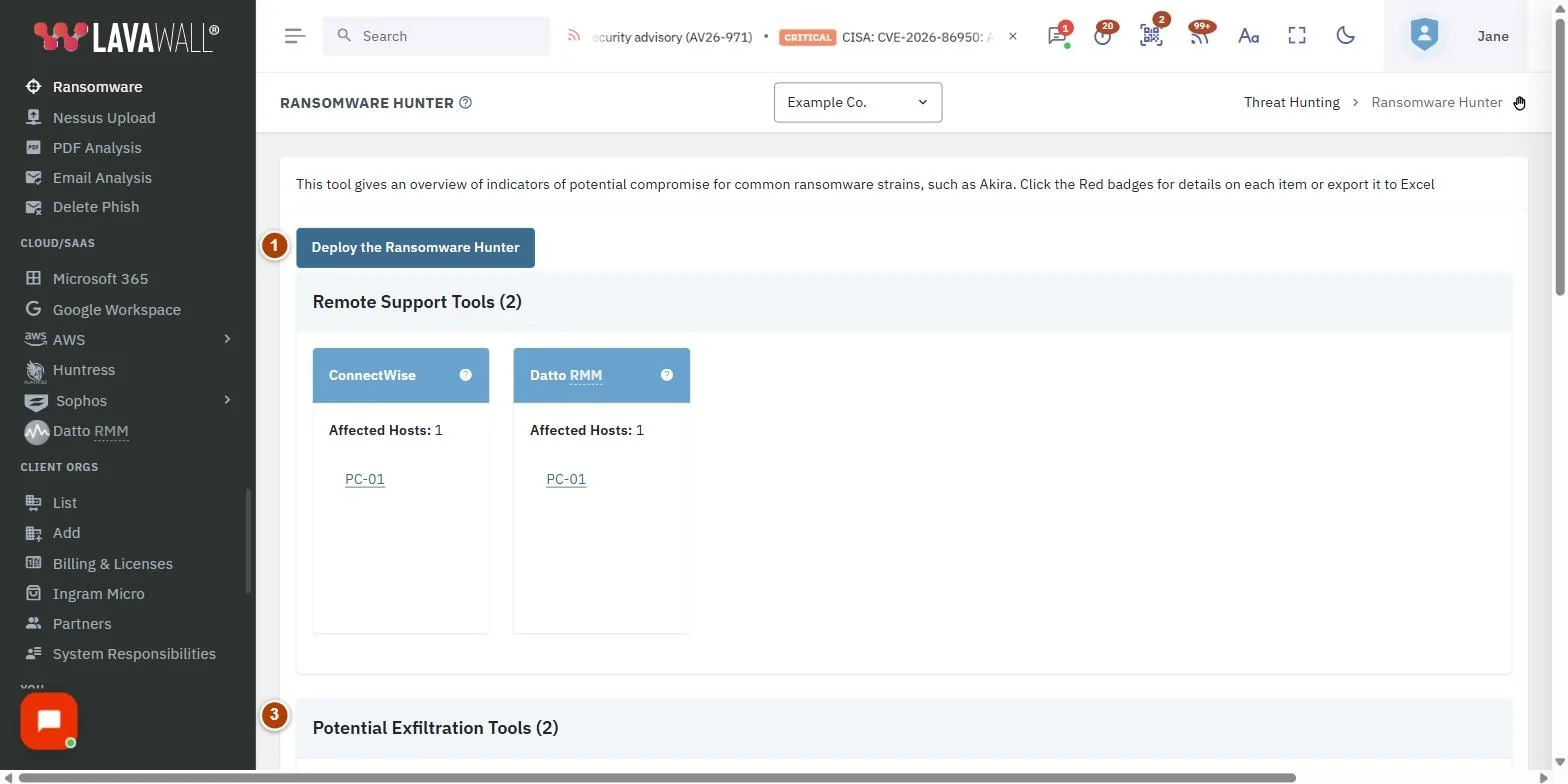
- Deploy the Ransomware Hunter: runs the scan on all computers at the selected company. Shown once a company is selected at the top of the console.
- Remote Support Tools: one card per remote access or RMM tool found, with Affected Hosts and links to each computer. The help icon explains the tool and how attackers misuse it.
- Potential Exfiltration Tools: cards for tools that can move data out of the network.
- Suspicious Processes: cards for built-in tools often abused by attackers. These may be normal for administrators and developers.
- Table buttons: Copy, Print and Export to Excel, plus a search box.
- Results table: Device, Indicators, Time Ran, Infected, and a column for each indicator, from Suspicious EXE to Users Created.
How to run the Ransomware Hunter
- Select the company at the top of the console.
- Click Deploy the Ransomware Hunter.
- Confirm Are you sure you want to run the script on all computers at this company?
- Wait for the computers to run the scan and report back, then reload the page to see results.
How to read the results
- Look at the Infected column first: LIKELY OK (green), SUSPICIOUS (amber) or POSSIBLY (red, likely compromised).
- Indicators is the scan's score for that computer; higher means more findings.
- For each red Yes (n) badge, click it to see the matching items, such as file paths, commands or event details. Use the copy icon in the pop-up title to copy them.
- Click a device name to open its device page.
How to export findings
- Click Export to Excel to download the table, including the details behind each indicator.
- Or click Copy or Print.
Tips
- A remote support tool that you did not install is one of the strongest warning signs. Check every card under Remote Support Tools against the tools you actually use.
- Suspicious Processes often includes legitimate admin activity (for example PowerShell or backup tools). Treat them as leads, not proof.
- Run the hunter again after cleaning up, to confirm the indicators are gone. Time Ran is shown in your own time zone.
- With no company selected, the page shows results for every company you manage, but the deploy button is hidden.
Troubleshooting
- "Lavawall has not yet run ransomware scans for this company." No results have been reported yet. Deploy the hunter and wait for computers to check in.
- "There are no devices available to run the Ransomware Hunter in this company." The company has no computers with a Lavawall agent that can run it.
- "You are not authorized to run the Ransomware hunter at this company." Your account is not allowed to run scripts there. Ask an administrator.
- "Select an organization to deploy the Ransomware Hunter or run it as a script." Choose a company at the top of the console first.
- "We are having problems deploying the Ransomware Hunter." Contact Lavawall support.
Related articles
Still need help?
Search the support centre, or contact our support team and tell us which page you were on.
Names, companies, devices and figures in the pictures are examples. Other product and company names are trademarks of their respective owners.