Local Account Logins
See every local Windows account on your computers, who is signing in with them, and where password guessing is happening.
What the page is for
Local Windows accounts live on the computer itself, not in Active Directory or Microsoft 365. Disabling someone in a directory does not disable these accounts, so they often survive offboarding. This page lists them, one entry per account per computer, as reported by the Lavawall agent.
For each account you see when it was last seen, when it last signed in successfully and when it last failed, how many successful and failed logons happened in the chosen time window, and why the most recent failure failed. Accounts that match a password-guessing pattern or were locked out are flagged.
You can open the raw Windows logon events for any account to see the time, result, logon type, source IP address and workstation of each attempt.
What you see
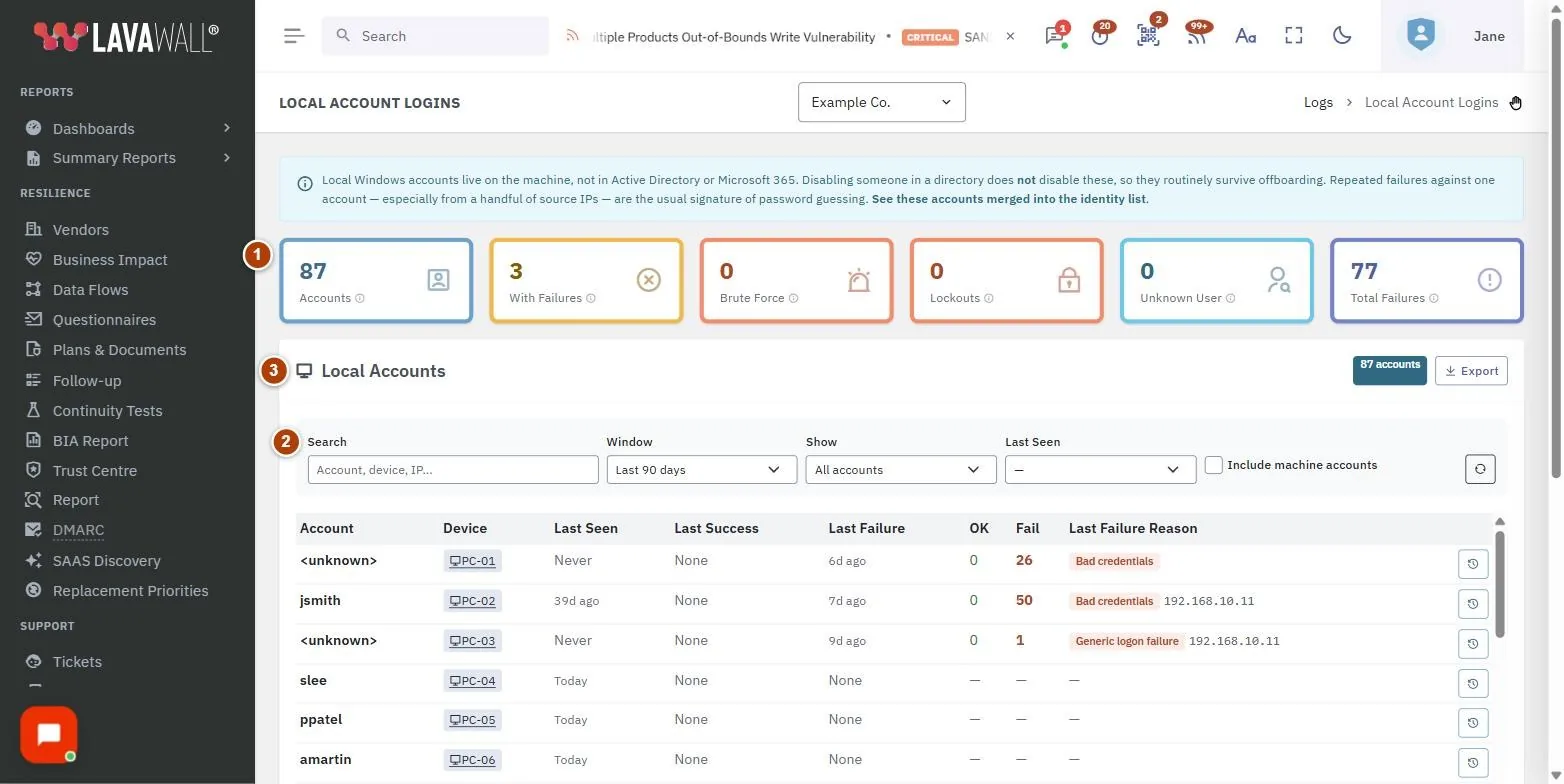
- Summary cards: Accounts, With Failures, Brute Force, Lockouts, Unknown User and Total Failures. Click a card (except Total Failures) to filter the table.
- Filters: Search, Window, Show, Last Seen, Include machine accounts and a reset button.
- Local Accounts table: Account, Device, Last Seen, Last Success, Last Failure, OK, Fail and Last Failure Reason, with a button to open the events.
- Logon Events: the raw logon events for one account.
How to use Local Account Logins
How to find accounts under attack
- Click the Brute Force card, or choose Brute force pattern under Show.
- Hover the red Brute Force badge to see failures in 24 hours and 7 days and how many source IP addresses they came from.
- Click the events button at the end of the row and check From IP and Workstation for each failure.
How to find stale or leftover accounts
- Under Last Seen, choose 30+ days ago, 90+ days ago, 1+ year ago or Never seen.
- Sort by Last Seen by clicking the column heading.
- Click a device name to open that computer's detail page and remove or disable the account there.
How to change the time window
- Choose a Window from Last 24 hours to Last year. The default is Last 90 days.
- The OK and Fail counts and the summary cards update to that window.
How to review logon events for one account
- Find the account with Search (account, device or IP address).
- Click the events button at the end of its row.
- Review When (UTC), Result, Logon Type, Reason, Status, From IP, Workstation, Computer and Auth, then click Close.
Tips
- Hover any summary card for an explanation of what it counts.
- Unknown User means the last failure used a username that does not exist on the computer. This is typical of account enumeration; compare the source IP.
- Locked means the most recent failure was refused because the account was locked out, usually after a burst of failed attempts.
- Accounts ending in "$" are computer accounts, not people. They are hidden unless you tick Include machine accounts.
- Use the link at the top of the page to see these accounts merged into the full identity list with directory accounts.
Troubleshooting
- Success and failure counts are missing. Windows logon event collection is not set up yet. Account names and last-seen dates are still accurate.
- "Showing the N most recently active accounts." The list is capped. Narrow the window or pick a single company to see the rest.
- Failure reasons show a category but no name. The status name lookup is not available; the category is still correct.
- A computer's accounts are missing. The page only shows accounts reported by the Lavawall agent. Check the agent is installed and online on that computer.
Related articles
Still need help?
Search the support centre, or contact our support team and tell us which page you were on.
Names, companies, devices and figures in the pictures are examples. Other product and company names are trademarks of their respective owners.