Access Certification
Record, for every user and every Team or SharePoint site, the access they should have and whether it is approved.
What the page is for
Many security frameworks require a periodic, documented review of user access. Access Certification gives you one row for each active, licensed user and each Team or SharePoint site they can reach. Personal OneDrive sites are not included.
For each row, Current shows the access level detected in Microsoft 365. You set the Desired level (None, Read, Write or Admin) and mark the row Pending, Approved or Denied. Changes save automatically as you make them, so the page becomes your record of who signed off on what.
You can also add your own access areas for systems outside Microsoft 365, such as an accounting or design application, and certify them on the same list.
What you see
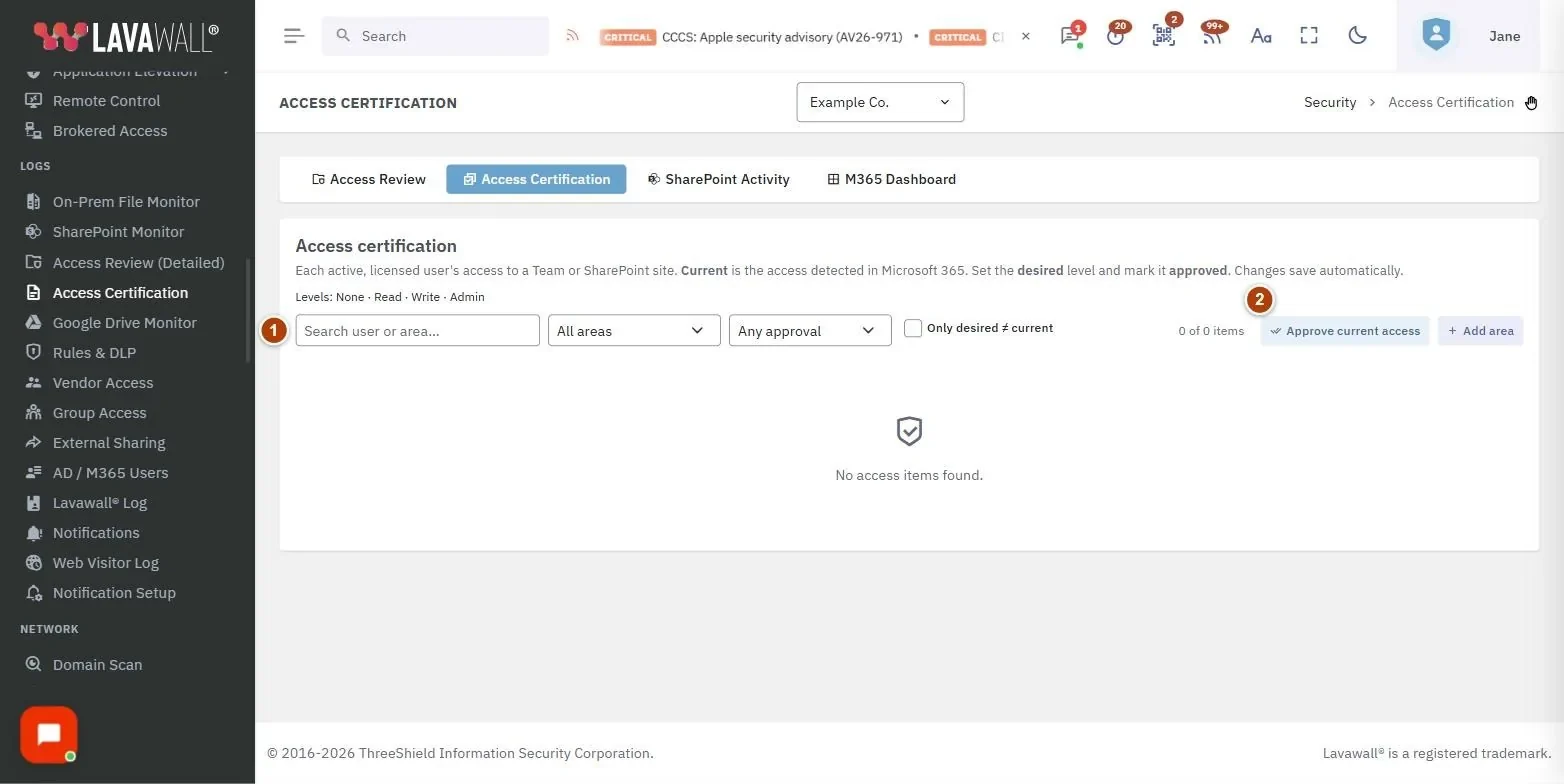
- Toolbar: Search user or area…, an area filter (All areas, Microsoft Teams, SharePoint, Other), an approval filter (Any approval, Pending, Approved, Denied) and Only desired ≠ current.
- Item count and actions: how many rows match, Approve current access and Add area.
- Certification table: User (with email and department), Access area (with a Teams, SharePoint or Other badge), Current, Desired and Approved. Click a column header to sort.
How to certify access
- Filter to what you want to review, for example Microsoft Teams and Pending.
- For each row, compare Current with what the person needs.
- Change Desired if the access should be different. An amber dot appears when desired differs from current.
- Set Approved to Approved or Denied. The change saves immediately.
How to approve all current access at once
- Click Approve current access.
- Confirm. Every Teams and SharePoint item is marked Approved at its current detected level.
- Adjust individual rows afterwards if needed.
How to add an area outside Microsoft 365
- Click Add area.
- Enter the name of the system or area, for example "Accounting system".
- The new area is added to the list so you can certify it alongside Teams and SharePoint.
How to find access that needs to change
- Tick Only desired ≠ current.
- The list shows only rows where the approved access differs from what Microsoft 365 currently allows. Use this list to make the changes in Microsoft 365, or use Access Review to remove access.
Tips
- Levels are colour-coded: Read in blue, Write in amber and Admin in red.
- Use Approve current access for a first baseline, then review exceptions.
- Sort by Current to see Admin access first.
- The search box matches user name, email, department and area.
Troubleshooting
- "No access items found: connect Microsoft 365 first." Connect your Microsoft 365 tenant. Items appear after the first collection.
- "Select a company to certify access for." Choose a company in the company selector first.
- "You don't have permission to view access certification." Ask an administrator for the Access Certification permission.
- The drop-downs are greyed out. You have view-only permission. Ask for the decide permission to make changes.
Task guides that use this page
Related articles
Still need help?
Search the support centre, or contact our support team and tell us which page you were on.
Names, companies, devices and figures in the pictures are examples. Other product and company names are trademarks of their respective owners.