Configuration Changes
See every change detected in your Microsoft 365 configuration, who made it and exactly what changed.
What the page is for
Changes to Microsoft 365 settings, such as conditional access policies, can weaken your security without anyone noticing. Lavawall takes regular snapshots of your tenant's configuration and records every difference it finds. This page lists those changes so you can see what changed, when, by whom, and how serious it is.
Each change shows the type of object, its name, whether it was added, modified or deleted, a severity, and who made the change. Open a change to see the before and after values of each field. If you have the rollback add-on, you can plan a rollback of that single change from the same window.
MSPs can view one company, or all monitored companies at once by choosing all companies in the header.
What you see
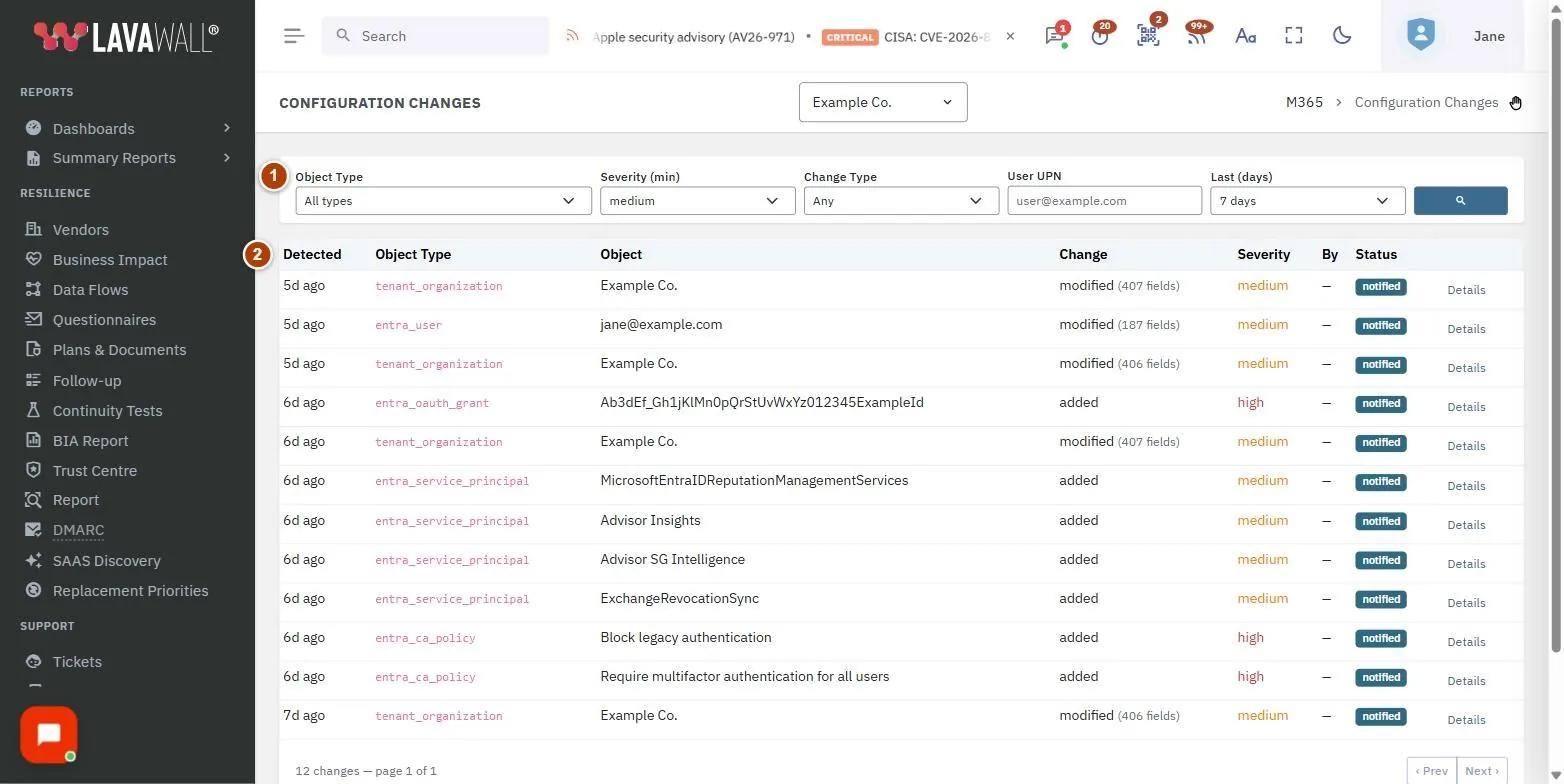
- Filters: Object Type, Severity (min), Change Type, User UPN, Last (days) and a search button.
- Changes table: Detected, Company (all-companies view only), Object Type, Object, Change (with how many fields changed), Severity, By, Status (notified or rolled back) and Details.
- Pager: the number of changes and ‹ Prev / Next ›.
- Change Details: the object, change type, severity, detected time, who changed it and from where, the fields changed, and a line-by-line list of old and new values. Includes Plan Rollback of This Change or View Rollback.
How to find a change
- Choose an Object Type, or leave All types.
- Set Severity (min). The default is medium, which hides info and low changes.
- Choose a Change Type (added, modified or deleted) if needed.
- To see one person's changes, type their address in User UPN, for example jane@example.com.
- Choose how far back to look in Last (days): 1 day, 7 days, 30 days, 90 days or 1 year.
- Click the search button.
How to see exactly what changed
- Click Details on the row.
- Review Changed By, including the IP address and country if recorded.
- Read the list of operations. Removed values are marked with a minus sign and new values with a plus sign.
How to roll back one change
- Open the change with Details.
- Click Plan Rollback of This Change.
- Click Create plan. Nothing changes in your tenant yet.
- You are taken to Rollbacks, where the plan must be approved before it runs.
Tips
- Set Severity (min) to Any to see every change, including minor ones.
- A notified status means an alert was sent for the change. rolled back means it has already been reversed.
- Hover over the Detected age (for example "3h ago") to see the exact time.
- Use Back to M365 dashboard and Rollbacks at the bottom of the page to move between related pages.
Troubleshooting
- "Configuration change monitoring is not enabled for this company." Turn on the add-on with Manage subscription.
- "No changes match these filters." Lower Severity (min) or widen Last (days).
- There is no Plan Rollback button. The rollback add-on is not enabled for the company, or the change has already been rolled back.
Task guides that use this page
Related articles
Still need help?
Search the support centre, or contact our support team and tell us which page you were on.
Names, companies, devices and figures in the pictures are examples. Other product and company names are trademarks of their respective owners.