Security Review
Work through quarantined email, release requests, user phishing reports and blocked sign-ins for your Microsoft 365 customers in one queue.
What the page is for
Microsoft 365 quarantines suspicious email, users ask for messages to be released, users report phishing and Microsoft blocks risky sign-ins. Each of these needs someone to look at it. This page collects them so you can review and act without switching between admin centres.
With All companies selected, the page lists every Microsoft 365 customer that has items waiting, with counts per type, and a Domain Risk Lookup to check any domain quickly. Pick a company to open its review queue, where five tabs hold quarantine, phishing reports, blocked logins, domain risk and sender rules.
From the queue you can release or delete quarantined mail, confirm or clear phishing reports, block or allow senders and domains, and review or allow blocked sign-ins. Each item opens a detail view with the threat analysis, sender IP information, links, attachments and action history.
What you see
- Companies Requiring Security Review (all-companies view): each company with counts for quarantine, release requests, phishing reports, blocked logins and likely false positives, and a Review or View button.
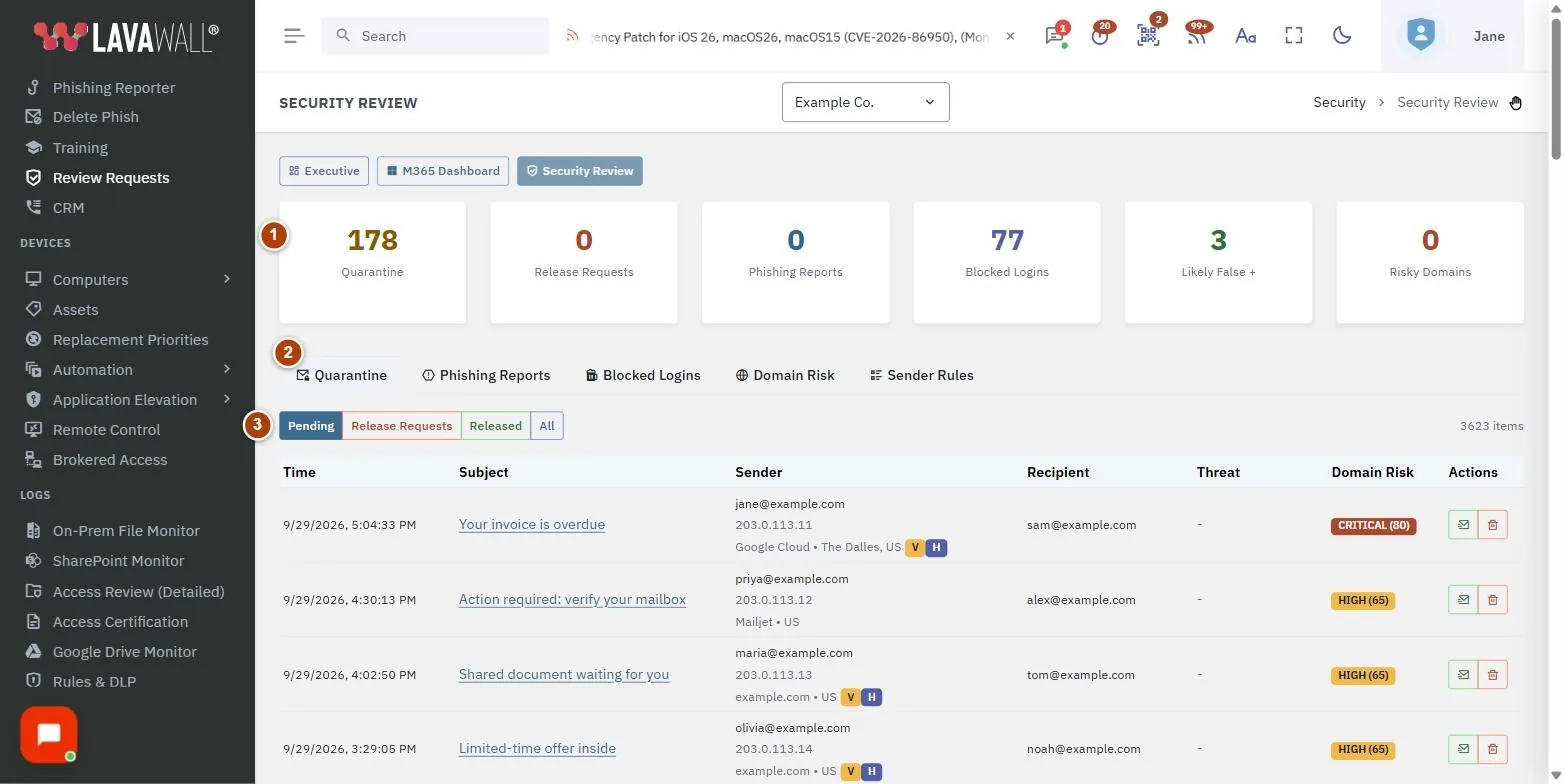
- Summary cards (one company): Quarantine, Release Requests, Phishing Reports, Blocked Logins, Likely False + and Risky Domains. Click a card to jump to that section.
- Tabs: Quarantine, Phishing Reports, Blocked Logins, Domain Risk and Sender Rules.
- Quarantine list: filters Pending, Release Requests, Released and All, and a table with Time, Subject, Sender, Recipient, Threat, Domain Risk and Actions (Release, Delete).
- Release from Quarantine: confirm a release, optionally with Add sender to allow list for a set Allow duration (days).
How to handle a release request
- Open a company, then Quarantine and choose Release Requests.
- Click an item to see Email Details, Threat Analysis, links and attachments.
- If it is safe, click Release.
- Leave Add sender to allow list ticked to stop it being caught again, choose an Allow duration (days) (45 days is recommended) and click Release Email.
- If it is not safe, click Delete and confirm.
How to review user phishing reports
- Open Phishing Reports and choose Pending Review, or Likely False + for reports that look safe.
- Open a report to see the analysis.
- Choose Confirm Phishing, Mark Safe, Block Sender or Block Domain, add optional notes and confirm.
How to review a blocked sign-in
- Open Blocked Logins.
- Check User, IP / Location, Device, Block Reason and Indicators.
- Click to review, then choose a Review Decision: Mark as Reviewed (no action), Whitelist (allow future logins) or Confirm Block (legitimate block).
- To allow future logins, choose Whitelist IP Address or Whitelist Device, add Notes and click Save Review.
How to check a domain's risk
- Open Domain Risk, or use Domain Risk Lookup on the all-companies view.
- Enter a domain or email address and click Check Risk (or Analyze).
- Read the risk level and score, domain age, registrar, whether MX, SPF and DMARC are set up, and the hosting and mail providers. Open View Risk Details for the factors behind the score.
How to manage sender allow and block rules
- Open Sender Rules to see the Allow List and Block List.
- Click Add Rule, choose Allow (whitelist) or Block (blacklist), and enter the Sender (email or domain).
- For allow rules, set Expiry (for allow rules) (no expiry, 45 days, 90 days or 1 year), add a Reason and click Add Rule.
- To remove a rule, click its remove button and confirm.
Tips
- Use the all-companies view each morning to see which customers need attention. A green "All clear" means nothing is waiting.
- Prefer time-limited allow rules. 45 days is the suggested default.
- Newly registered domains are a strong phishing signal. Check Domain Age in the risk details.
- Block a whole domain only when you are sure. Blocking a single sender is safer for shared services.
Troubleshooting
- "Microsoft 365 is not connected for this company." Connect Microsoft 365 for the company to use security review.
- "Could not assess domain." The domain may not exist or could not be looked up. Check the spelling.
- No items appear. Nothing is waiting for that filter. Choose All to see everything, including items already handled.
Task guides that use this page
Related articles
Still need help?
Search the support centre, or contact our support team and tell us which page you were on.
Names, companies, devices and figures in the pictures are examples. Other product and company names are trademarks of their respective owners.